Self Hosted Supabase Configuration
Configure the bundled self-hosted Supabase that an sfp server provisions — the API gateway, GitHub login, keys, and day-to-day maintenance.
Overview
sfp server init provisions a self-hosted Supabase stack by default
(--supabase-mode self-hosted). The stack runs inside the tenant's Docker
Compose project alongside the sfp server, so there is no separate Supabase to
install or clone: init writes the configuration, keys, and credentials into the
tenant .env and the compose file.
The stack's API gateway is Envoy (compose service supabase-envoy). Envoy
replaces the Kong gateway this stack previously used; the route and auth
semantics are unchanged. The gateway keeps the network alias supabase-kong,
and that hostname is what the tenant .env uses for SUPABASE_URL,
AUTH_SUPABASE_URL, and SFP_OBJECT_STORAGE_ENDPOINT — it is deliberately left
as-is. The alias exists so the persisted .env files of existing tenants keep
working without an edit.
The gateway's configuration is vendor-managed: sfp server init and every
sfp server update write the files under the tenant's config/envoy/
(envoy.yaml, cds.yaml, lds.template.yaml, envoy-entrypoint.sh) and remove
the legacy Kong files (kong.yml, kong-entrypoint.sh). Do not edit these by
hand; a release may replace them.
Self-hosting Supabase means you operate the database and auth yourself. Use Supabase Cloud (Teams/Pro) if you do not have in-house capacity to manage it.
An sfp server from v3 ships its own Supabase configuration in the default compose file. Only the options below (GitHub login, key rotation, maintenance) require operator action.

supabase-envoy) answers on the supabase-kong alias that the tenant .env uses.What You'll Need
- A host running Docker and Docker Compose (or Podman), with a domain name
configured for the sfp server (e.g.
sfp.example.com). DNS must resolve the domain to the host's public IP. - An outbound HTTPS path for certificate issuance (see TLS setup in Setting up sfp server).
- For GitHub login: a GitHub OAuth App (see below) or a GitHub App for repository work.
The listed ports do not need to be reachable from the internet: Caddy terminates
TLS and forwards only /auth/v1/* to the gateway. Supabase Studio is served on a
dedicated, IP-restricted port. See Maintenance for the port list.
Quick Start
[1] Initialize the server
Run init in self-hosted mode. This is the default, so no flag is required, but the mode is explicit here:
sfp server init \
  --tenant <tenant> \
  --base-dir /opt/sfp-server \
  --mode prod \
  --domain sfp.example.com \
  --supabase-mode self-hosted \
  --config-file ./server.json
Init generates a Postgres password, a JWT secret, the Supabase anon and service
role keys, and the Postgres Meta encryption key, and writes them to the tenant's
.env. The internal URL is set to the gateway alias:
# <base-dir>/tenants/<tenant>/.env
SUPABASE_URL=http://supabase-kong:8000
AUTH_SUPABASE_URL=http://supabase-kong:8000
supabase-kong is the network alias of the supabase-envoy service. Leave both
URLs untouched — they are internal Docker-network addresses and must not be
changed to the public domain.
[2] Rotate keys (optional)
To generate fresh anon and service role keys signed by the tenant's
JWT_SECRET, use the script in the "Generating API Keys" section of
resources/docker/.env.supabase.template, or a JWT encoder with the claims:
{ "iss": "supabase", "ref": "your-project", "role": "anon", "iat": 1641769200 }
{ "iss": "supabase", "ref": "your-project", "role": "service_role", "iat": 1641769200 }
Replace SUPABASE_ANON_KEY and SUPABASE_SERVICE_KEY in the tenant .env with
the new values. The gateway validates requests against these two keys; the
container reads them at start, so restart the stack after rotating.
[3] Start the stack
sfp server start --tenant <tenant> --base-dir /opt/sfp-serverThe Supabase services (database, auth, REST, storage, gateway, Meta) start with their own profile. Verify they are healthy:
cd /opt/sfp-server/tenants/<tenant>
docker compose ps
sfp server start.[4] Enable GitHub login
Create a GitHub OAuth App at GitHub Settings → Developer settings → OAuth Apps → New OAuth App:
| Field | Value |
|---|---|
| Application name | <your-company> sfp |
| Homepage URL | https://sfp.example.com |
| Authorization callback URL | https://sfp.example.com/auth/v1/callback |
Then set these values in the tenant .env:
GITHUB_OAUTH_ENABLED=true
GITHUB_OAUTH_CLIENT_ID=<your-github-client-id>
GITHUB_OAUTH_CLIENT_SECRET=<your-github-client-secret>
Restart the stack for GoTrue to pick them up:
sfp server restart --tenant <tenant> --base-dir /opt/sfp-server[5] Access Supabase Studio
Studio runs on a dedicated port (STUDIO_PORT, default 3100), reachable only
from the IP ranges in ALLOWED_IPS. Open:
https://sfp.example.com:3100Sign in with the admin credentials printed by sfp server init (or stored in
credentials.json). The /studio path on the main domain redirects here.
Verify Everything Works
A running stack answers on the public domain through Caddy:
curl -sS https://sfp.example.com/auth/v1/healthA 200 OK from GoTrue confirms the gateway and auth service are up. The REST
endpoint is not reachable from a browser or curl localhost:8000: the gateway
exposes port 8000 only on the internal Docker network, and Caddy deliberately
returns 404 for /rest/* and /storage/* on the public host. Clients must use
the sfp server API and /auth/v1/* routes.

Maintenance
rest, auth or storage.Start / Stop / Restart
Use the sfp server lifecycle commands — they set up the compose project, the credentials, and the container engine for you:
sfp server start   --tenant <tenant> --base-dir /opt/sfp-server
sfp server stop    --tenant <tenant> --base-dir /opt/sfp-server
sfp server restart --tenant <tenant> --base-dir /opt/sfp-server
Update
sfp server update bumps the image, drains workflows, and applies migrations
behind a Caddy maintenance page. It also reconciles the gateway configuration
(config/envoy/) to the installed release and, after a postgres base-image bump,
rebuilds collation-version indexes before migrations. See
Updating sfp server.
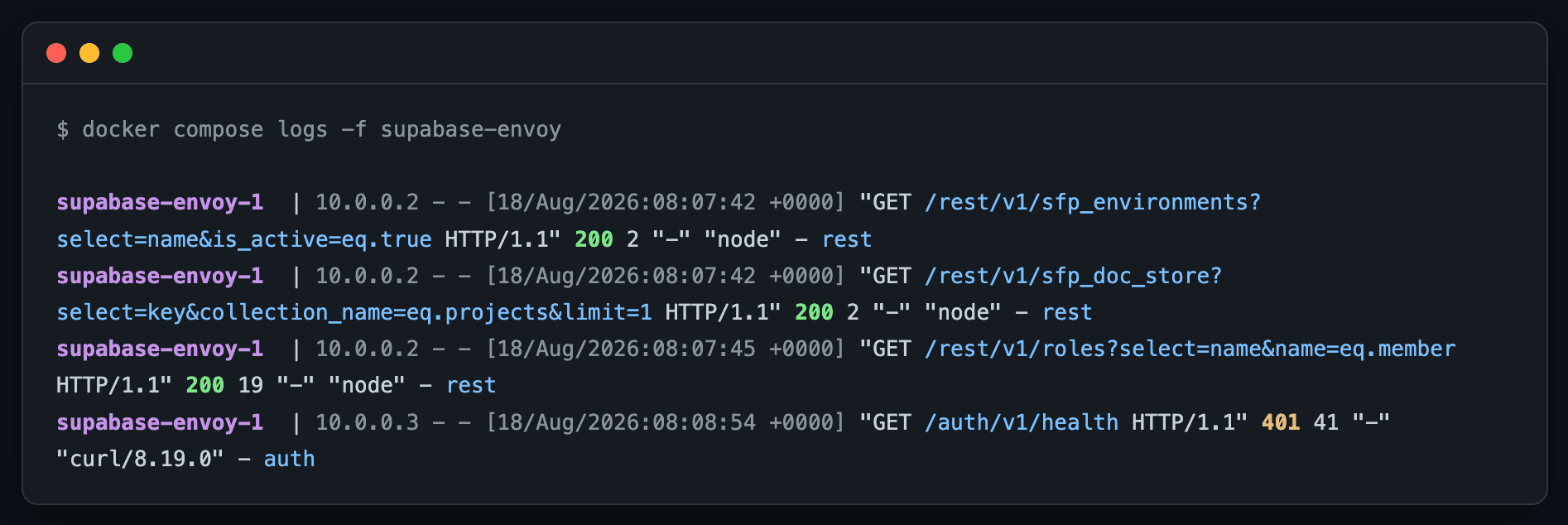
View logs
From the tenant directory, tail individual services by their compose service
name. The gateway service is supabase-envoy; the auth service is
supabase-auth:
cd /opt/sfp-server/tenants/<tenant>
docker compose logs -f supabase-auth     # Auth (GoTrue) logs
docker compose logs -f supabase-envoy # API gateway logssupabase-envoy service.Troubleshooting
/auth/v1/healthdoes not answer. Check the database first (supabase-db), then the auth service and the gateway:cd /opt/sfp-server/tenants/<tenant> docker compose logs -f supabase-auth docker compose logs -f supabase-envoy- GitHub login fails or redirects back to an error. Confirm the OAuth App
callback URL matches
https://sfp.example.com/auth/v1/callbackexactly, thatGITHUB_OAUTH_ENABLED=trueis set, and that the auth service restarted:docker compose logs -f supabase-auth docker composereports no Supabase services. Confirm the.envsetsCOMPOSE_PROFILES=supabase(the generated.envdoes by default) and that the container engine is the one the server uses (Docker vs Podman).- Logins are interrupted every release. A postgres base-image bump can change the glibc collation version and force a one-time index rebuild on the next update. It extends that update's maintenance window once per database; see Updating sfp server → Rebuild indexes after a postgres image bump.

Security Checklist
Before going live:
- Admin credentials retrieved from
credentials.jsonand stored securely. - A strong
POSTGRES_PASSWORDandJWT_SECRET(32+ characters) are in the tenant.env. -
ALLOWED_IPSis set to the ranges that may reach Studio (and the Hatchet dashboard and npm registry ports). - The gateway configuration under
config/envoy/is the release-managed copy — do not hand-edit it. - Volume-level backups cover the databases (see Backup and restore).