Claude on Vertex AI
Configure the AI provider that powers codev's AI features — architecture analysis, validation error analysis, and reviews — including Claude on Google Cloud Vertex AI.
codev's AI features — architecture analysis, validation error analysis, and AI-assisted reviews — run through an AI provider you connect once, in the codev UI. You don't edit config files or set environment variables by hand; you add the provider under Settings → Integrations and codev wires it into the analysis engine for you.
This page covers the AI providers available today and where Claude on Google Cloud Vertex AI fits in.
Connect an AI provider in codev
- In codev, open Settings → Integrations.
- Find the AI Providers section.
- Pick a provider card and click Connect.
- Follow the in-dialog instructions to paste your credential, then Save.
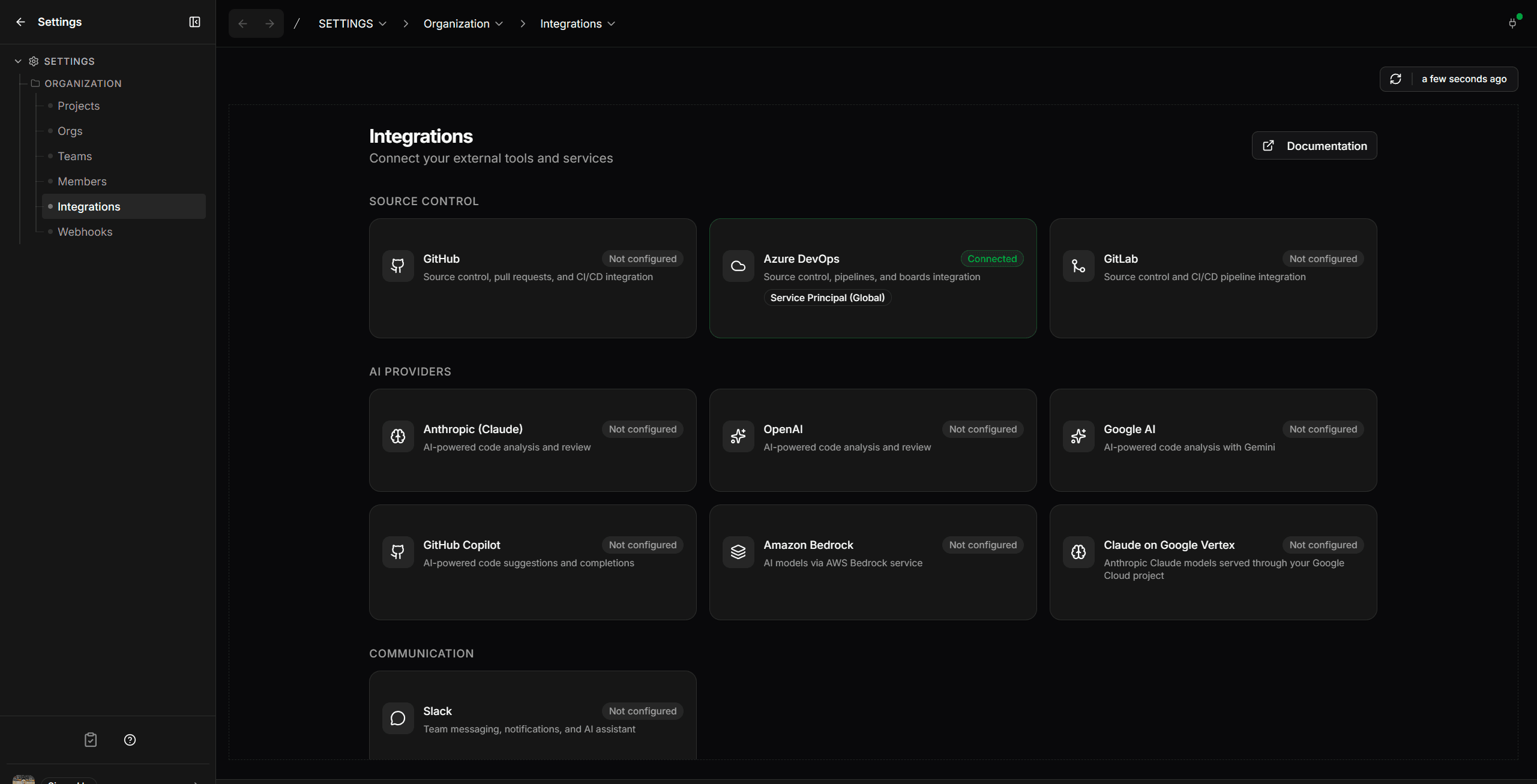
That's it — the next AI command (for example an architecture analysis from the Analysis page) uses the connected provider. To confirm it works, run an analysis and check that a real result comes back.
Available today
| Provider | What you provide | Where to get it |
|---|---|---|
| Anthropic (Claude) | API key | console.anthropic.com → API Keys |
| OpenAI | API key | platform.openai.com → API keys |
| Google AI (Gemini) | API key | aistudio.google.com → Get API key |
| GitHub Copilot | OAuth token from OpenCode's GitHub Copilot sign-in (paid Copilot plan) | Get a token |
| Amazon Bedrock | AWS credentials | AWS console |
| Claude on Google Vertex | Google Cloud project ID, region, and a service-account JSON key | Google Cloud → Vertex AI (see below) |
If you already have a direct Anthropic API key, the Anthropic (Claude) card is the fastest way to use Claude — connect it and you're done. The Vertex path below is for organizations that have licensed Claude through Google Cloud and want model traffic and billing to stay inside their Google Cloud project.
Claude on Vertex AI
Many organizations license Claude through Google Cloud Vertex AI (Model Garden) rather than the direct Anthropic API, so that model traffic, billing, and data handling stay governed by their existing Google Cloud agreement.
Connecting the Claude on Google Vertex card has two parts: first you get Claude working in your Google Cloud project (one-time Google-side setup), then you connect it in codev.
Step 1 — Get Claude working in your Google Cloud project
Claude on Vertex is gated by two independent things, and you need both. Enabling the model does not grant the quota to call it — these are separate systems.
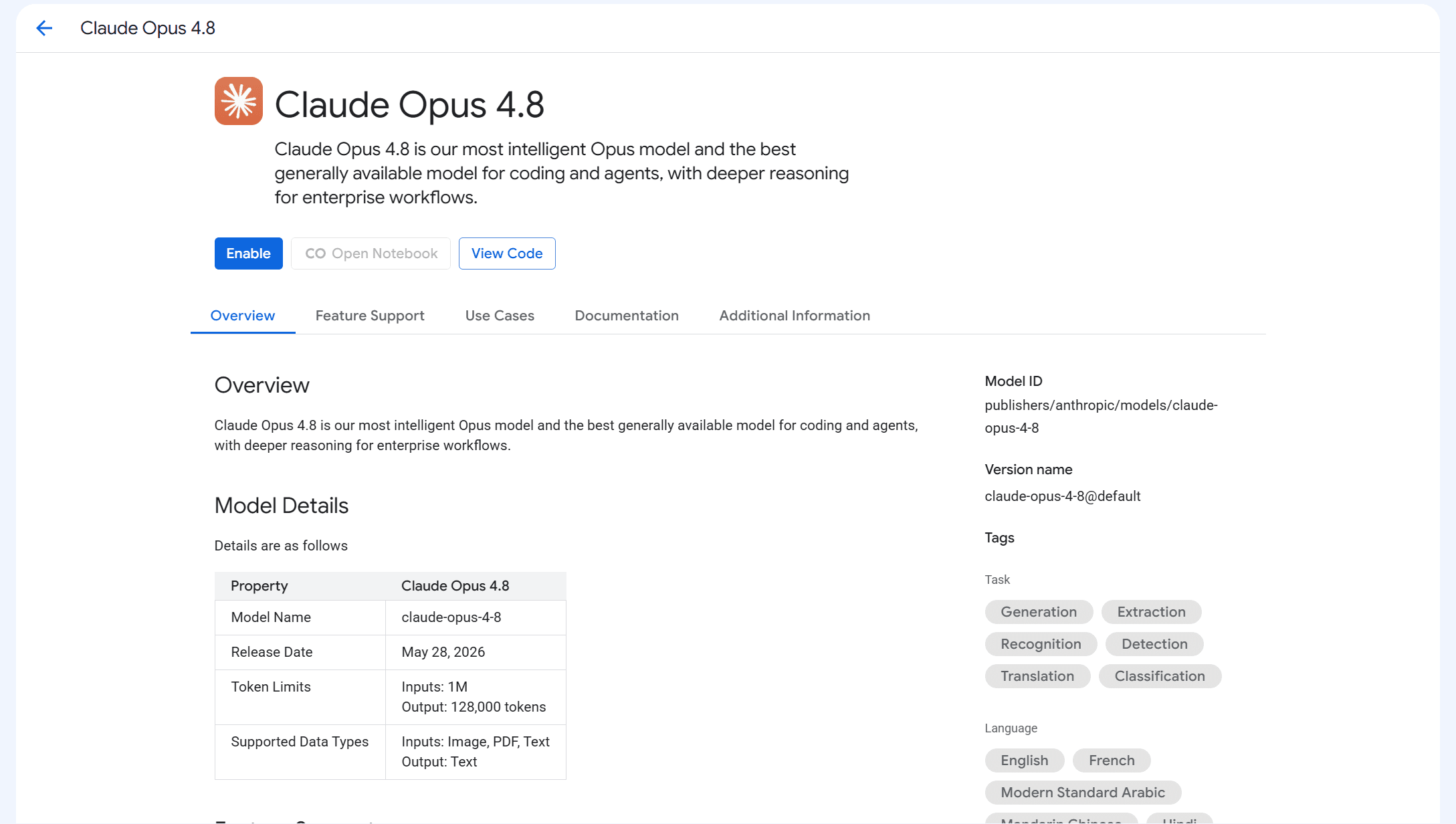
1a. Enable the model in Model Garden (accept Anthropic's terms).
- In the Google Cloud Console, make sure the project has billing enabled and the Vertex AI API turned on.
- Go to Vertex AI → Model Garden, open a Claude model (e.g. Claude Opus), and click Enable.
- This opens a short access request form (your business name, website, contact, region, industry, intended users, and use case). Anthropic reviews access requests, so the information is shared with Anthropic to approve your project.
- After the form, you accept the Google Cloud Marketplace + Anthropic Terms of Service on a pricing/agreement page (Claude on Vertex is pay-as-you-go — you're billed per token only when you use it, with no upfront charge). When it finishes you'll see "Successfully purchased".
1b. Make sure you have quota for the model.
Enabling the model is not enough on its own. A new Google Cloud project starts with a default quota of 0 for partner (Anthropic) models, so calls fail with HTTP 429 "Quota exceeded ... base model: anthropic-claude-<model>" even right after you've accepted the terms. Projects that already use Claude on Vertex usually have quota; a brand-new project does not.
If your project shows 0 quota, request an increase for the online_prediction_requests_per_base_model metric (filter by your Claude base_model) via IAM & Admin → Quotas. The self-service form can be auto-declined on a brand-new billing account that has no real payment history. If that happens, the reliable path is a Google Cloud Support case (under Vertex AI → Generative AI → Model access / Quota) including your project ID, billing account ID, and your expected requests-per-minute and tokens-per-minute — Google's capacity-planning team reviews it (typically a couple of business days). An organization that already licenses Claude through Vertex normally has this in place already.
Other Google-side prerequisites:
- A region of
usoreu(Claude on Vertex is served from these multi-region endpoints). - Credentials: a service account with the Vertex AI User role (
roles/aiplatform.user), or a workload identity if codev runs on Google Cloud compute. Claude on Vertex uses Google IAM auth, not an API key.
Anthropic's own Claude on Vertex AI guide is the authoritative reference for which Claude models and regions are available and how Vertex auth and quota work.
Step 2 — Connect it in codev
Once Claude is enabled and has quota in your project, connect it like any other provider: open Settings → Integrations → AI Providers, pick the Claude on Google Vertex card, click Connect, then paste your Google Cloud project ID, region (us or eu), and a service-account JSON key, and Save.
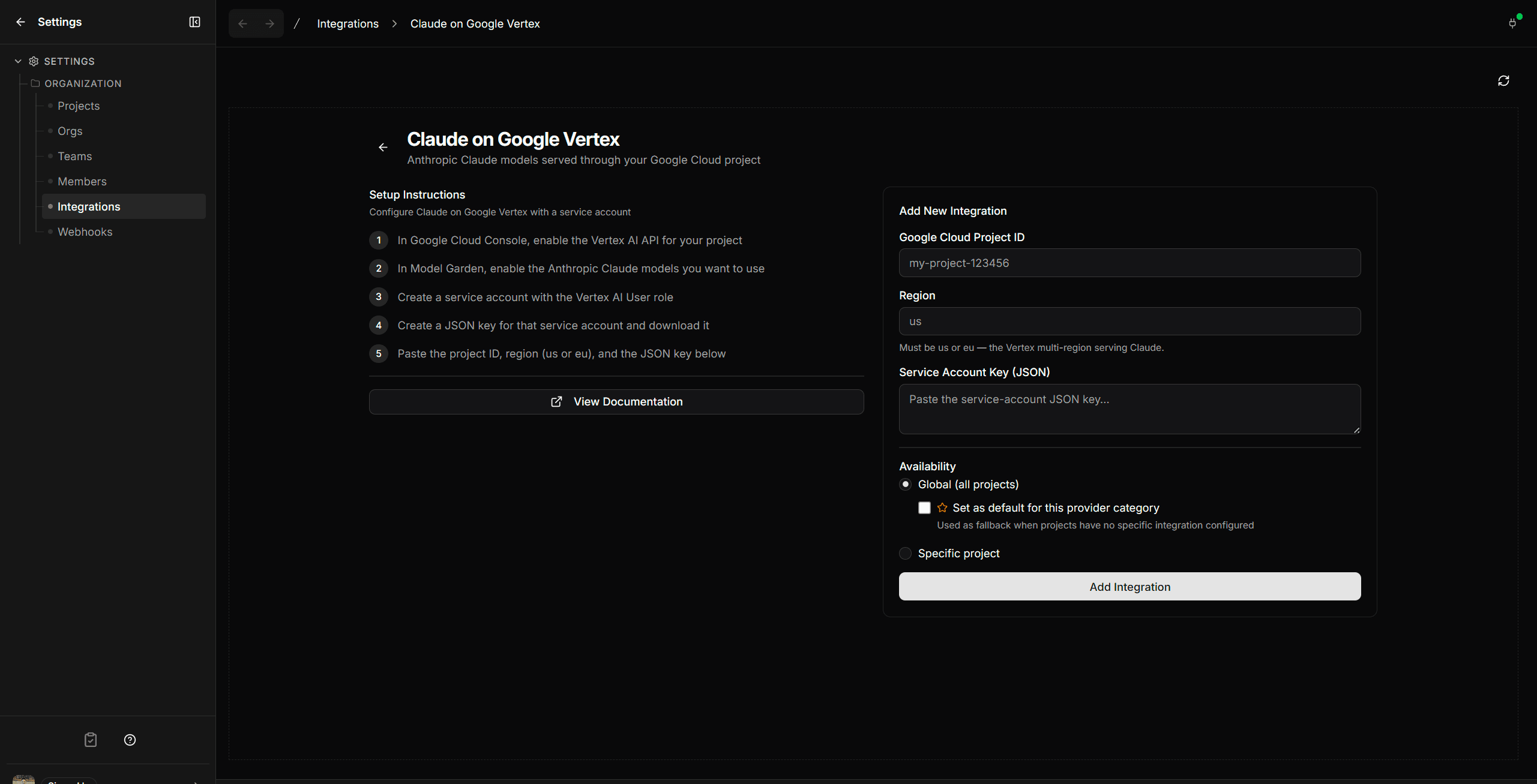
us or eu), and a service-account JSON key. codev picks the latest available Claude (Opus, then Sonnet) automatically — there's no model field to set.Verify
Once an AI provider is connected, run any AI command that uses it — an architecture analysis from the Analysis page is a good check — and confirm a real model response comes back. For Vertex specifically, a successful round-trip confirms the project, region, credentials, model ID, and quota are all correct.
Updating sfp server
Update a self-hosted sfp server with sfp server update — the drain, backup, collation reconcile, migration, and recovery steps the command runs.
Claude on Amazon Bedrock
Configure the AI provider that powers codev's AI features — architecture analysis, validation error analysis, and reviews — using Claude on Amazon Bedrock.