Setup for self managed instances
The below diagram describes how updates are rolled out to a customer's GitHub org when a customer prefers a self managed instance
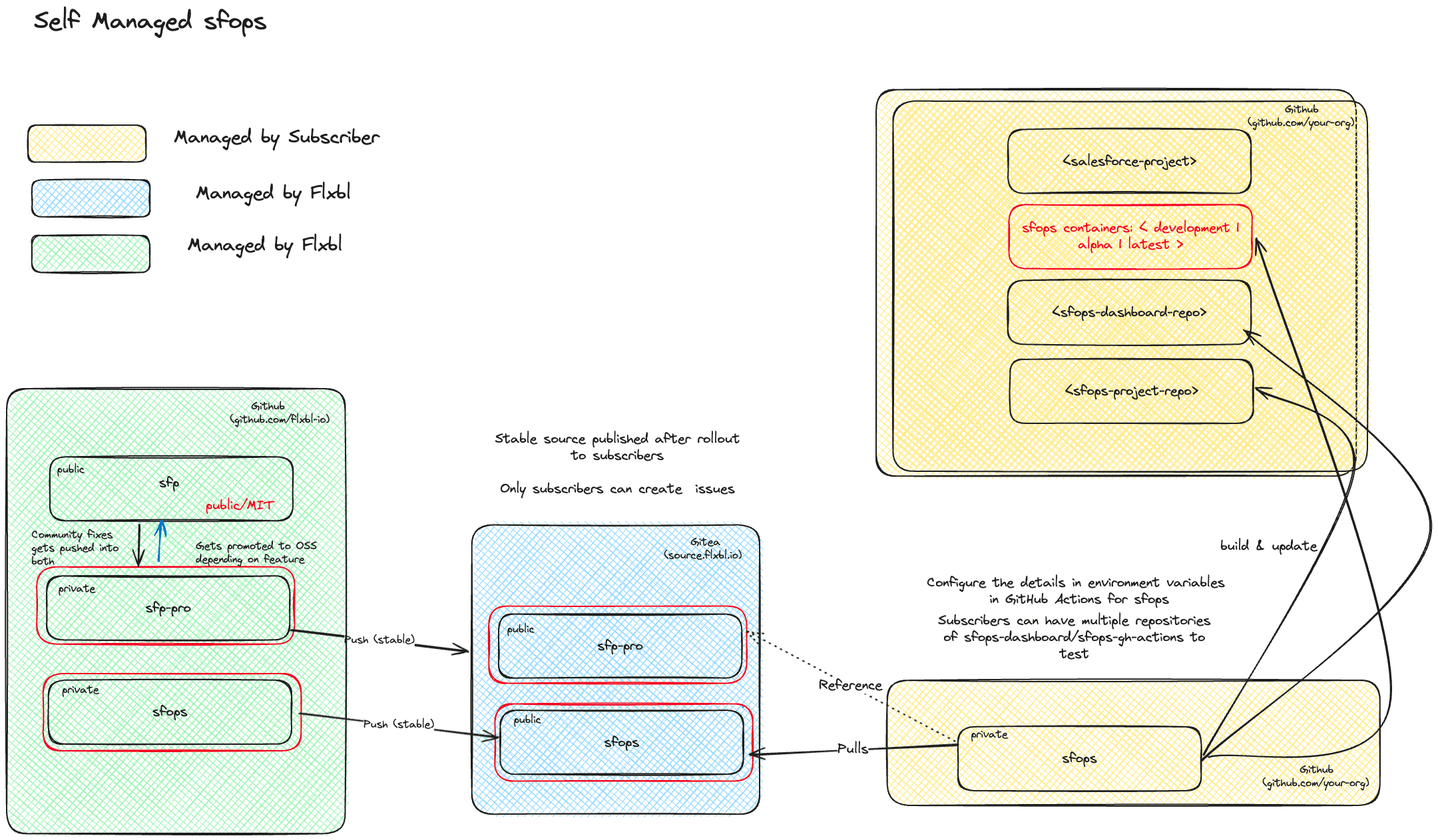
Quick Start Guide
This guide walks you through setting up a self-managed instance of sfops in your GitHub organization, allowing you to maintain full control over your CI/CD pipelines while receiving updates from the upstream sfops repository.
Prerequisites
-
Gitea Access Token
- Log into source.flxbl.io (contact flxbl team for access)
- Go to User Settings → Applications
- Click "Generate New Token" under Manage Access Tokens
- Configure the token:
- Token Name: e.g., "sfops-access"
- Repository and Organization Access: All (public, private, and limited)
- Permissions:
repository: Readpackage: Read
-
GitHub Personal Access Token (Classic) for
GHA_TOKENThe built-in
GITHUB_TOKENcannot trigger workflows in other repositories or push packages. Create a PAT for:- Deploying workflows to
sfops-gh-actionsandsfops-dev-centralrepositories - Publishing Docker images to GitHub Container Registry (ghcr.io)
- Creating pull requests for upstream synchronization
Steps:
- Navigate to: GitHub → Settings → Developer settings → Personal access tokens → Tokens (classic)
- Direct URL:
https://github.com/settings/tokens
- Direct URL:
- Click "Generate new token" → "Generate new token (classic)"
- Add a descriptive note: e.g., "sfops GHA_TOKEN"
- Set expiration based on your security requirements
- Select the following scopes:
- ☑️ repo (Full control of private repositories)
- ☑️ workflow (Update GitHub Action workflows)
- ☑️ write:packages (Upload packages to GitHub Package Registry)
- Under admin:org → ☑️ read:org (Read org and team membership)
- Click "Generate token" at the bottom of the page
- ⚠️ IMPORTANT: Copy the token immediately! GitHub only shows it once
- If your organization uses SSO: Click "Configure SSO" next to your new token and authorize it for your organization
- Keep this browser tab open until you've configured the token as
GHA_TOKENin Step 4
- Deploying workflows to
Step-by-Step Setup Process
Step 1: Fork sfops from Gitea to GitHub
Option A: GitHub Import (Recommended)
Use GitHub's import feature for a quick setup:
- Navigate to: New repository → Import a repository
- Direct URL:
https://github.com/new/import
- Direct URL:
- Enter repository URL:
https://source.flxbl.io/flxbl/sfops.git - For authentication:
- Username: Your Gitea username
- Password: Your Gitea token (created above)
- Name your repository:
sfops - Set visibility to Internal
- Click "Begin import"
For future updates from upstream:
- Automated: Configure the Sync Upstream Repository workflow - requires
GHA_TOKEN(your GitHub PAT from prerequisites) andSFOPS_UPSTREAM_URLsecrets configured in Step 4 - Manual: See Option B below for command-line syncing
Option B: Manual Clone & Push
For manual control over the import process:
# Clone the sfops repository from Gitea
git clone https://<username>:<gitea-token>@source.flxbl.io/flxbl/sfops.git sfops
cd sfops

# Set your GitHub repository as origin
git remote remove origin
git remote add origin https://github.com/<your-org>/sfops.git

# Push to your GitHub repository
git push -u origin --all
git push -u origin --tags

# Add upstream remote for manual syncing
git remote add upstream https://<username>:<gitea-token>@source.flxbl.io/flxbl/sfops.git
Step 2: Create Required Repositories
Ensure the following repositories exist in your GitHub organization:
sfops- Source code (already created in Step 1)sfops-gh-actions- Create as empty repository:- Visibility: Internal
- Do NOT add README, .gitignore, or license
- Will be populated by sfops workflows
sfops-dev-central- Create as empty repository:- Visibility: Internal
- Do NOT add README, .gitignore, or license
- Will be populated by sfops workflows
- Your existing Salesforce project repository (will be configured to use sfops)
Step 3: Configure GitHub App
Create a GitHub App (sfops-bot) to enable cross-repository operations and avoid PAT limitations. The app provides secure authentication for syncing workflows, managing deployments, and automating issue tracking.
Step 4: Configure Secrets and Variables
Add required secrets and variables to your sfops repository for Docker image building, deployment, and upstream synchronization.
Step 5: Trigger Initial Workflows
Build and deploy your sfops instance to the target repositories.
Step 6: Set Up Your Salesforce Project
Configure your Salesforce project repository to use sfops workflows.
Step 7: Configure Update Process
Set up automated synchronization with upstream sfops releases.
Support
For assistance with setup:
- Contact your sfops point of contact
- Check the #sfops Slack channel
- Review the troubleshooting guide