AI-Assisted Error Analysis
sfp provides intelligent AI-assisted error analysis to help developers quickly understand and resolve validation failures. When enabled through the errorAnalysis configuration in ai-assist.yaml, the system automatically analyzes error patterns and provides actionable insights.
AI-assisted error analysis requires:
- The
errorAnalysis.enabledflag set totrueinconfig/ai-assist.yaml - A configured LLM provider (OpenAI, Anthropic, etc.)
LLM providers are configured through your sfp server integrations.
Quick Setup
-
Create
config/ai-assist.yamlin your project root:mkdir -p config touch config/ai-assist.yaml -
Add the minimal configuration:
# config/ai-assist.yaml errorAnalysis: enabled: true -
Set your LLM provider credentials (e.g., in CI/CD secrets)
That's it! AI error analysis will automatically activate during validation failures.
How It Works
1. Change Significance Analysis
Before triggering AI analysis, sfp evaluates if changes are significant enough to warrant review:
- Metadata Type Detection: Uses Salesforce ComponentSet for accurate identification
- Smart Thresholds: Different thresholds per file type (Apex: 3 lines, Flows: 1 line, LWC: 10 lines)
- Automatic Exclusions: Skips non-critical metadata (CustomLabels, StaticResources, Translations)
2. Error Analysis
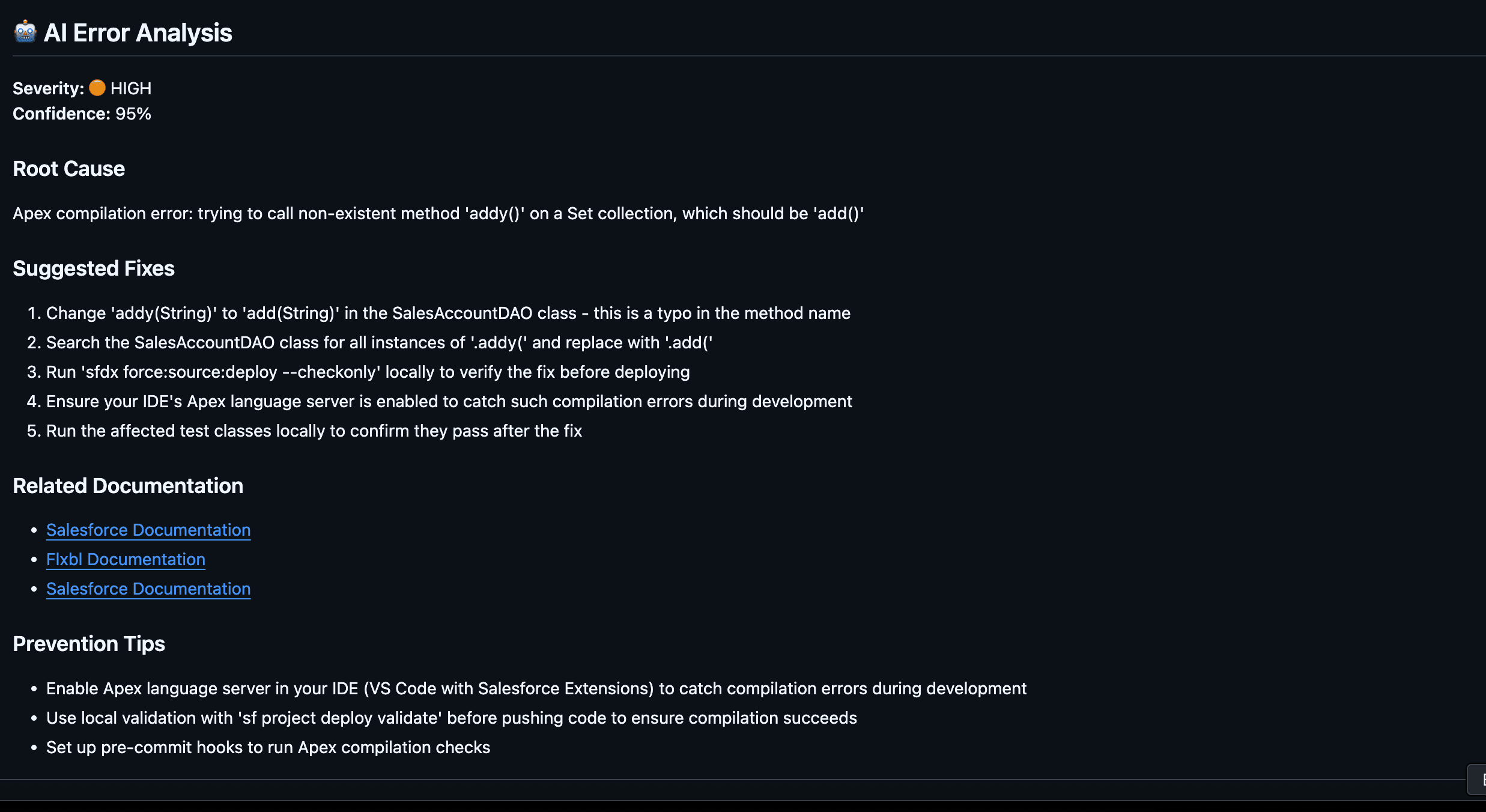
When validation fails and changes are significant, AI provides:
- Root Cause Analysis: Understanding why the error occurred
- Quick Fix Suggestions: Immediate actions to resolve issues
- Related Components: Other files that might be involved
- Documentation Links: References to relevant Salesforce docs
Configuration
Configure AI assistance through config/ai-assist.yaml:
# config/ai-assist.yaml

# Error Analysis Configuration
errorAnalysis:
  enabled: true                    # Enable/disable AI error analysis
  provider: anthropic              # AI provider: anthropic, openai, amazon-bedrock, github-copilot
  model: claude-sonnet-4-5-20250929  # Optional - uses the provider default if omitted
  timeout: 180000                  # Timeout in ms (default: 3 minutes)
  maxSuggestedFixes: 5             # Max number of fix suggestions

# Change Significance Configuration
architecture:
  changeSignificance:
    # Metadata types to exclude from analysis
    excludedMetadataTypes:
      - CustomLabels
      - StaticResource
      - CustomTab

    # Thresholds for triggering analysis
    fileTypeThresholds:
      apex:
        lines: 3    # Very strict for Apex
        files: 1
      flows:
        lines: 1    # Any flow change
        files: 1
      lwc:
        lines: 10   # More lenient for UI
        files: 2
Usage
AI error analysis is automatically enabled when:
- A
config/ai-assist.yamlfile exists in your project - The
errorAnalysis.enabledflag is set totrue - Valid LLM provider credentials are available
No additional CLI flags are required - sfp automatically detects and uses the configuration.