Signing in
Sign in to Workfloor with a Flxbl account, the same account codev uses, and link GitHub so agents act on GitHub as you.
Workfloor runs at your team's own address, https://<your-team>.workfloor.cloud. You sign in with a Flxbl account, the same account that signs you in to codev. Access is by invitation: a team admin adds you first (see Inviting your team).
Sign in
Open your team's address. The sign-in page offers the methods your team has enabled:
- Continue with GitHub, Continue with Microsoft or Sign in with SSO, where you enter your company's domain. These go through Flxbl's own sign-in page and return you to Workfloor.
- Sign in with Flxbl, with the email and password of your Flxbl account.
A password alone does not sign you in. After the password, Workfloor asks for the code from your authenticator app. If your Flxbl account has none yet, the page shows a QR code and a setup key: scan it with an authenticator app, then enter the code the app shows. GitHub, Microsoft and SSO sign-ins use the second step of the provider instead.
A Flxbl account that is not already known to your team needs an invitation. Someone who has not been invited, and someone a team admin has disabled, cannot sign in. Creating a Flxbl account, confirming its email and resetting its password happen with Flxbl, not in Workfloor.
Your account
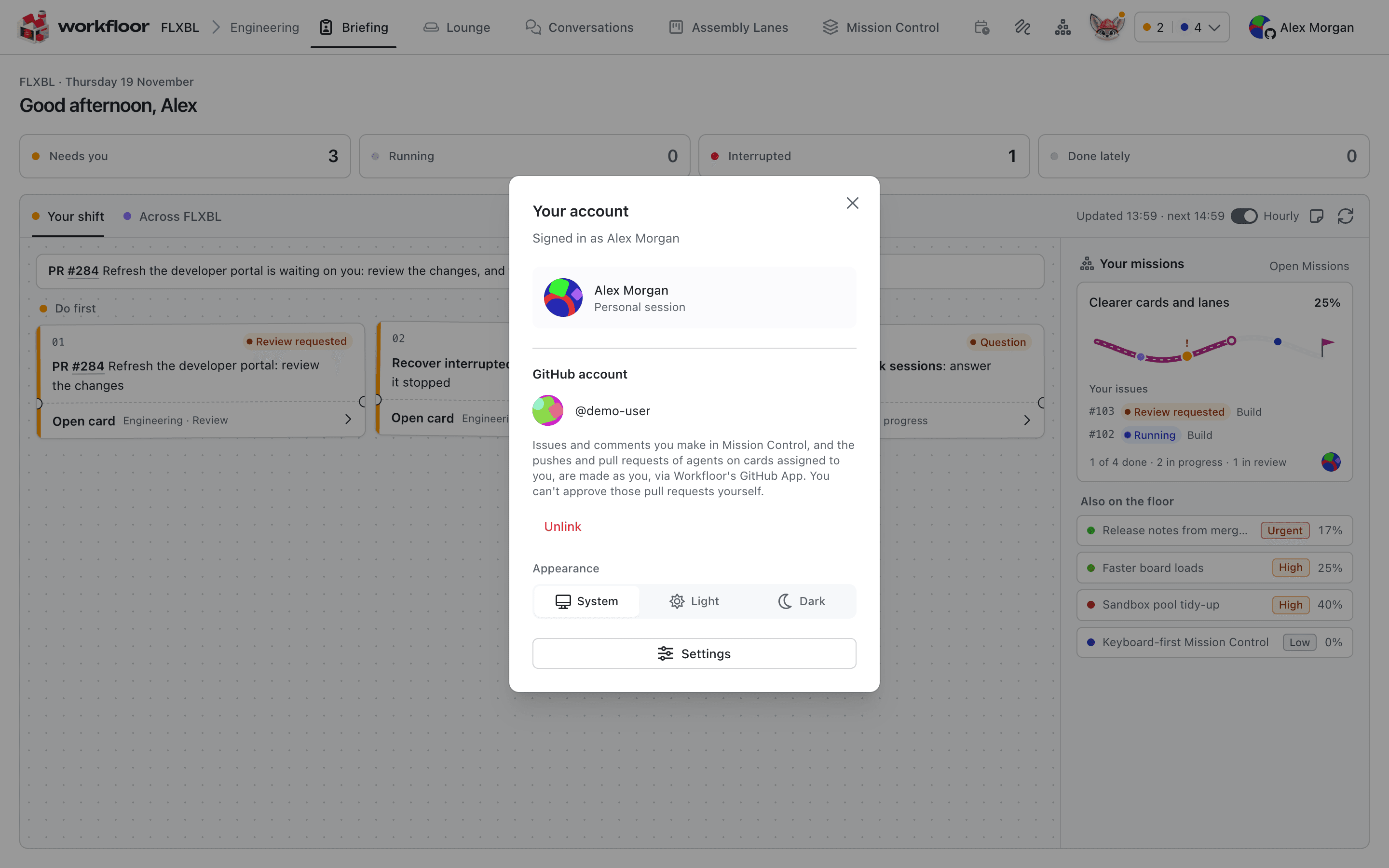
Select your name in the top bar to open Your account. It shows who you are signed in as, and:
- GitHub account, where you link or unlink GitHub.
- Appearance, where you choose System, Light or Dark.
- Settings, which opens your preferences and, for admins, the team's settings.
- Open codev, where your team has codev, which takes you to codev signed in with the same account.
- Sign out, which ends your Workfloor sessions everywhere.
Link GitHub
Linking GitHub is separate from signing in. A Flxbl account without a GitHub account signs in normally, but the link is what lets Workfloor act on GitHub as you. With it, issues and comments you create in Mission Control, and the pushes and pull requests of agents on cards assigned to you, are made as you through Workfloor's GitHub App. You cannot approve those pull requests yourself.
To link:
In GitHub account, select Link GitHub.
Workfloor shows a code. Select Copy code, then Open GitHub and enter the code there.
Approve the request on GitHub. The dialog shows your GitHub login once the link works. The code expires after a few minutes; select Try again for a new one.
Without a link you still read Mission Control, but an action there that writes to GitHub, such as a comment, asks you to link first, and agents on cards assigned to you cannot push. Unlink removes the link; Manage authorised apps on GitHub opens GitHub's own list. Some projects let cards assigned to people without a link run as Workfloor's App instead; a project admin chooses that on the project's GitHub tab.
Next: Creating a project.
Core concepts
The terms Workfloor uses — projects, assembly lanes, stages, cards, agents, Mission Control, missions and runners — and how they fit together for a Salesforce team.
Creating a project
Create a Workfloor project for a Salesforce repository, from its name and people to the GitHub connection and the setup run that makes it ready.