Inviting your team
Invite people to Workfloor, disable access, and set each person's role on a project as admin or member.
Workfloor is invitation only. Anyone who signs in must already be known to the team or hold an invitation. Team admins manage who can sign in under Settings > People; each project's admins manage its members.
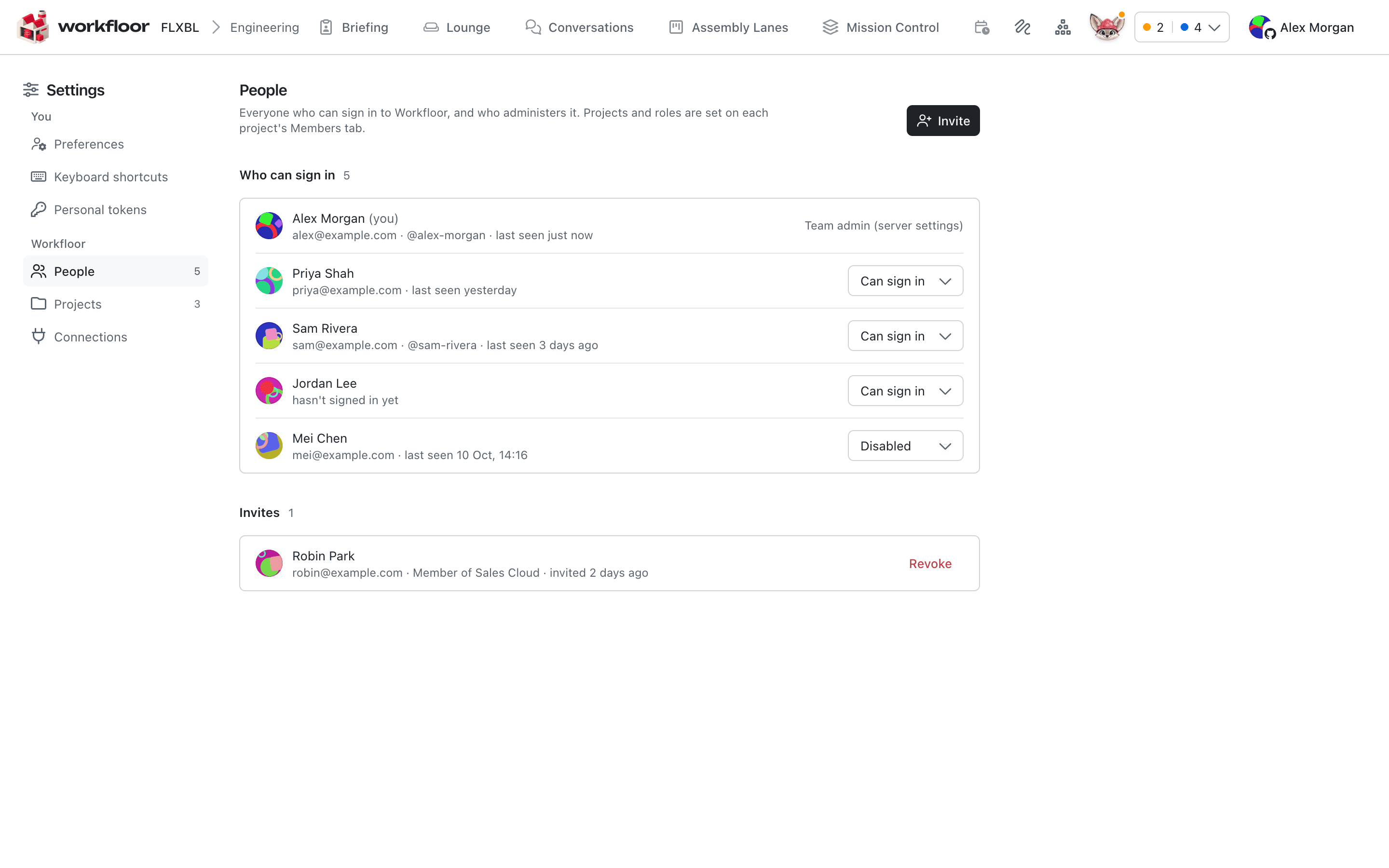
Who can sign in
Who can sign in lists everyone Workfloor knows, with their email, when they were last seen, and an access setting:
- Can sign in is an ordinary person. Their project roles decide what they can do.
- Team admin manages people and every project, and creates projects.
- Disabled people cannot sign in, and disabling someone ends their sessions.
Invite someone
Select Invite.
Enter their Email. A GitHub login (optional) works too, but whoever holds that login on GitHub when they first sign in gets the access, so an email is safer.
Choose a Project and a Role, or tick Team admin.
Select Add invite.
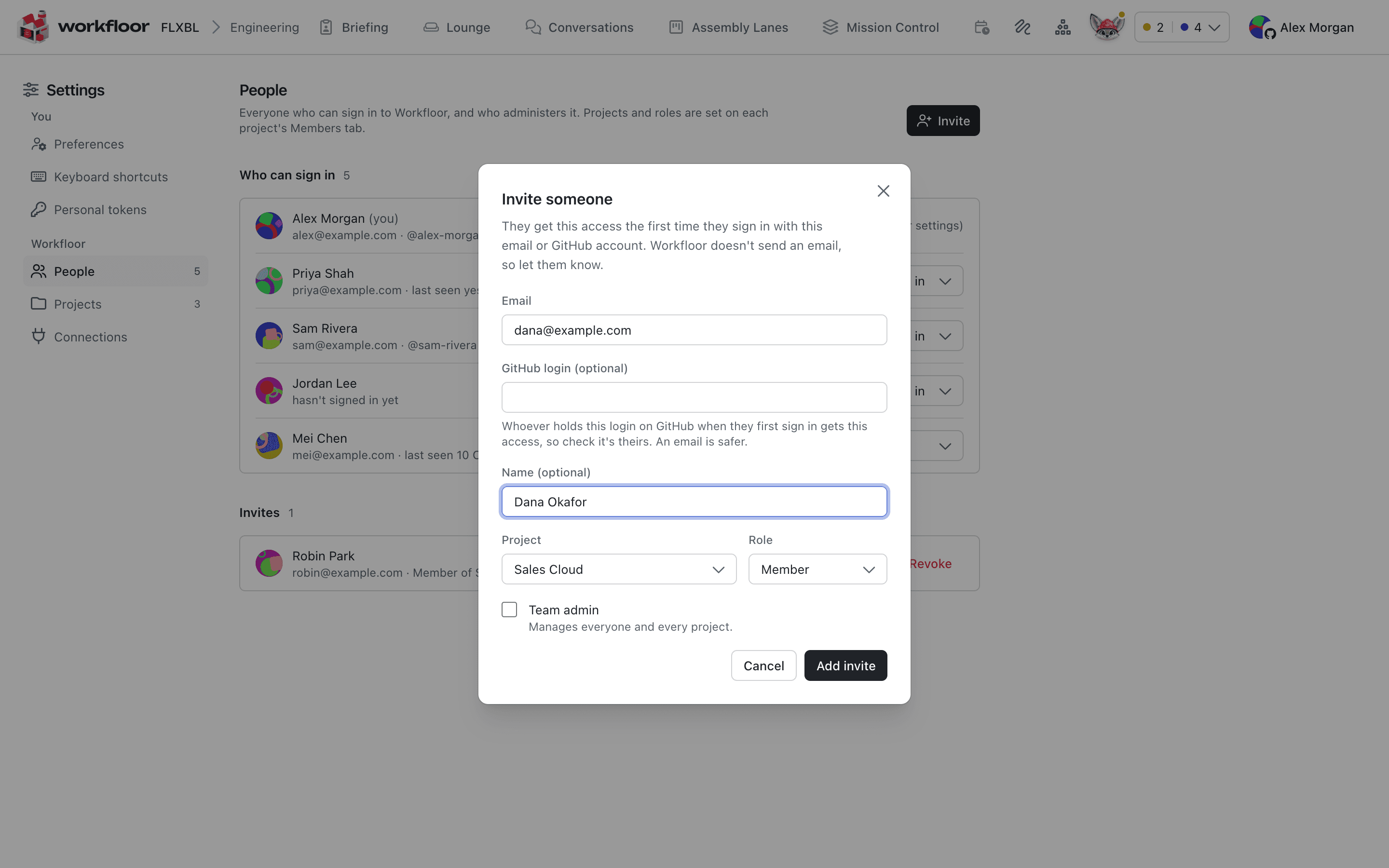
The person gets the access the first time they sign in with that email or GitHub account (see Signing in). Until then the invite is listed under Invites, where Revoke withdraws it.
Project members and roles
A project has two roles: Admin and Member. There is no viewer role. Open Settings > Projects, choose the project and its Members tab to add a person who can already sign in, change a role, Remove someone, or Invite a new person straight into the project.
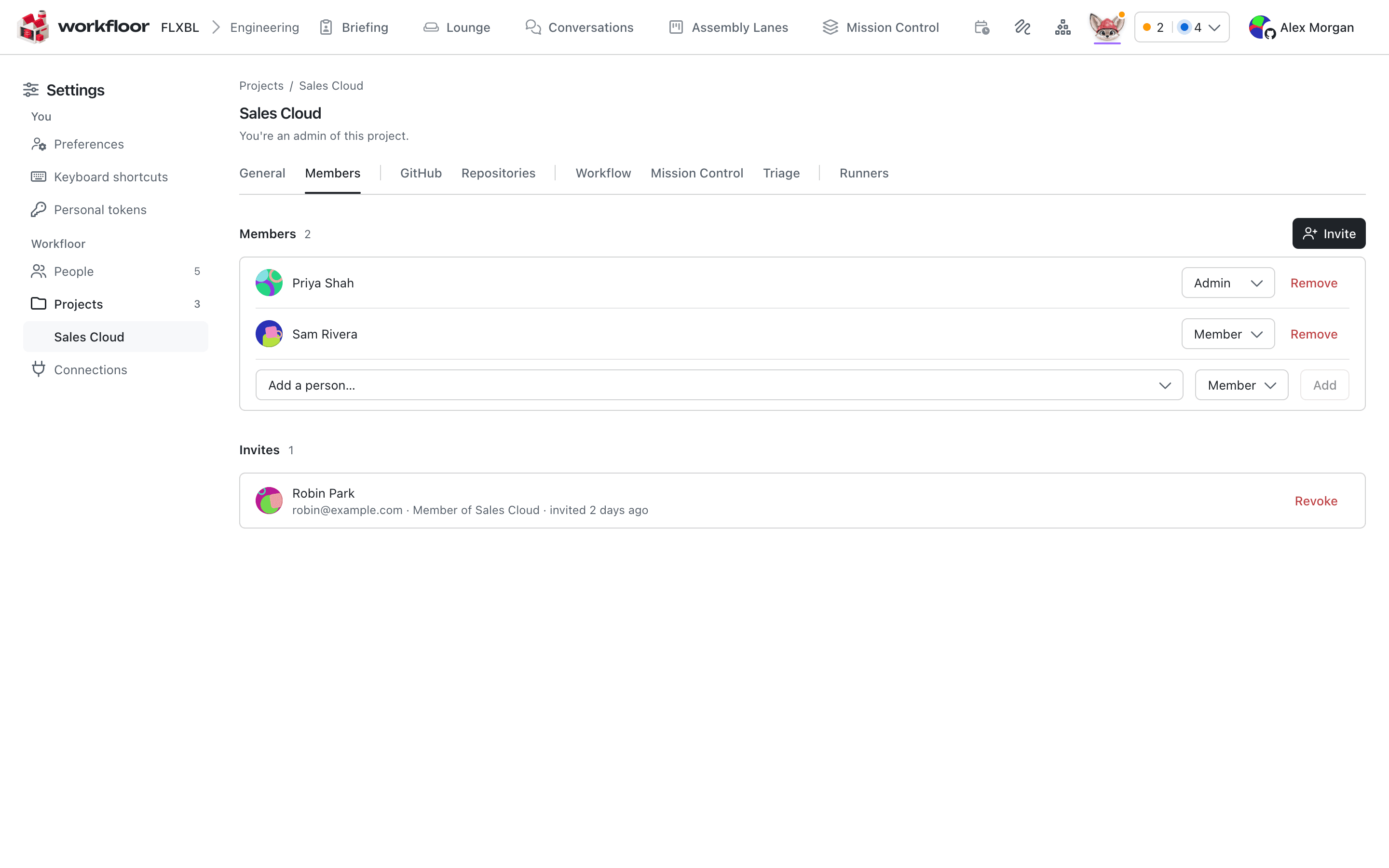
Members work on the project: they describe work, follow cards, answer Flux and review. In Settings they see only their own preferences, keyboard shortcuts and personal tokens.
Admins can do that and also manage the project: its members, repositories, GitHub connection, runner and agent settings, Mission Control setup and onboarding approval. Team admins can do all of this in every project.
Next: Repositories and GitHub.
Onboarding a project with Flux
Use the Workfloor Onboarding page to have Flux read a Salesforce project's repositories, propose what the project needs, and set it up once a project admin approves.
Repositories and GitHub
Add a Salesforce repository to a Workfloor project, connect the project to GitHub, and choose which repositories Mission Control tracks.