Apex tests
Run Apex tests from your workspace against your development org — group them into suites, validate coverage, and keep a local history of every run.
The Testing group under Dev runs your project's Apex tests against an org and keeps the results with your workspace. Test classes are discovered from your source — every class on your current branch marked @isTest — so the list reflects the branch you are working on, not what happens to be deployed.
Running tests
Dev > Testing > Run Apex Tests lists the test classes in your project with their package and domain. Once a class has been run, its row carries the latest result for your target org: pass or fail, when it ran, and the run's coverage.
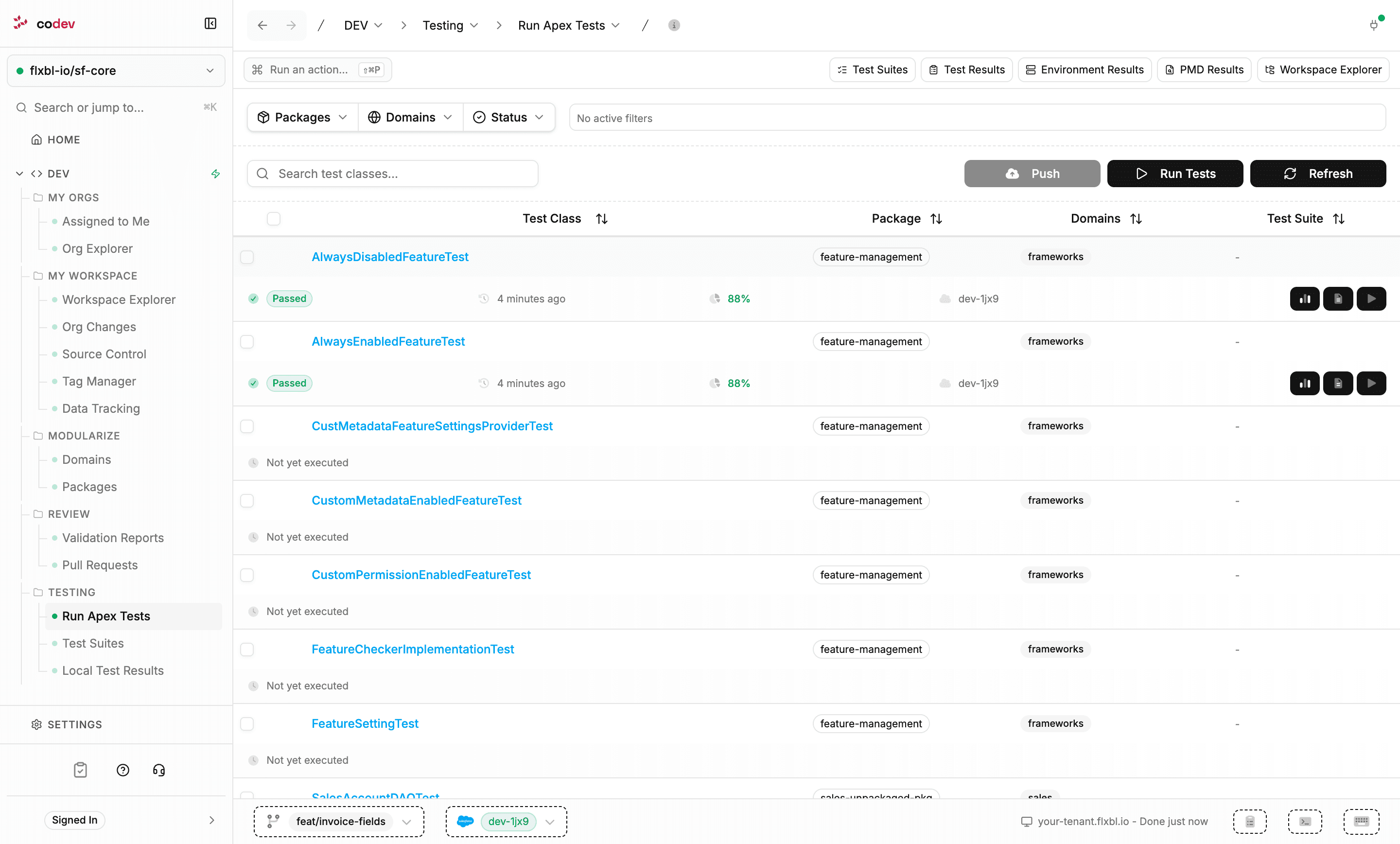
Select classes and click Run Tests. The dialog confirms where and how the run executes:
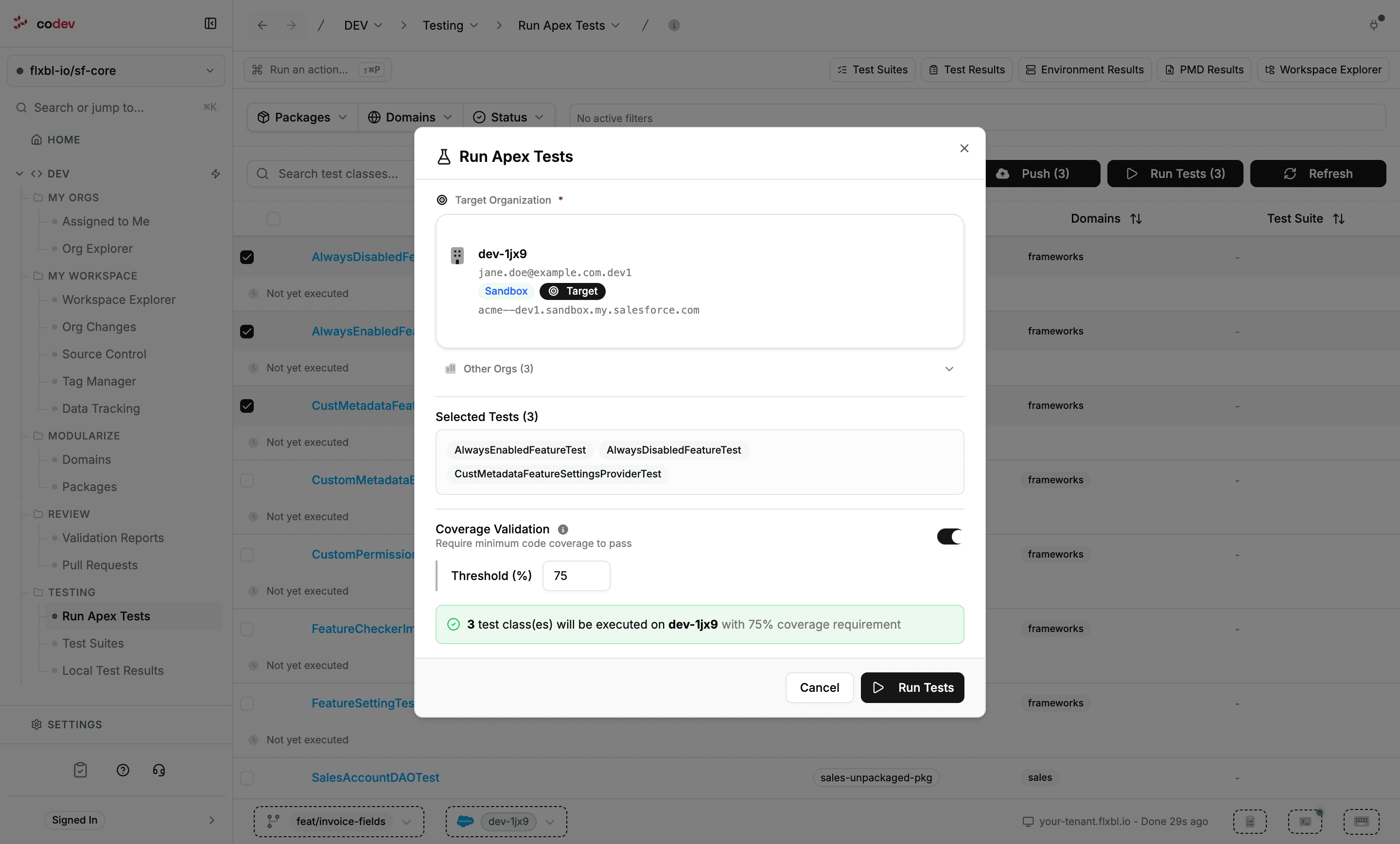
- Target Organization — your target org is preselected; pick any other connected org. The dialog checks the connection live and enables Run Tests only when it passes.
- Coverage Validation — when enabled, the run fails if coverage lands below the Threshold (default 75%).
Beyond selected classes, the dialog can scope a run to a test suite, a domain, or a package — a package run executes all tests in that package. Runs execute in the background, one at a time per org, and the outcome arrives as a notification; the report opens from the result.
A test class must exist in the org to run there. If you wrote a new test class and have not deployed it yet, use Push on this page to deploy the selected classes to the org first.
Each executed class's row expands with actions to view the run's report and to re-run that class.
Test suites
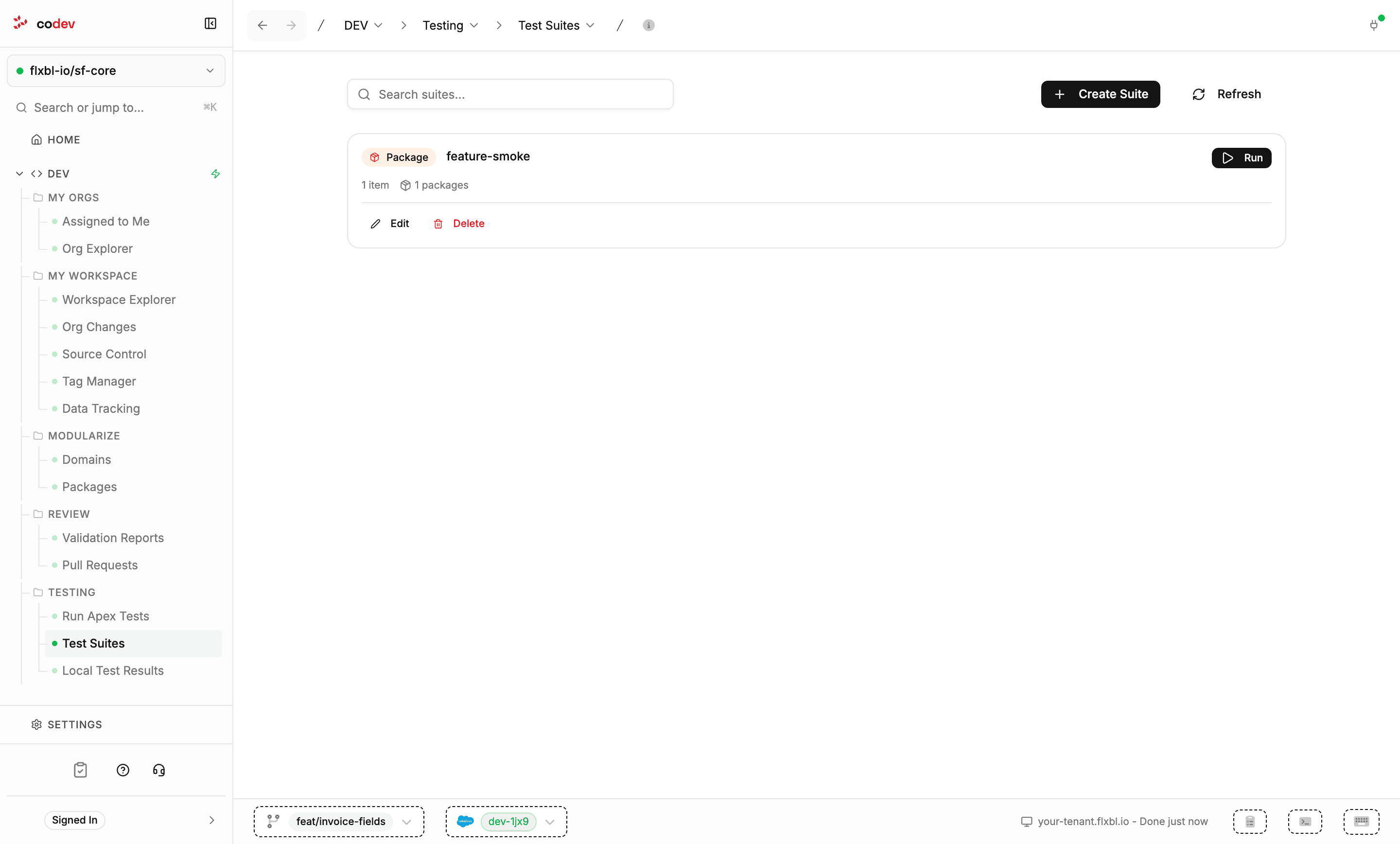
Dev > Testing > Test Suites groups tests you run together — a smoke set for a package, everything in a domain, or a hand-picked list of classes. Suites are stored in your repository, so they are versioned and shared with the team like any other configuration.
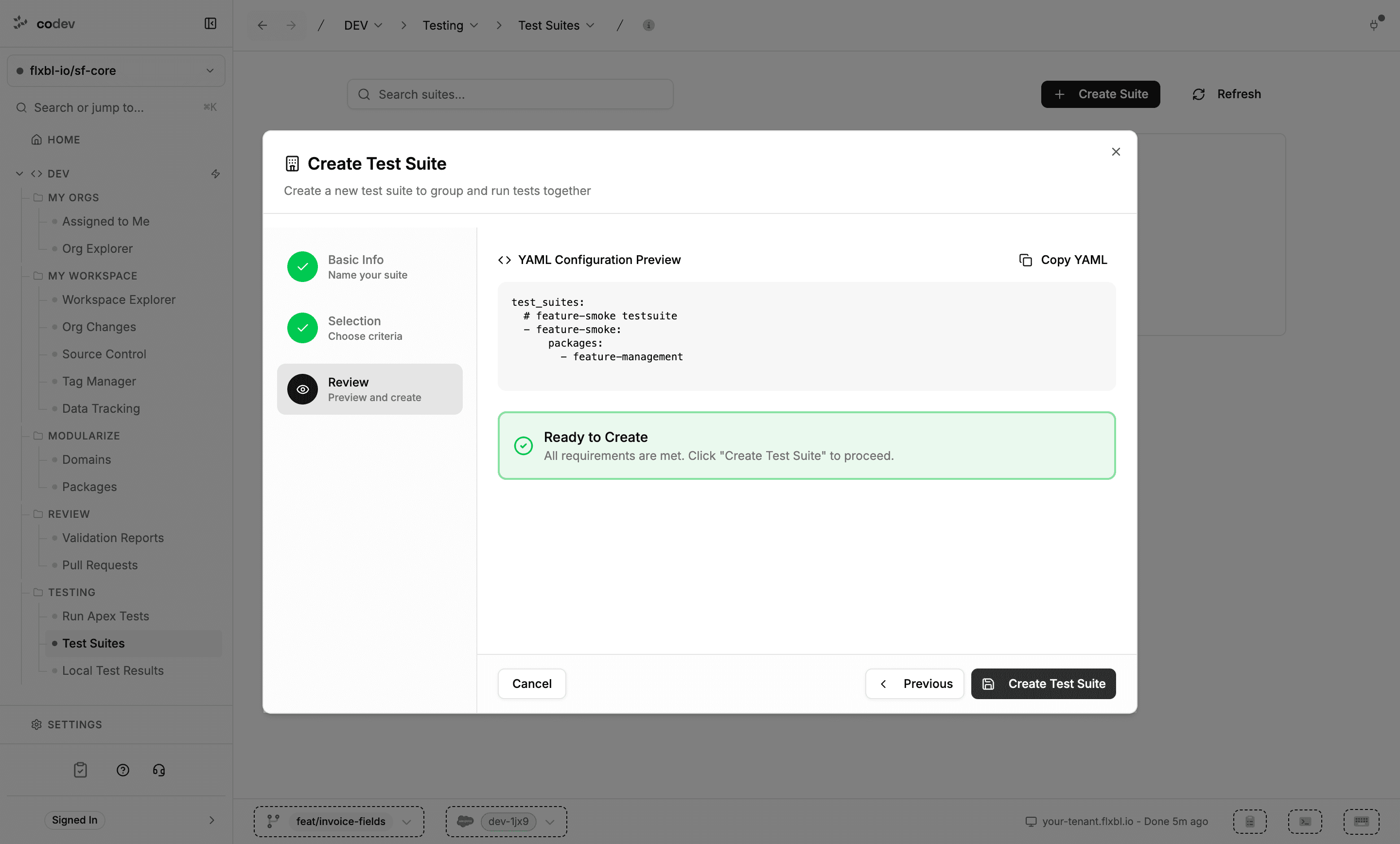
Create Suite walks three steps — name, selection criteria, review. The criteria combine freely: packages, domains, specific test classes, and optional tags. The review step shows the resulting configuration as YAML before it is written.
Run on a suite card opens the same run dialog with the suite preselected. Edit reopens the wizard to change the criteria — deleting a suite is done from the edit dialog.
Local test results
Dev > Testing > Local Test Results is the history of the runs you have executed from this workspace: one row per run with its status, classes, run type, org, and time.
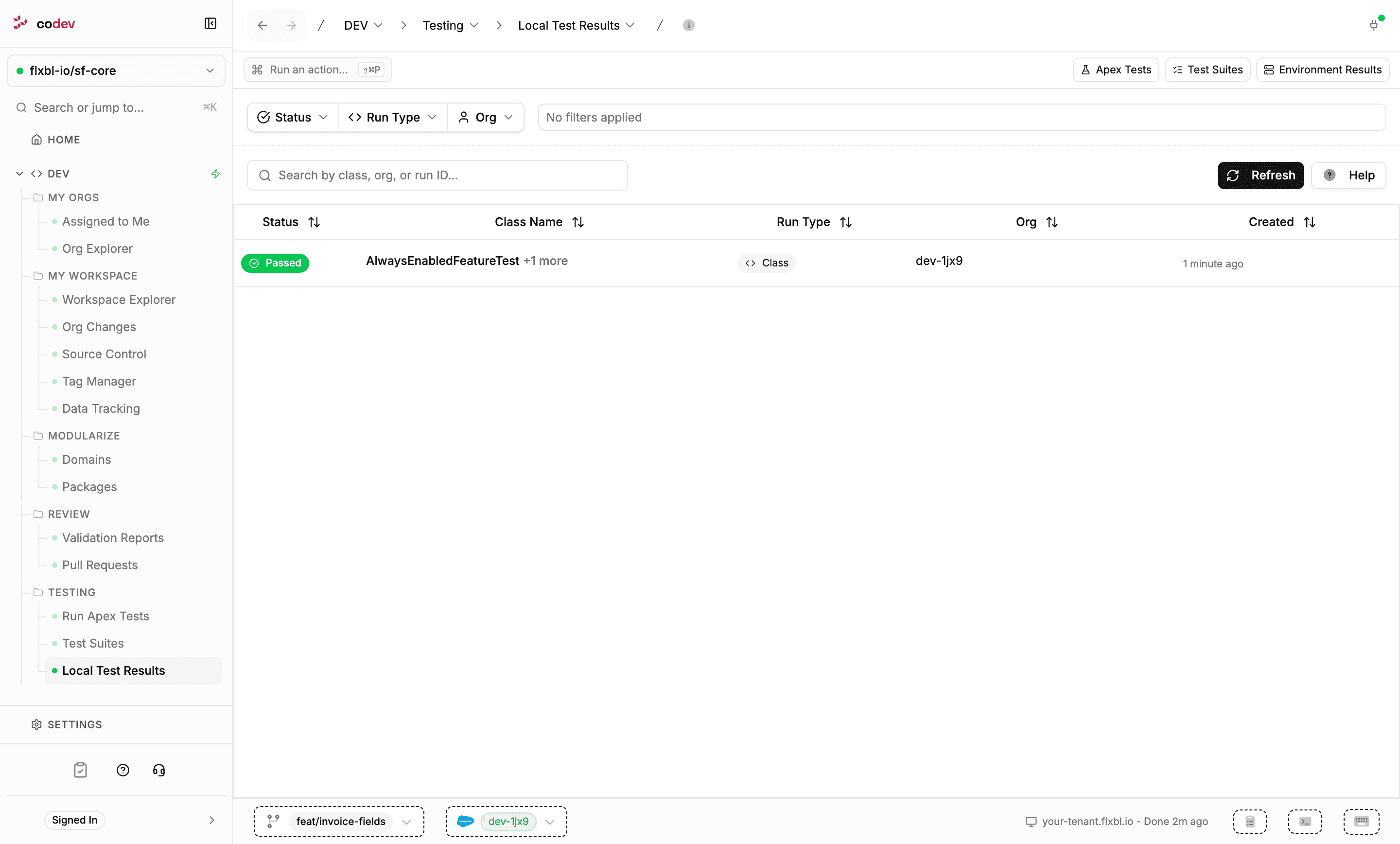
The list is scoped to your current branch and your current target org — switching either changes which runs you see. Clicking a run opens its report: the summary, each test method's outcome and runtime, and code coverage per class.
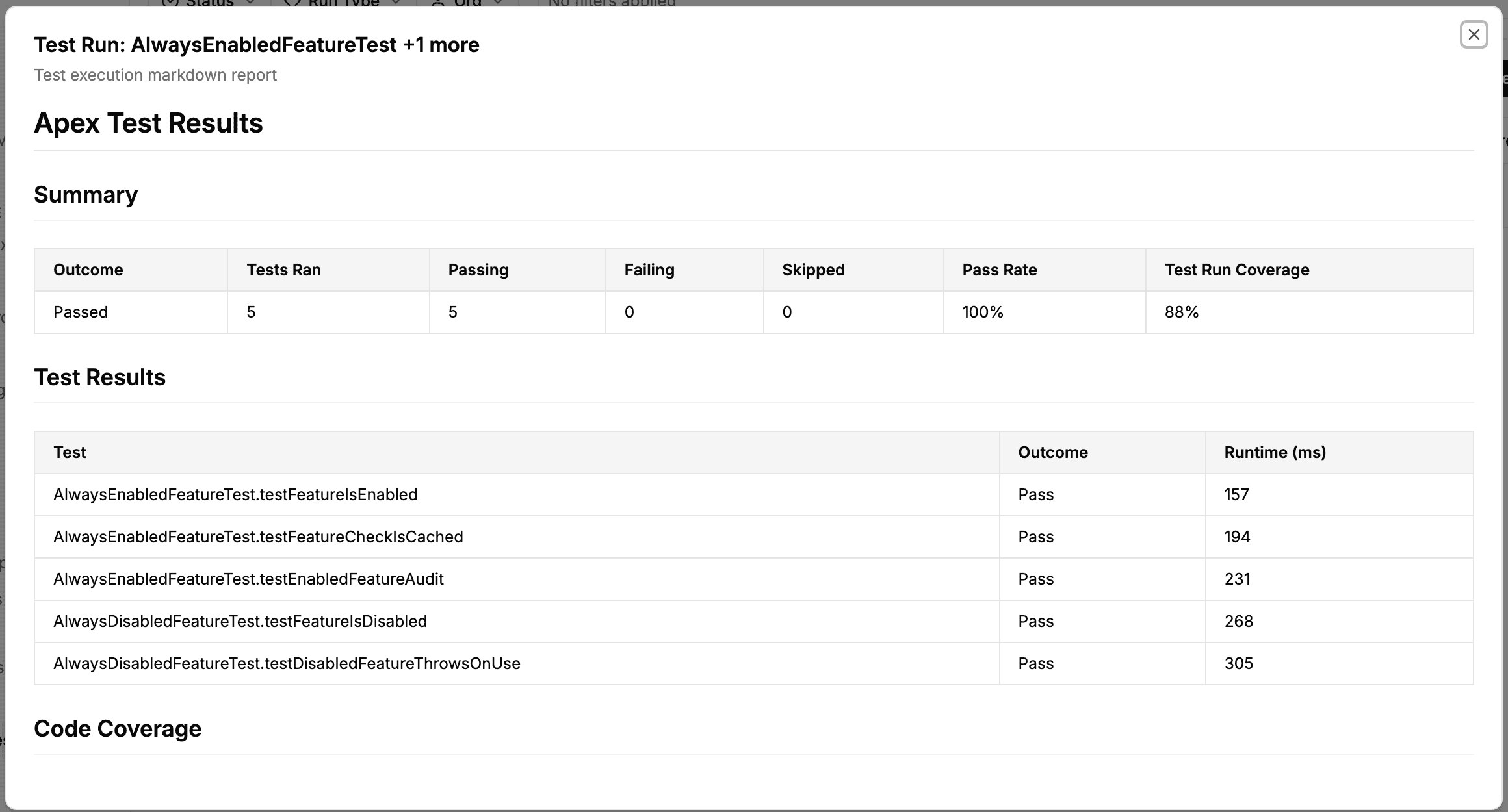
These are your local runs. Scheduled test runs executed by the server against environments are reported under Scheduled Runs in Inspect.
Workspace Explorer (Web)
Browse your repository in the web app — components and modules at any branch, code analysis findings, and AI-generated insight reports per package or domain.
Validation reports and pull requests
The reports your commit validations produce, and the project's pull requests with their check status — the Review group of the Dev section.