Workspace Explorer on the web
Browse your repository in the web app — components and modules at any branch, code analysis findings, and AI-generated insight reports per package or domain.
The web app's Workspace Explorer browses your repository — no local workspace involved. Pick a branch, explore what the project contains, see what the next build would package, read code analysis findings, and generate AI insight reports for a package or a whole domain. Editing source, retrieving from orgs, and creating domains happen in the desktop workspace; the one change you make from here is a project owner editing a diff package's build baseline (see Package baselines).
The page has two explorers, switched at the top of the tree, and a set of tabs on the right that follow what you select.
Component Explorer
The Component Explorer shows the branch's source as a tree — package, metadata category, type, component — with the same filters as the rest of the page (domain, package, type, modified). Selecting a component opens it read-only in the Code tab.
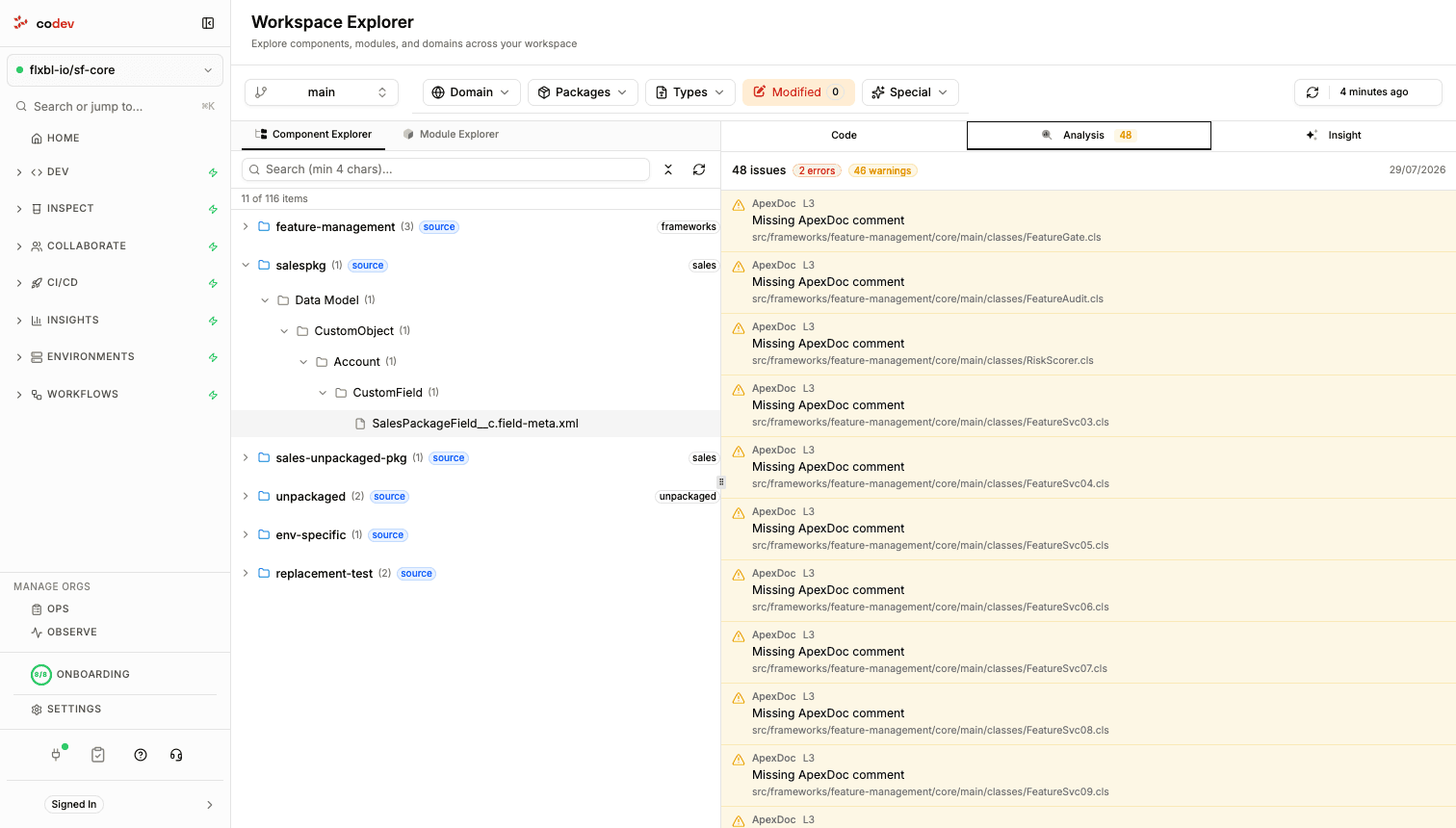
The Analysis tab lists the branch's code analysis findings — rule, severity, message, and file — with the totals summarised at the top. Analysis is collected automatically for the branch (and refreshed daily), so the findings are ready when you open the tab; see Change Analysis for the analyzer itself.
Build preview
The Component Explorer can scope the tree to what the next build would package, instead of every file in the repository. codev computes this preview in the background when you open a branch — it runs the build without producing artifacts and records the files each package would include, which appear a minute or two after the tree loads.
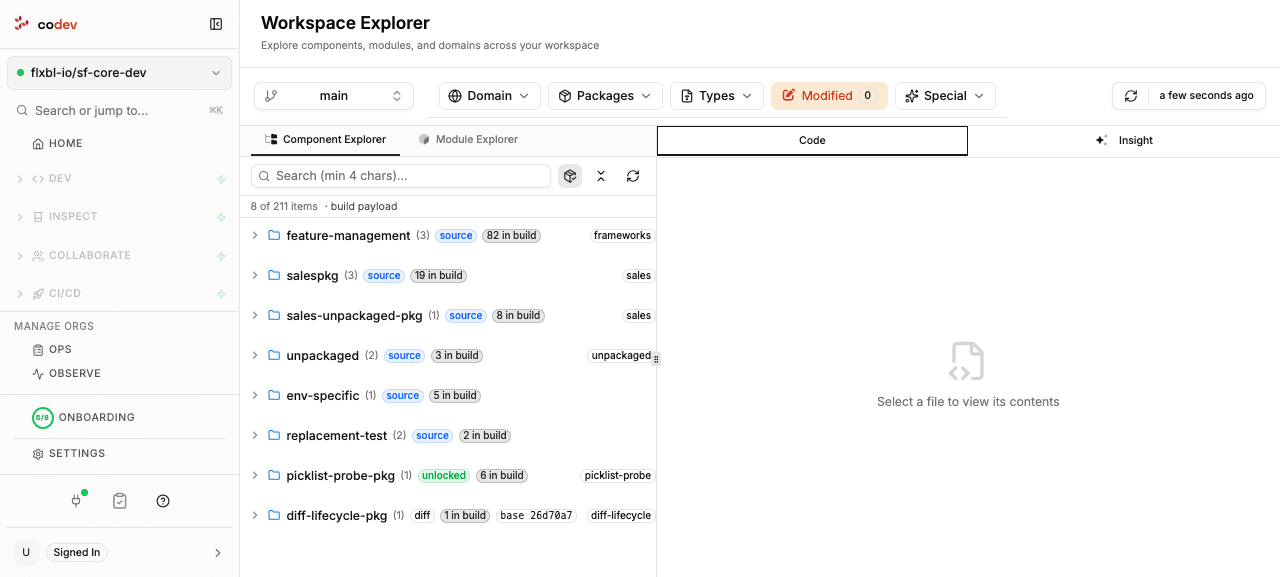
A toggle in the tree toolbar switches between Build payload view and All files view; build payload view is on by default. It is an overlay, not a filter — a package the preview could not resolve keeps its full contents rather than disappearing. Each package row shows how many files it contributes and, for a diff package, the baseline commit it is measured from. Refresh Tree recomputes the preview; the count bar flags when a package could not be resolved, or when the branch has moved past the commit the preview was computed for.
Module Explorer
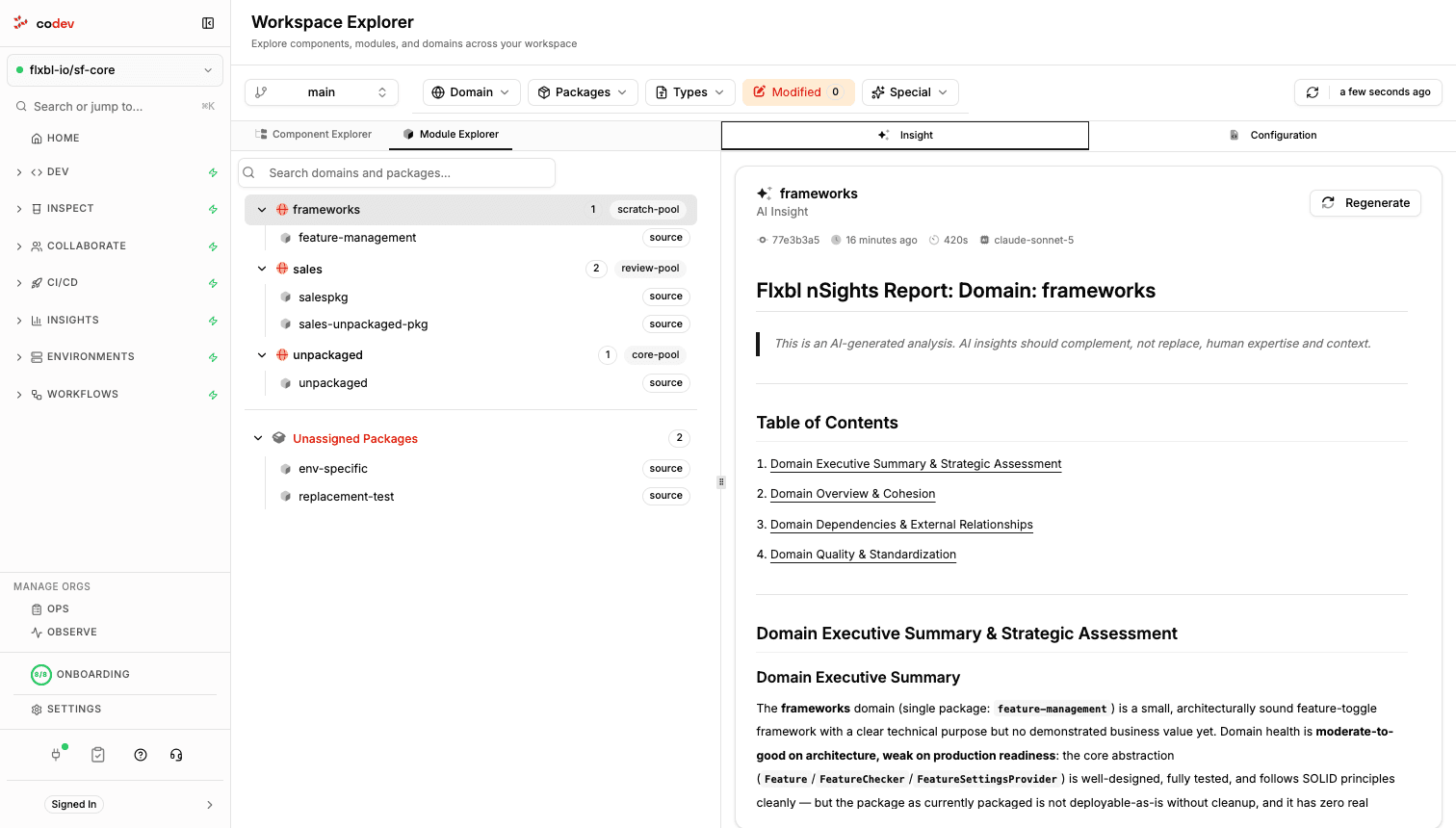
The Module Explorer shows the same repository as domains and packages: each domain with its pool and packages, plus an Unassigned Packages group. Selecting a domain or a package drives the tabs on the right — Insight, Versions (packages only, the same list as Packages → Versions), and Configuration, which shows the domain's release configuration or the package's project entry — and, for a package, its build baseline (see Package baselines).
Package baselines
Selecting a package and opening the Configuration tab shows its Package Baseline — the commit the package is measured from on the current branch.
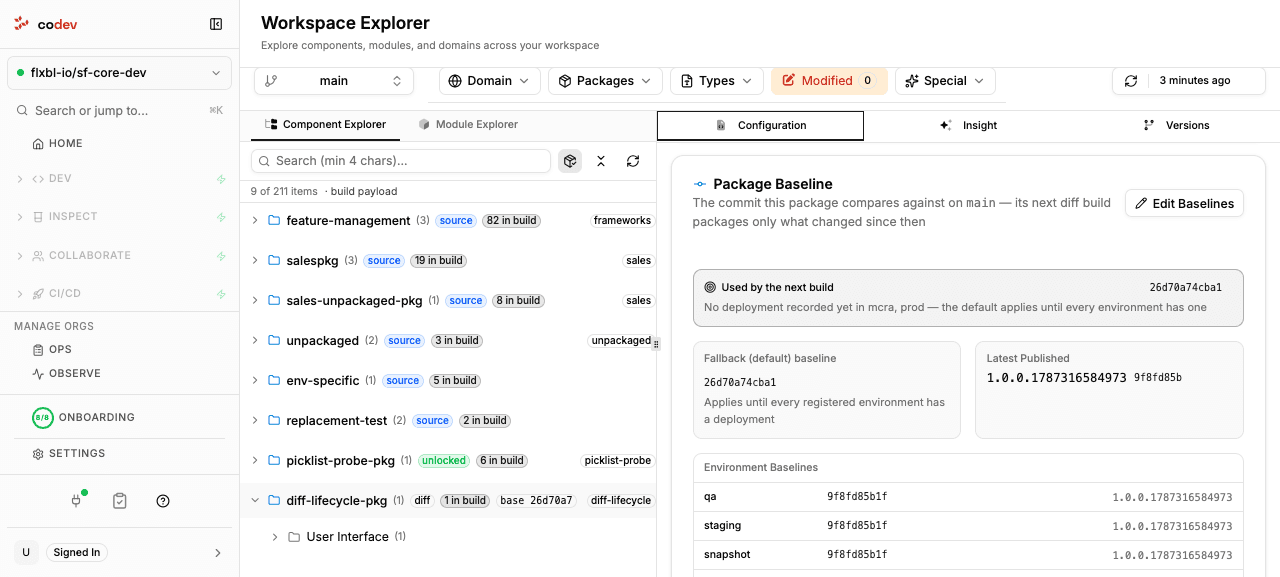
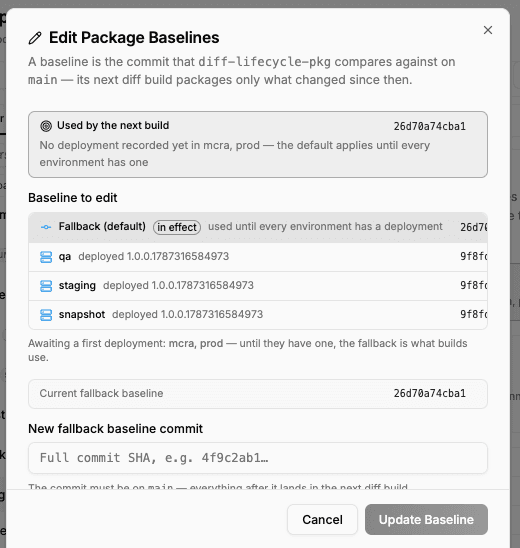
For a diff package the baseline is the packaging boundary: the next build packages only what changed since it. The card shows the fallback baseline, the latest published version, and each environment's baseline. For a source, unlocked, or data package the baseline is history only — those types always build in full, and the pipeline advances it as the package moves through environments.
Editing a baseline
A project owner can override a diff package's baseline: on the Package Baseline card, Edit Baselines opens a dialog to point the fallback, or a specific environment's baseline, at a commit on the branch — everything after it lands in the next diff build. Other package types cannot be edited here. For what a diff package is, see Package types; for the baseline resolution rules in detail, the engine reference: Diff package.
AI insight reports
The Insight tab holds an AI-generated analysis of the selected package or domain: an executive summary and health assessment, followed by sections on overview, architecture, dependencies and relationships, and quality. The report is grounded in the repository — the analysis reads the actual source and git history of the scope it covers.
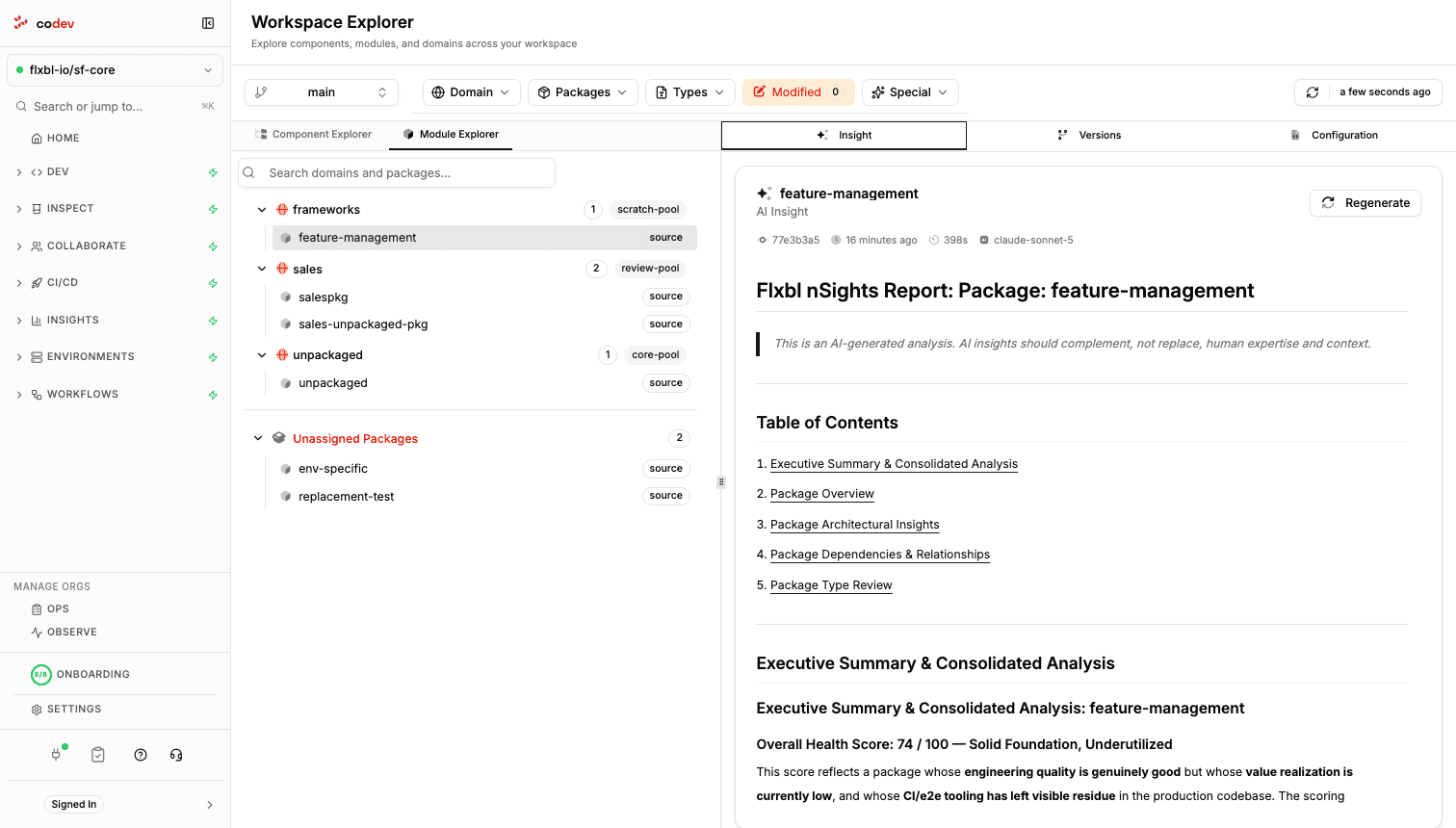
Reports are generated only when you ask: click Generate Insight (or Regenerate on an existing report) and the analysis runs in the background — a few minutes for a package, longer for a domain. Each report carries the commit it analysed, when it ran, how long it took, and the model that produced it. Requesting a report when one already exists for the current commit does nothing — codev tells you the report is up to date, and one analysis runs per scope at a time.
Insight reports require an AI provider — configure one under Settings > Integrations > AI Providers. See AI Providers.
Insight reports analyse the project's main branch regardless of the branch selected in the explorer — the branch selector scopes the trees, the code, and the analysis findings, not the AI reports.