AI Providers
codev can use an AI model you connect to power its AI features. You bring your own provider and key — configure a provider once and every AI feature can use it.
You configure AI providers under Settings > Organization > Integrations (the AI Providers category). Only organization owners can manage them.
What AI powers
A connected provider powers AI across codev, including:
- AI Insight reports — on-demand code and architecture analysis for a package or domain, from the AI Insight tab in the Workspace Explorer / Packages / Domains views. See AI Assisted Insight Report.
- AI architecture analysis — an architectural review of a pull request's changes, run as the architecture analysis linter; results appear on the PR check. See AI Assisted Architecture Analysis.
- AI-assisted error analysis — when a pull request validation fails, codev asks your provider to explain it (root cause, severity, confidence, suggested fixes) and posts the result into the PR check. See AI-Assisted Error Analysis.
- AI-assisted version intent (limited preview) — reads a pull request diff and posts a
/versioncomment with the semantic version intent. See AI Assisted Version Intent. - cherry-to — transplants a change onto a diverged branch with AI when a plain apply won't fit, as a draft pull request you review. See Cherry-to.
- Environment drift review — after a mechanical drift comparison, an AI pass classifies each finding with a verdict, severity, and confidence. See Environment drift.
- Unbundle coherence check — before rebuilding a release candidate with commits removed, an AI model reasons about whether what remains still depends on what was removed. See Unbundle.
- Rollback safety analysis — assesses whether a release rollback can be cleanly re-applied, with the risks and a recommendation. See Rollback.
- AI-assisted cascade merge — resolves three-way merge conflicts on a cascade edge, recording its reasoning for review. See Cascades.
codev sends only the relevant context — a package's code, a pull request's diff, or a failing validation's output — to the provider you connected, under your own key.
Providers
Each provider connects the same way: pick its card under Settings > Organization > Integrations, paste the credential, and set its availability. Setup and the exact fields are on each provider's page.
For default models and how to verify a provider with sfp ai test, see Configuring LLM Providers.
Choosing which provider codev uses
The provider you connect here is the server-managed credential every AI feature draws from — in codev and in any pipeline connected to the same sfp server. codev resolves the provider for a project in this order:
- The project's AI provider setting. During project setup you can pick an AI Provider — choose a provider, or None to disable AI for that project.
- The default AI provider — a registered AI integration marked as the default for the AI category, used when a project hasn't chosen its own.
- A global AI integration, if no default is set.
Per-project AI assist settings
AI error analysis and AI architecture analysis each have settings per project: whether they run, how long the AI call may take, how many fixes error analysis suggests, and which repository files the architecture analysis reads as context. An organization owner sets them under Settings > Organization > Projects: click the project, open the AI tab, and use the AI assist card below the project's AI provider. The card has its own Save AI assist settings button and saves independently of the page's Save changes. Members see the values read-only.
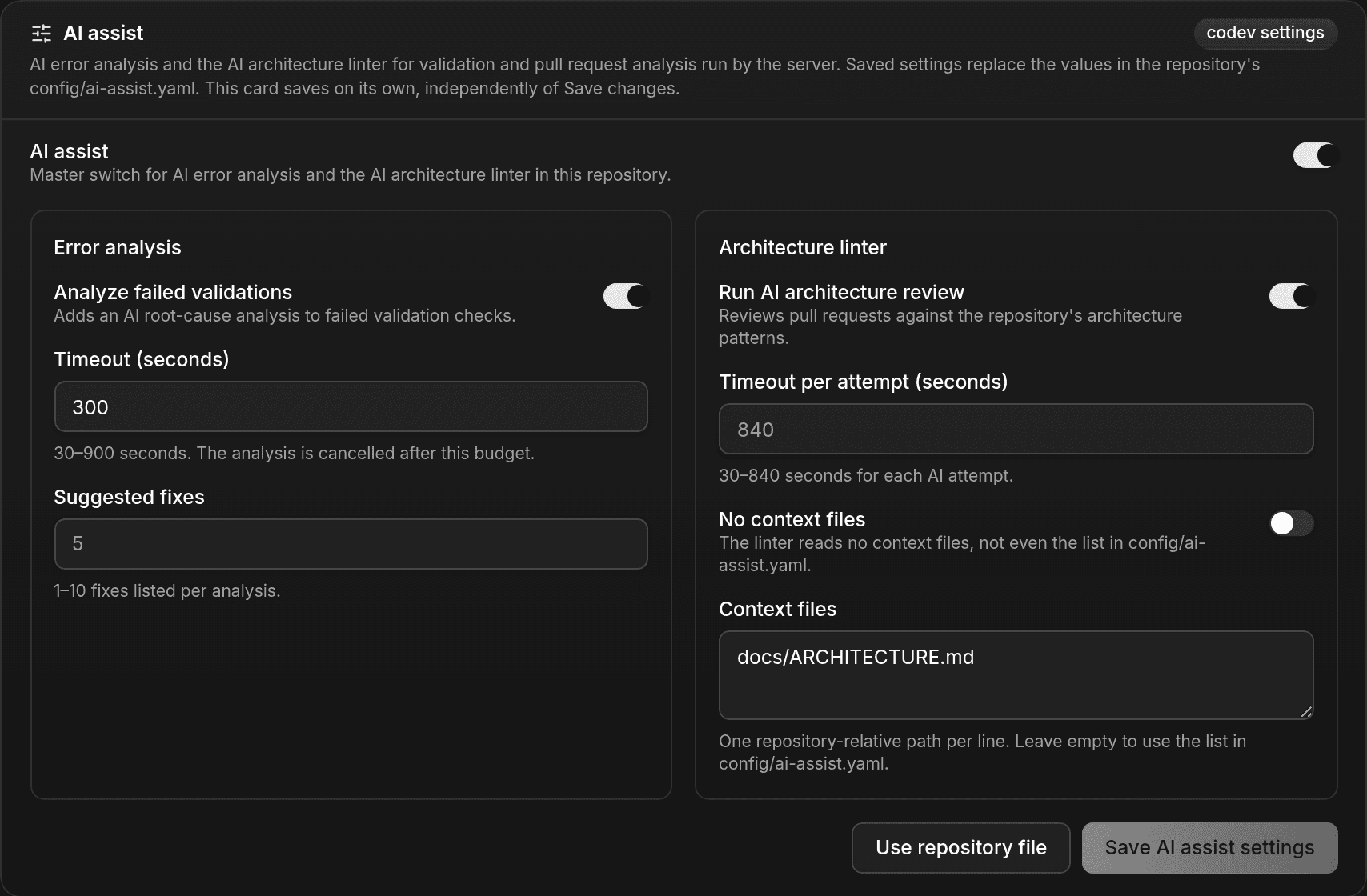
The AI assist switch turns off both features for the project. Timeouts are entered in seconds: error analysis accepts 30 to 900 seconds (default 180), and the architecture linter accepts 30 to 840 seconds per AI attempt (default 840). Context files takes one repository-relative path per line; leave it empty to use the list in config/ai-assist.yaml. Turn on No context files to have the architecture linter read none, not even the repository file's list.
Once saved, these settings replace the enablement, timeout and suggested-fix values in the repository's config/ai-assist.yaml for every run codev starts, on every branch. The badge on the card changes from Not configured to codev settings. Patterns, principles, focus areas and change significance thresholds are still read from the repository file. Use repository file removes the saved settings, and runs return to config/ai-assist.yaml.
The provider used by both features is resolved as described above; it is not part of these settings. See AI-Assisted Error Analysis for how the run log reports which source was used.
Data handling
When an AI feature runs, the relevant code or failing output is sent to the AI provider you connected, under your own account and key. Pick a provider that fits your organization's data policy, and set a project's AI provider to None to opt it out entirely.
Self-hosting
AI providers are connected the same way on a self-hosted instance — you supply your own keys. Credential resolution and configuration details (environment variables, config/ai-assist.yaml, and server-managed credentials) are covered in Configuring LLM Providers and the sfp server documentation.