Data packages
Manage Salesforce records as files in your repository — track and sync reference or seed data between orgs with data packages.
A data package manages Salesforce records as files in your repository. Reference and seed data — country tables, pricing settings, configuration records — are versioned next to your source and moved between orgs with the same pull and push motions you use for metadata.
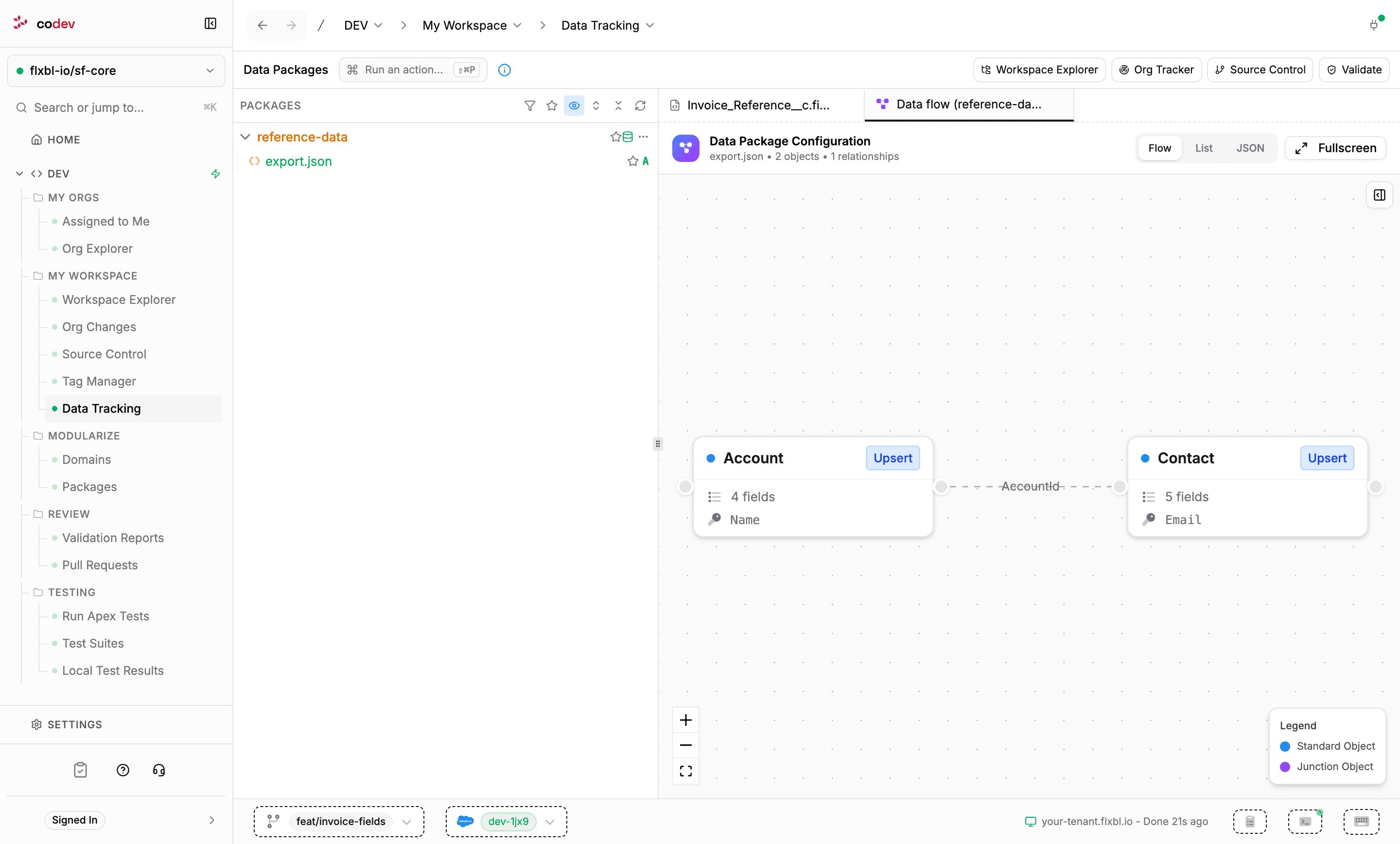
Data packages live under Dev > My Workspace > Data Tracking. The page lists every data package in your project as a file tree, with the git status of each file, and opens each file in a viewer suited to it. Workspace Explorer and Org Explorer link here through the Data Packages button.
Creating a data package
Click Create your first Data Package (or run Create data package from the command palette). The dialog scaffolds the package: it registers a data package directory in your project and creates a starter export.json for you to fill in.
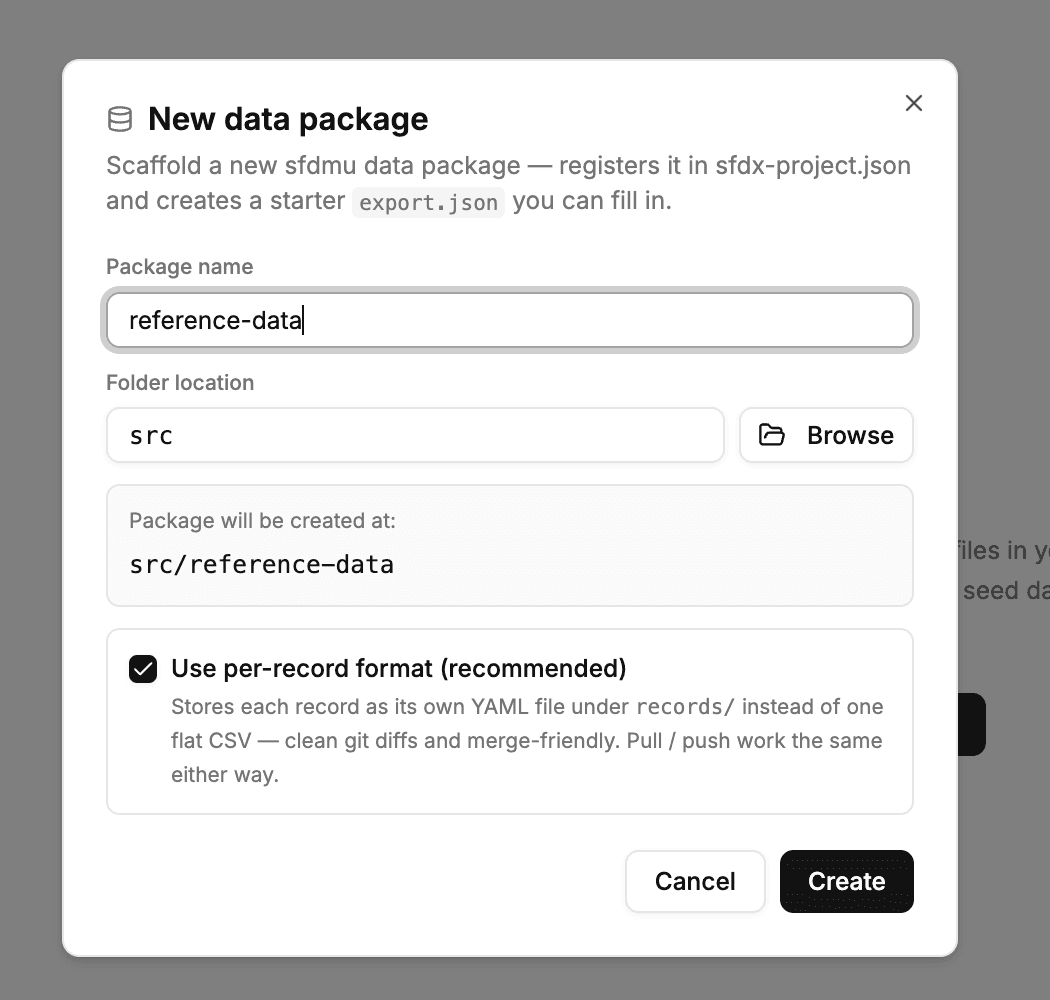
The per-record format checkbox picks how records are stored:
- Per-record — each record is its own YAML file under
records/, so changes show up as clean per-record git diffs and merge without conflicts. Large and rich-text field values are kept in a sidecar folder. This format is in beta. - Flat CSV — one CSV file per object, the classic layout.
Pull and push behave the same in both formats, and a package can be converted between them later from its actions menu.
Configuring what the package tracks
The package's export.json declares the objects to track: a query per object, the operation, and the external ID field used to match records between orgs. Opening export.json shows the configuration in three views — Flow, a diagram of the objects and the lookups between them; List; and raw JSON.
Pulling and pushing records
The package's actions menu runs the data operations. Each opens with your target org preselected — you can pick any connected org, and the action runs in the background with the outcome delivered as a notification.
| Action | What it does |
|---|---|
| Pull from org | Reads the queried records from the org and writes them into the package files. |
| Push to org | Upserts the package's records into the org, matching on each object's external ID. |
| Simulate push | A dry run of the push — validates record matching, lookups, and field mapping without writing anything to the org. |
| Preview changes | A read-only comparison against the org, listing the inserts, updates, and deletes a sync would make, per object. |
Records flow through your normal source control from here: after a pull, the changed record files appear in Source Control to be committed and reviewed like any other change.
Keeping the package tidy
The tree flags leftovers that tend to accumulate around data packages — flat CSVs left behind after a migration to per-record format, CSV files not declared in export.json, and empty record folders. The actions menu offers a clean-up for each, showing the affected files before deleting. Add record… creates a new record file in place, and the two Convert actions switch the package between per-record and flat CSV layouts.
Packages
See every package in your project, create and edit packages, install versions into orgs, and compare the versions codev has built.
Workspace Explorer (Web)
Browse your repository in the web app — components and modules at any branch, code analysis findings, and AI-generated insight reports per package or domain.