Mission Control
Use Workfloor Mission Control to see a project's GitHub issues and pull requests, take them in with the intake label, dispatch them to a lane as cards, and group them into missions.
Mission Control shows the issues and pull requests of the repositories a project tracks on GitHub. Work is taken in there, dispatched to an assembly lane, and followed through to release. It has four sections: Missions, Mission Tracker, Releases and Stats.
Project admins choose which repositories are tracked. Every member of the project reads all of them.
The tracker
Mission Tracker lays the work out in five columns: Open, In Progress, In Review, Merged and Released.
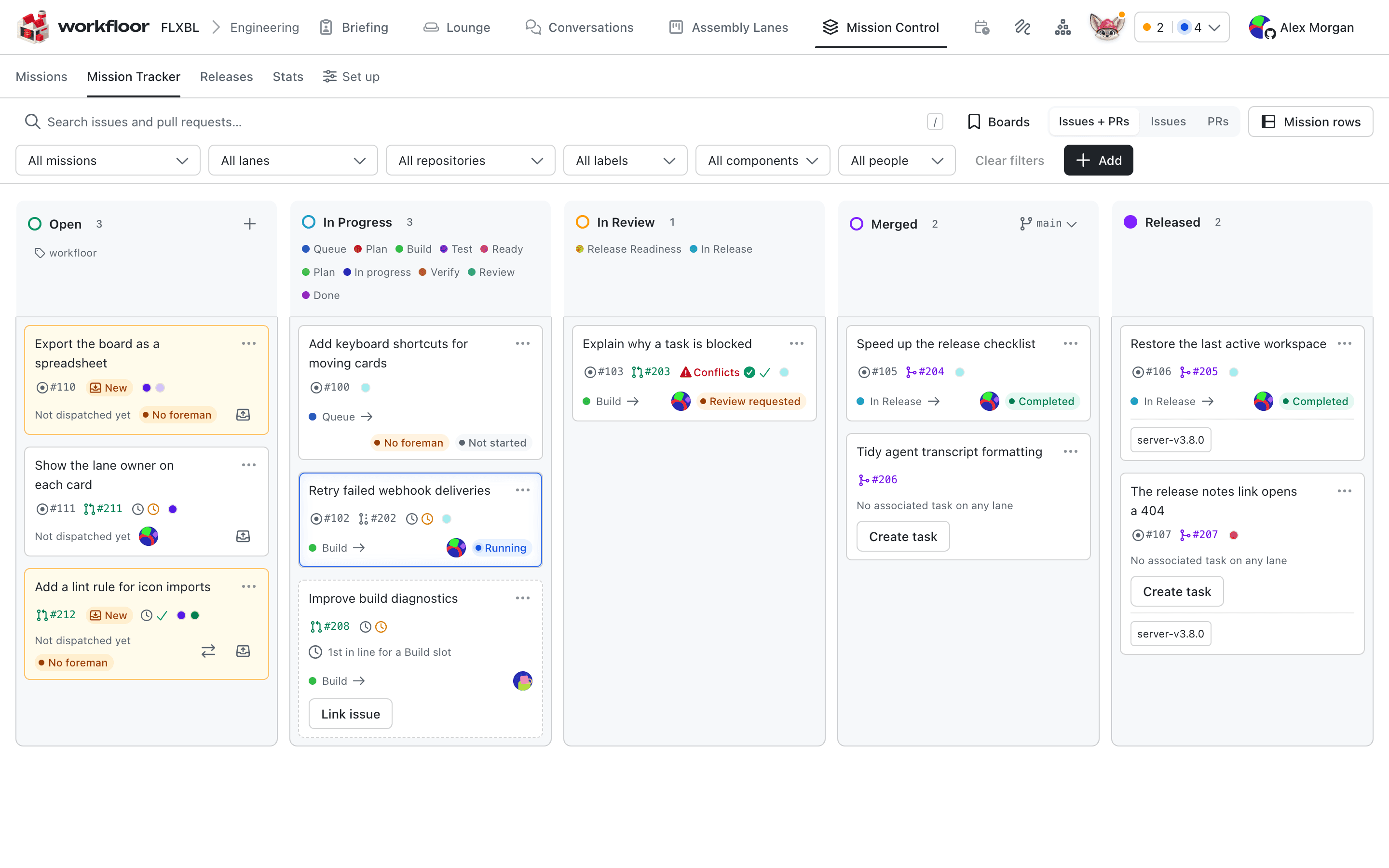
- Open holds issues and pull requests that carry the project's intake label.
- In Progress and In Review hold work that has a card on a lane, by the stage the card is in.
- Merged and Released follow the item's pull requests: Merged once they are merged, Released once their change is in a release.
Search and the filters, such as repository, label, lane and people, narrow the board. Selecting an item opens its issue or pull request in a side panel.
Take an item in
An issue or pull request enters Open when it has the intake label. In the Add menu, Create a new issue opens GitHub in a new tab with the label pre-applied where GitHub allows it. Add an existing issue and Add an existing pull request take a link or number and a Workfloor Foreman, who is suggested as the card's assignee when the item is dispatched.
Dispatch it to a lane
An item in Open is dispatched to a lane with the dispatch button on its card. The dialog is the same as New task, filled in from the issue: the title, the context and a link back to the issue. Choose the lane, the stage and the Workfloor Foreman, and optionally put Flux to work right away.
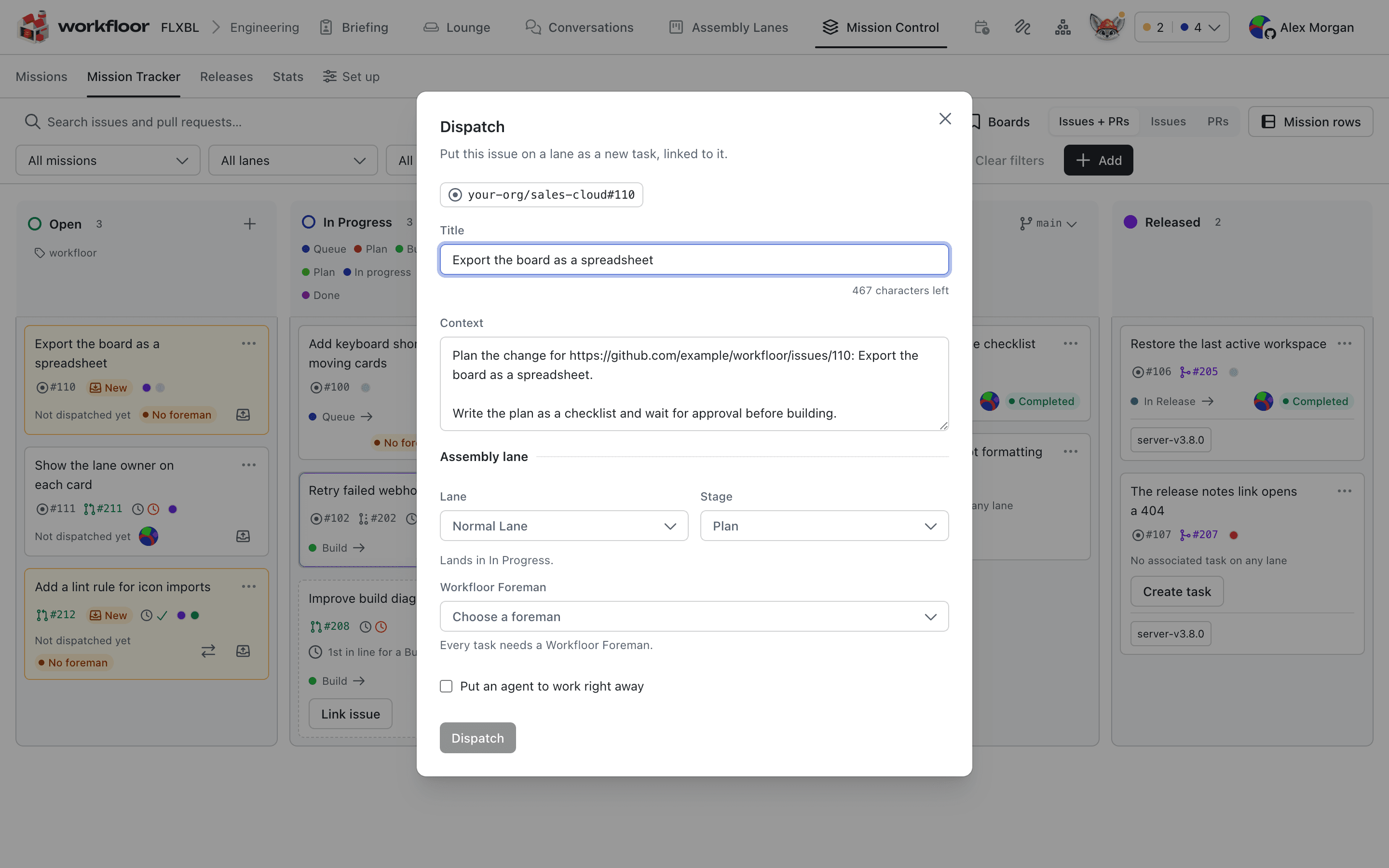
The card is linked to the issue, so the issue's state and its pull requests show on the card, and the tracker shows the card's stage. What the dialog pre-fills is the project's Intake template, reached from Set up. From here the card follows the steps in Your first card.
Missions
A mission groups related issues, pull requests and cards toward one outcome. Missions shows each one with its progress and the number of items in each column, ordered by priority: Urgent, High, Normal and Low. Workfloor places new work that no mission holds into a mission or into chores, and Group again asks it to do so now.
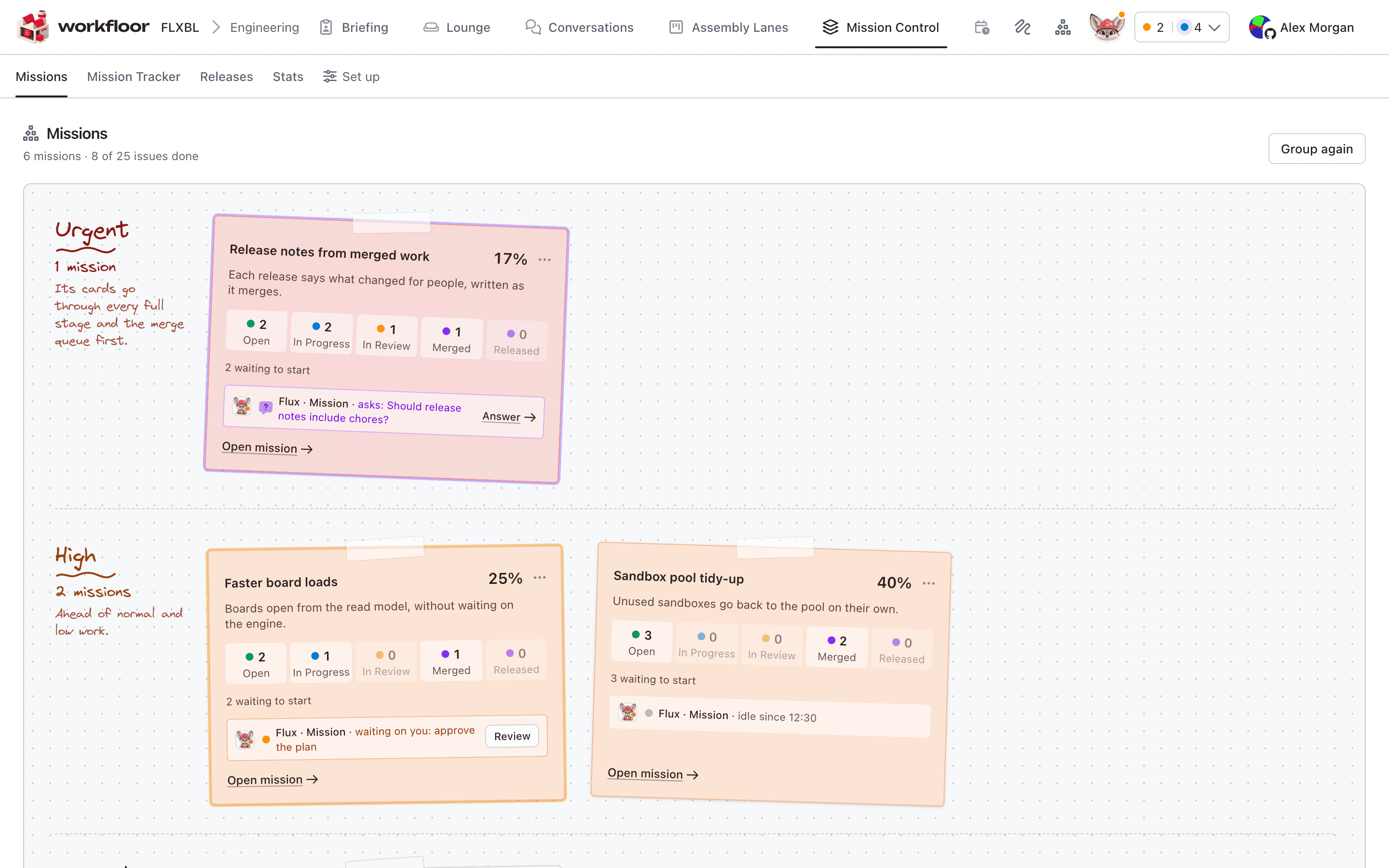
A mission can also be made by a member, or from a card with Promote to mission…. Opening a mission shows its state, priority and progress, its items with their lane and stage, and a history of what changed.
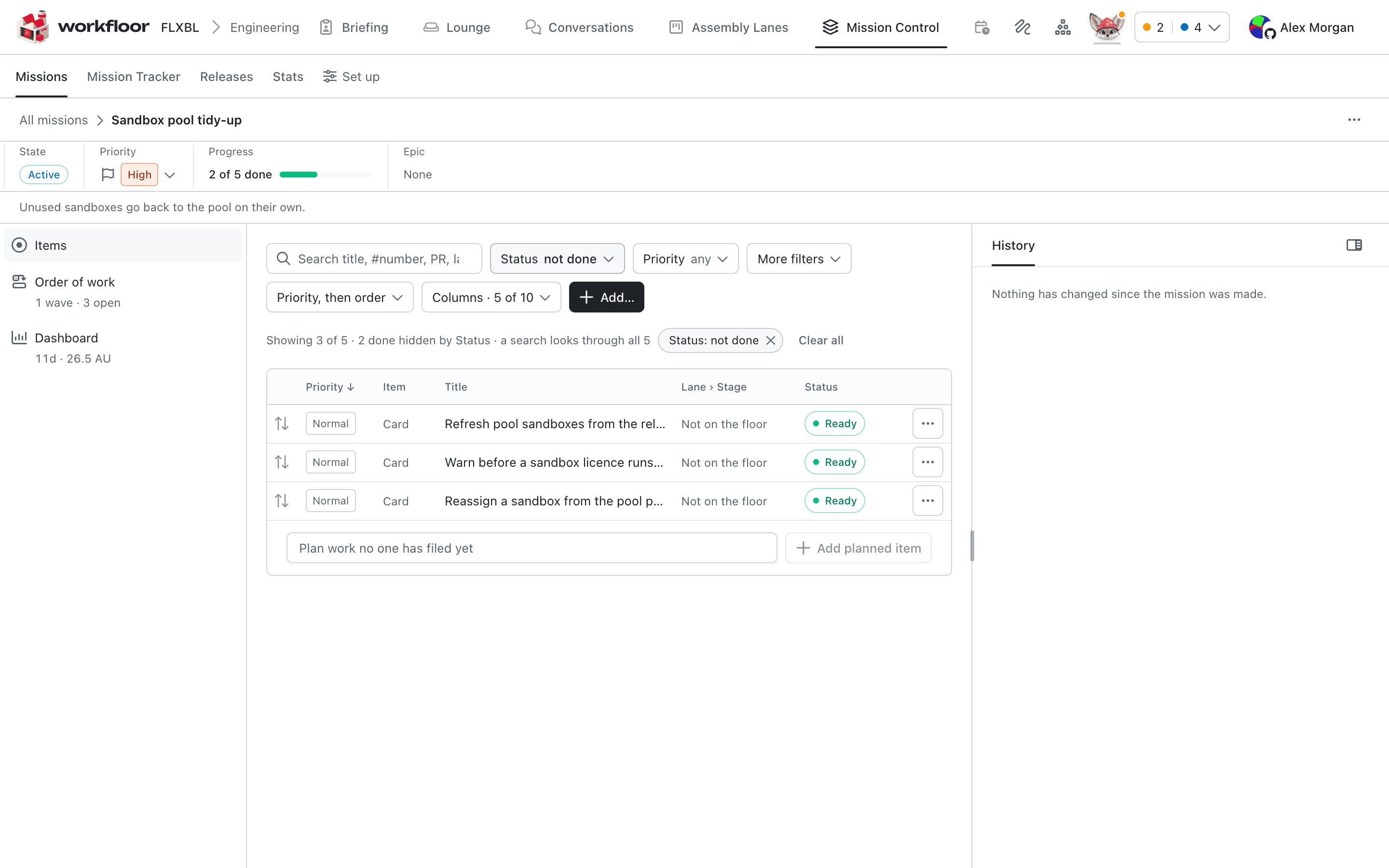
A mission's progress counts its items that are merged or released; a planned item counts as not done. Your own missions are also listed on the Briefing.
Next: Briefing.
Your first card
Create a card in a Workfloor assembly lane for a Salesforce change, then follow it from the brief through Flux's plan, changes and pull request to a merged change.
Briefing
Use the Workfloor Briefing to see the cards that need you, what is running, what was interrupted and what finished lately, with Flux's summary of your shift and of the whole project.