Your first card
Create a card in a Workfloor assembly lane for a Salesforce change, then follow it from the brief through Flux's plan, changes and pull request to a merged change.
A card is one piece of work in an assembly lane. This page follows one card, "Require a close reason on lost opportunities", from the brief to a merged pull request.
Write the brief
Open Assembly Lanes and select New task (or the + on a stage's column). The dialog asks for:
- Title — what the change is.
- Context — the description Flux works from.
- Repository — the repository the change is made in.
- Workflow stage — where the card starts.
- Workfloor Foreman — the card's assignee. Every task needs one.
- Put an agent to work right away — starts Flux when the card is created; otherwise the card waits until an agent is started.
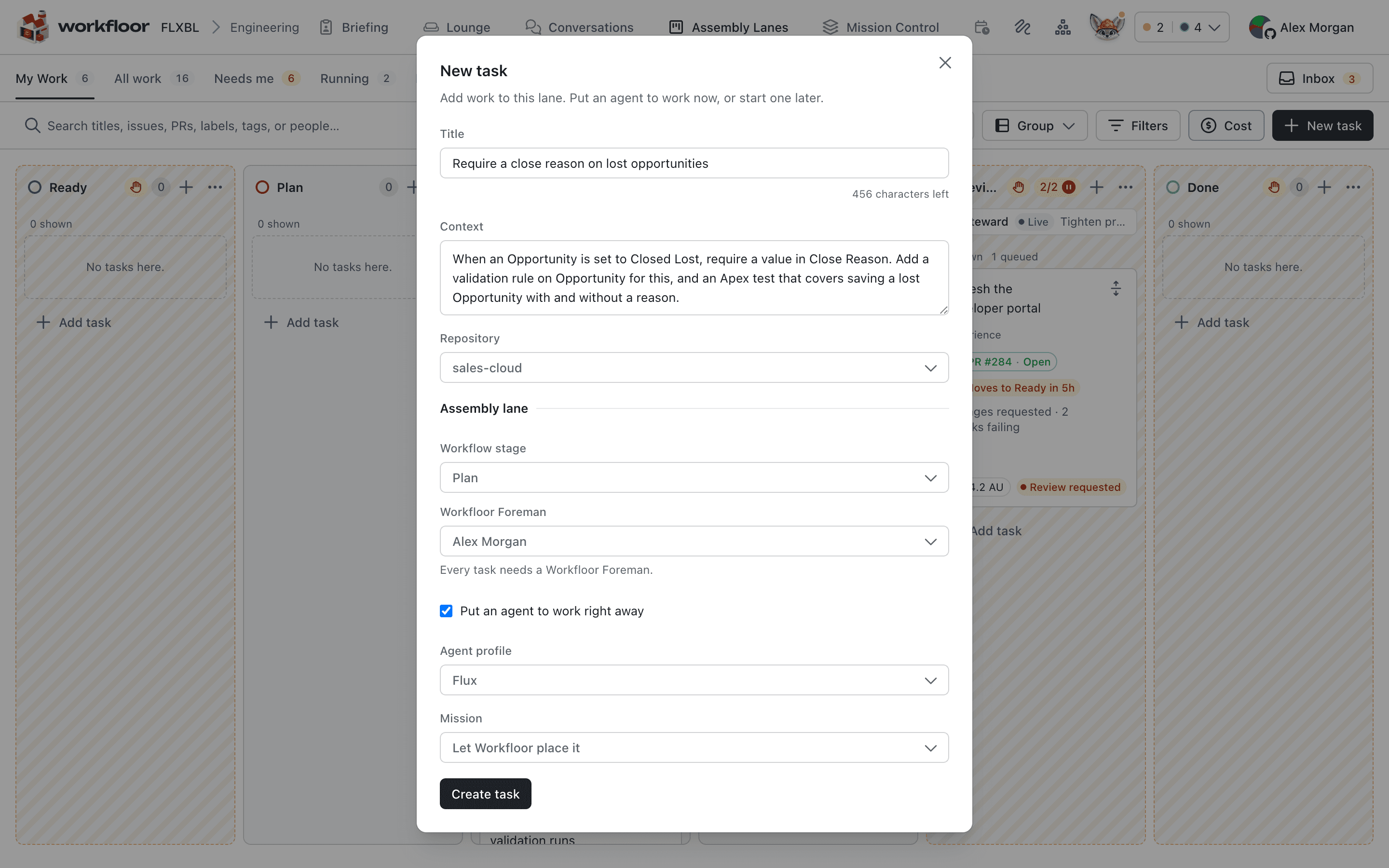
Here the context asks for a validation rule on Opportunity requiring Close Reason when the stage is Closed Lost, and an Apex test for both cases.
The assignee answers Flux's questions and approves its plan. With Workfloor's GitHub App, Flux pushes and opens pull requests as the assignee.
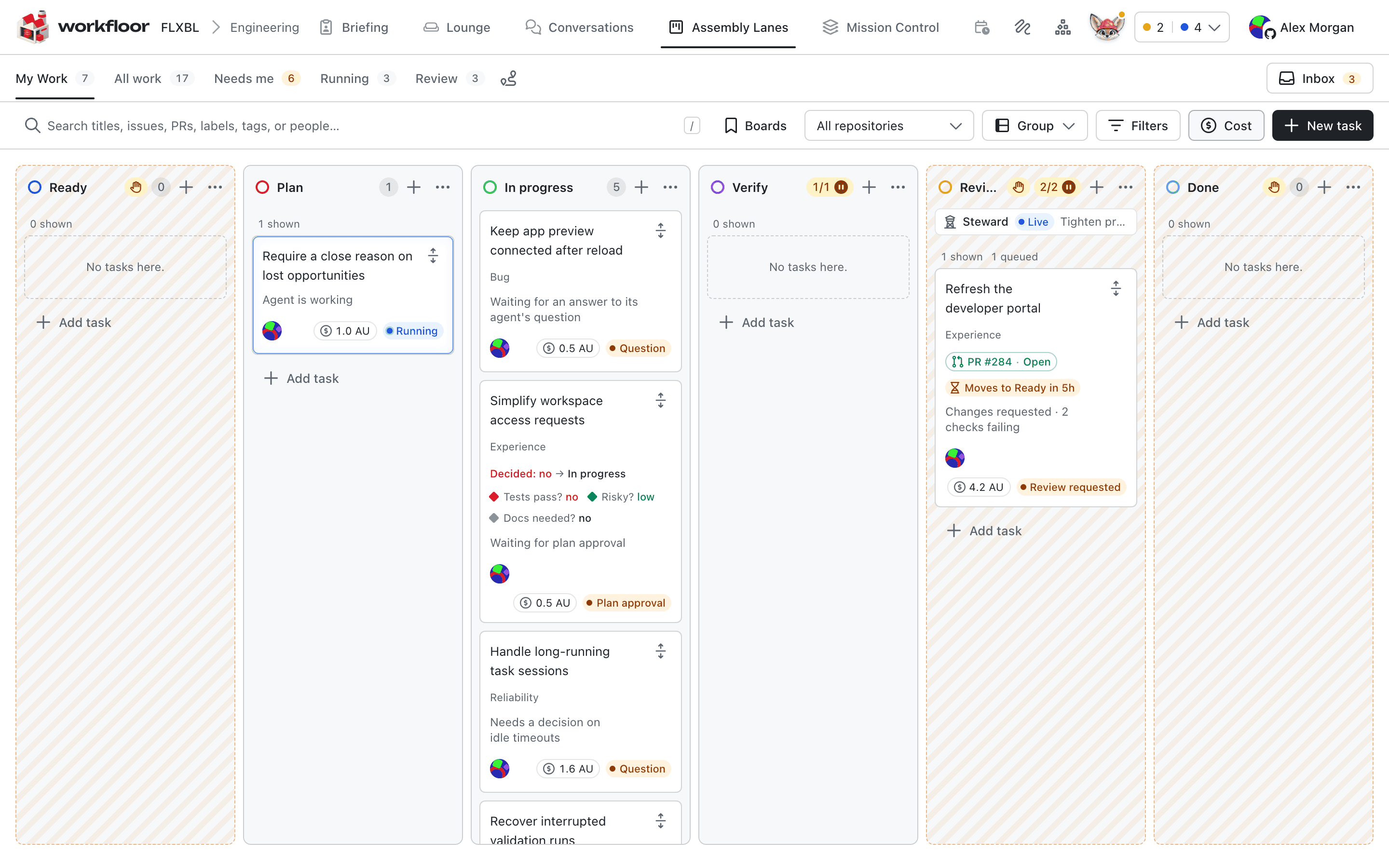
Flux plans
When the card's agent starts, Flux works on it. In a Plan stage it reads the repository and writes a plan: its approach and a checklist of steps. Select the card to open its page.
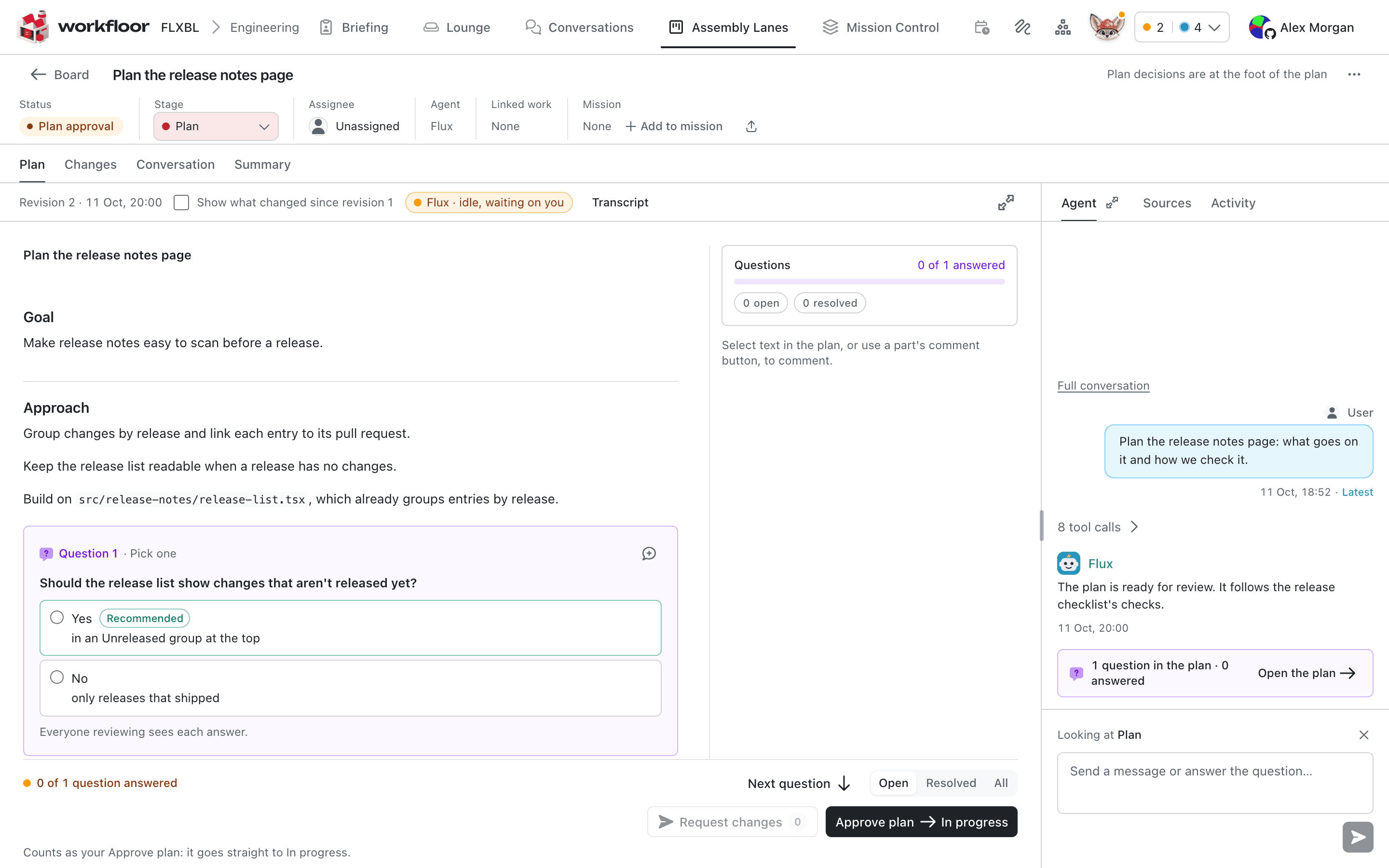
The header shows the card's status, stage and assignee. The tabs include Plan, Changes, Conversation and Summary; the conversation with Flux stays docked beside them.
To respond to the plan:
- Comment. Select text in the plan to leave a comment on that passage. Comments are queued, and Request changes sends them to Flux, which revises the plan.
- Ask now. From a selection, ask Flux about that passage. It answers in a thread without revising the plan.
- Answer. When Flux asks a question in the plan, choose an option. The card shows Question until it is answered.
- Approve plan. Approving moves the card to the stage that follows in its lane, typically where the build starts.
Review the changes
In the build stage, Flux changes metadata and code in its own checkout. Changes shows the files and the diff, as Diff or Diagram, Unified or Split. Follow the agent keeps the view on the file Flux is editing.
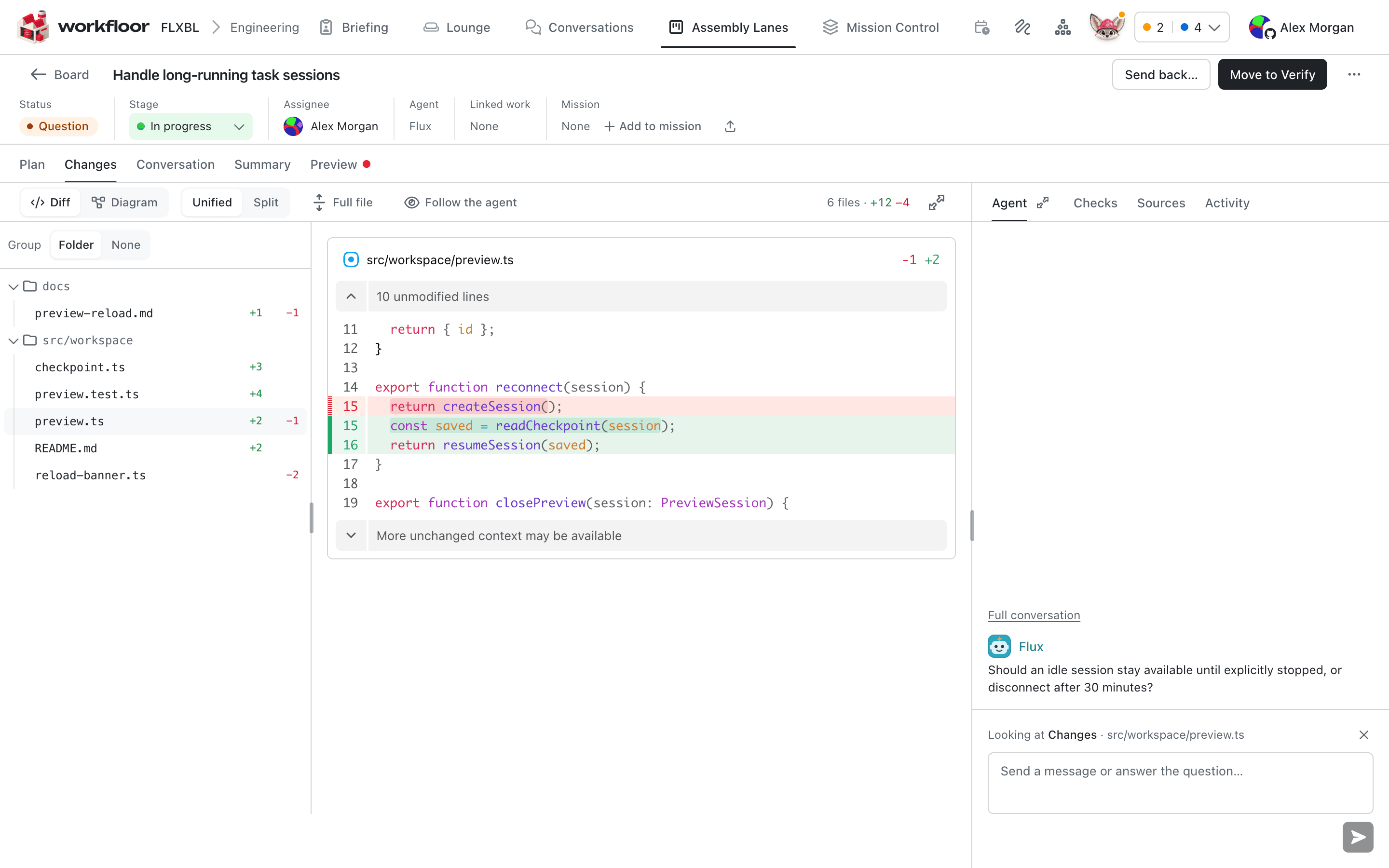
If Flux needs a decision while it builds, it asks in the conversation and the card waits for the assignee. Answer with the question's options or in the message box, which also sends Flux a message at any time.
The pull request and moving on
When Flux opens a pull request on GitHub, it links it to the card, under Linked work in the header. In a review stage, the header offers Approve review to move the card on, or Send back… to return it to an earlier stage.
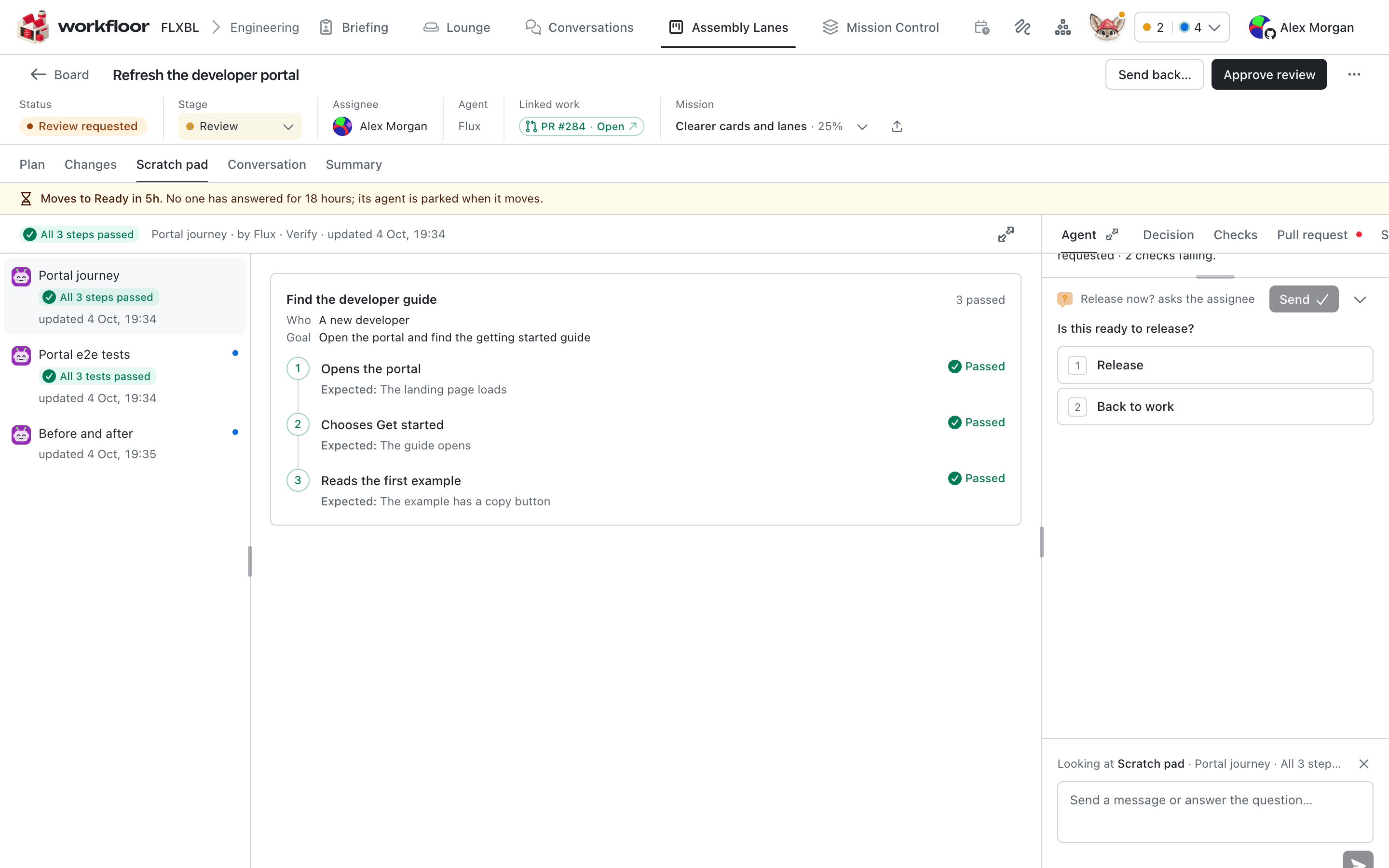
Merge the pull request on GitHub once its checks pass. The item moves to Merged on the Mission Control tracker. The card moves on as its lane's ways out say; a lane can also archive its cards once their change is released.
Next: Mission Control.
Runners
Register a runner for a Workfloor project so its agents run on your own machine, set which runners a project's cards use, and drain or remove a runner.
Mission Control
Use Workfloor Mission Control to see a project's GitHub issues and pull requests, take them in with the intake label, dispatch them to a lane as cards, and group them into missions.