Elevated access requests
Request temporary elevated Salesforce access for a user in a production org, gated by approval and restored automatically when the window ends.
Sometimes a person needs elevated Salesforce permissions in a production org for a short time — to investigate an incident or apply a manual fix. Rather than granting standing access, codev lets you request temporary elevated access: you name the user, the access level, and how long they need it. The request is approved like any other gated action, codev grants the access on approval, and removes it automatically when the time is up.
Requesting elevated access
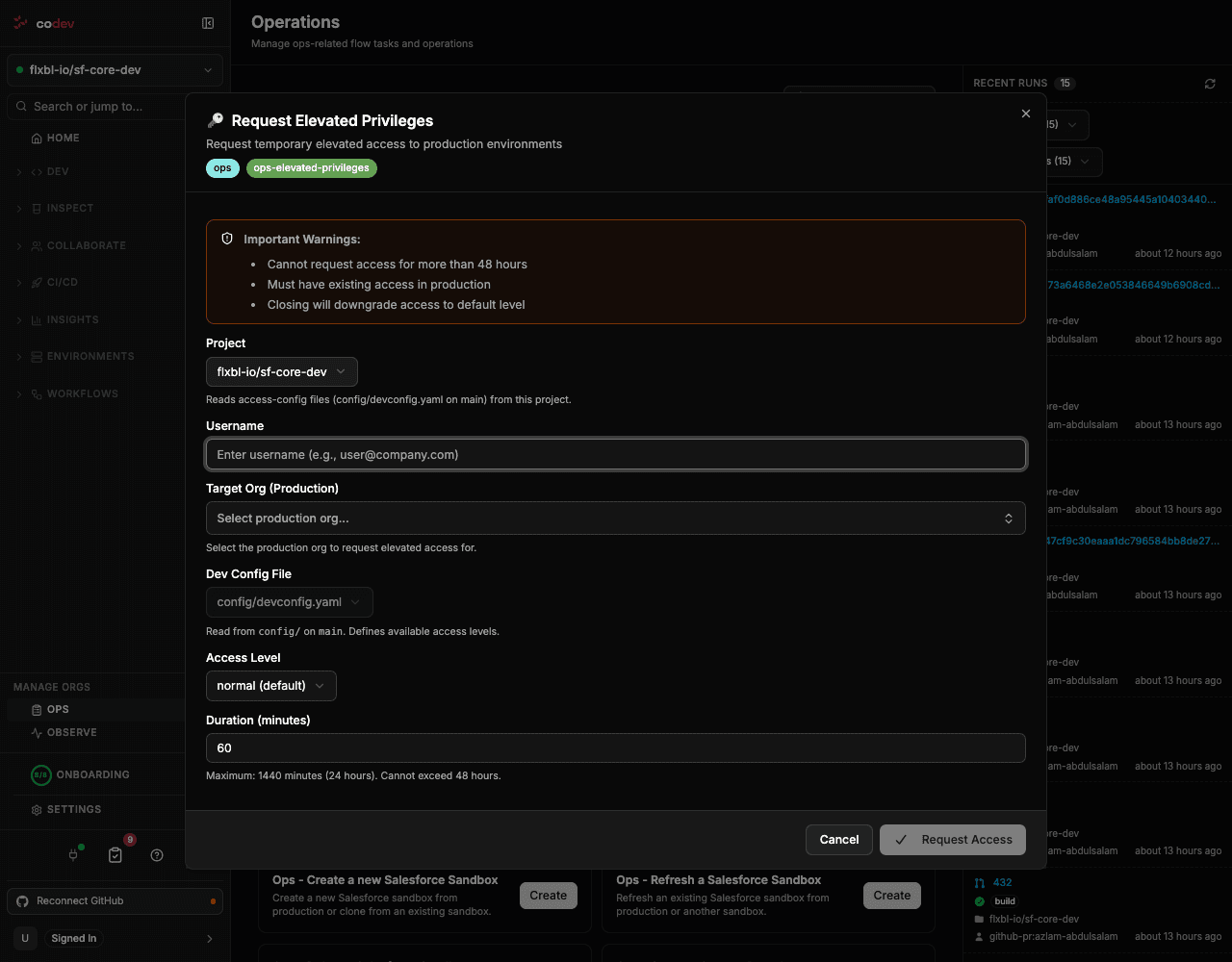
Open Operations (Manage Orgs > Ops) and choose Request elevated privilege in production. In the dialog:
| Field | What to enter |
|---|---|
| Project | The project the org belongs to. |
| Username | The Salesforce user who needs the access, e.g. user@company.com. |
| Target Org | The production org to grant access in. |
| Dev Config File | The access configuration file that defines the available access levels for the project. |
| Access Level | The level to grant, chosen from the levels the access configuration defines. |
| Duration | How long the access lasts, in minutes — up to 24 hours (1440 minutes). |
Submitting the request creates a tracked request titled Request — Elevated Privileges and sends it for approval.
The access levels you can choose are defined in the project's access configuration, not in codev. See sfp: Access management for how those levels are defined for a project.
Two things to know before you request:
- The user must already have access in the production org — elevation raises an existing user's level, it does not create access from nothing.
- Closing an active elevation downgrades the user back to the default level.
Approval and restore
An elevated-access request pauses at an approval gate — nothing is granted until it is approved. By default the project's owners are the approvers, and the request appears in the Pending Approvals list alongside releases. An approver can resolve it there, or from the source thread with /codev approve.
- On approval, codev grants the chosen access level to the user on the target org and starts the clock.
- When the duration ends, codev restores the user's previous access automatically — you do not have to remember to revoke it.
- On rejection, nothing is granted.
Because it is approval-gated, the request also honors separation of duties: with that setting on, the person who requested the elevation cannot approve their own request.
Every request and decision is recorded in the audit trail — who asked for access, who approved it, for whom, at what level, and for how long.
Related
- Approvals — how the approval gate works and where requests appear
- Configuring approval gates — who approves operational requests
- Audit trail — the record of every request and decision
Branch protection and required checks
Require codev's PR validation check — and pull request review — before a branch can be merged, using your source provider's branch protection.
ServiceNow
Create ServiceNow change requests for releases, and optionally hold a release until its change request is approved.