Slack
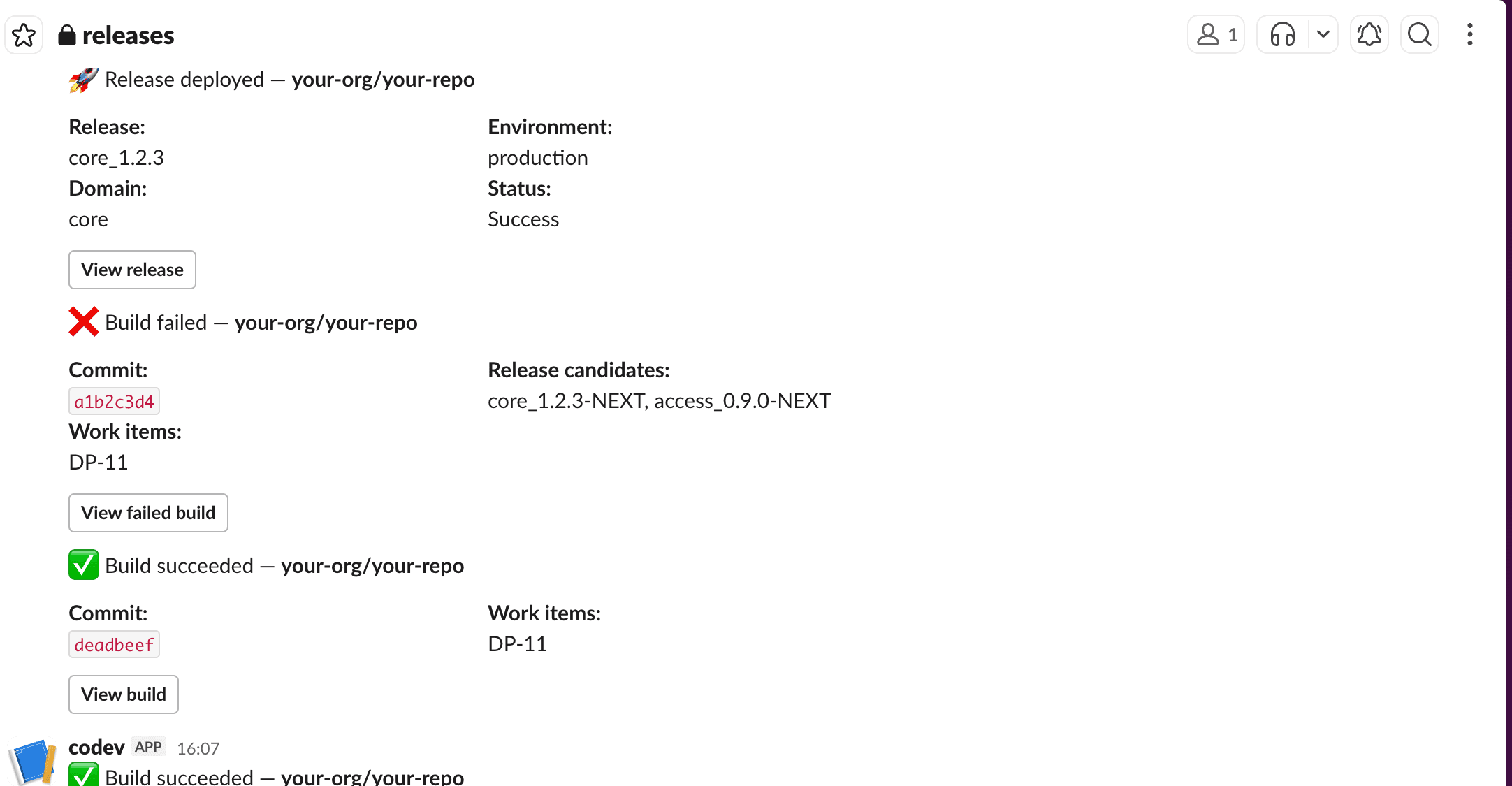
The Slack notifications integration posts build and release events to a Slack channel. When a build completes on merge, a build fails, or a release is deployed, codev sends a message to the channel behind a Slack incoming webhook — with the repository, commit, release candidates, work items, and a button linking back to the run.
You configure it under Settings > Organization > Integrations > Slack. Only organization owners can manage it.
What gets posted
codev sends a message for three events:
| Event | When it fires | Message |
|---|---|---|
| Build succeeded | A build completes after a merge | ✅ Commit, release candidates, work items, View build |
| Build failed | A build fails | ❌ The same fields, View failed build |
| Release deployed | A release finishes deploying | 🚀 Release name, environment, domain, status, View release |
The Notify on setting controls which of these are delivered:
- All builds & releases — every event above.
- Failures only — only failed builds. Successful builds and successful deployments are skipped.
Create the incoming webhook in Slack
- In Slack, open your workspace's app directory and create (or open) an app with Incoming Webhooks enabled.
- On the app's Incoming Webhooks page, click Add New Webhook to Workspace.
- Pick the channel the notifications should post to and click Allow.
- Copy the generated webhook URL (
https://hooks.slack.com/services/…).
The webhook URL is a channel-posting credential — anyone holding it can post to that channel. codev stores it encrypted in the integrations credential store; it is never written into project configuration or returned by project reads.
Configure the integration in codev
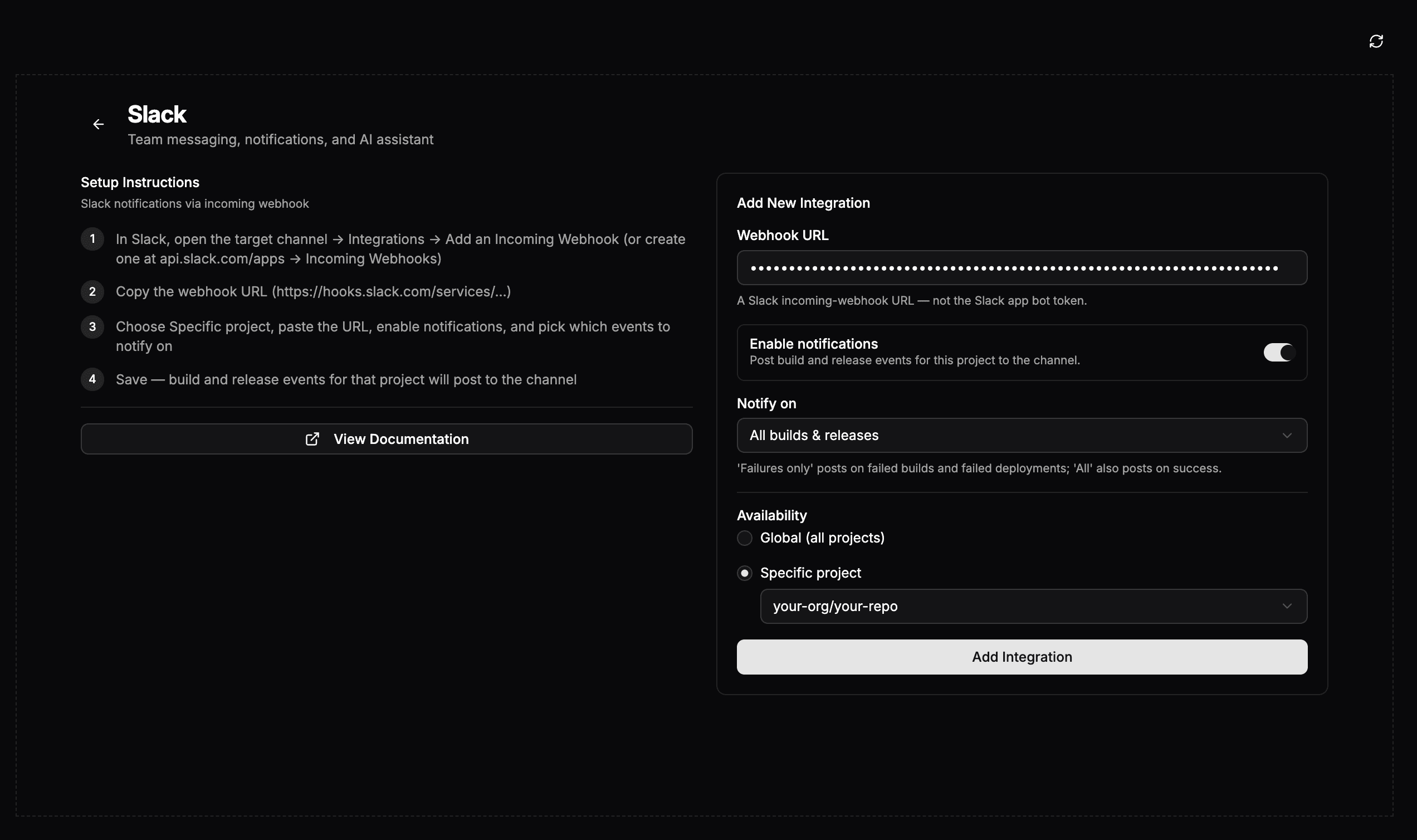
- Go to Settings > Organization > Integrations and open the Slack tile.
- Paste the Webhook URL.
- Leave Enable notifications on, and pick a Notify on mode — All builds & releases or Failures only.
- Under Availability, select Specific project and choose the project. Notification settings are per project, so a project must be selected.
- Click Add Integration.
Saving stores the webhook URL as an encrypted credential and writes the enable flag and mode to the selected project's configuration (notifications.slack).
Changing the mode later
The enable flag and mode live in the project's configuration under notifications.slack:
{
  "notifications": {
    "slack": {
      "enabled": true,
      "mode": "failures"
    }
  }
}
Edit them from the project's Update Project dialog (the configuration editor), or re-add the integration with the new mode. Setting enabled to false stops deliveries without removing the stored webhook credential.
Troubleshooting
- No messages arrive — check that the project's configuration has
notifications.slack.enabled: trueand that the integration is scoped to that project. In Failures only mode, successful builds and deployments are skipped by design. - The webhook was rotated in Slack — re-add the integration with the new URL; the old credential is replaced.