Connected accounts
Link your own GitHub or Azure DevOps account so codev acts as you — creating issues, releases, and pull requests under your name — through an OAuth device login.
codev talks to your source-control provider in two different ways, and they are easy to confuse.
- The organization connection — a GitHub App or an Azure DevOps Service Principal — is the identity codev authenticates as to read your repositories, receive webhooks, and post bot results. An organization owner sets it up once. See GitHub and Azure DevOps.
- A connected account is your own GitHub or Azure DevOps identity, linked to codev so that actions you take run as you rather than as the bot — creating an issue, requesting a release, or opening a pull request under your name. You link it yourself, and you can link, reconnect, or disconnect it at any time.
This page is about the second one.
Why you link your own account
When codev performs an action on your behalf, it needs a token that represents you at the provider. Without one, the action falls back to the organization's bot identity, and your name no longer appears against the work. Linking your account gives codev a personal token so the attribution is yours.
Whether you already have such a token depends on how you signed in:
- GitHub — if you signed in with a social login ("Sign in with GitHub"), the provider already handed codev a token for you, and there is nothing to do. Only if you signed in with SAML single sign-on, or an email and password on a self-hosted instance, do you need to link your GitHub account.
- Azure DevOps — you always link it. Signing in with Microsoft authenticates you to codev, but that sign-in token is not an Azure DevOps token, so codev cannot act as you on Azure DevOps until you link your account here.
The token is obtained through an OAuth device login and is held encrypted on the server. It is never shown in codev and never reaches your browser.
Where connected accounts live
Open Settings > Connections. The page lists the accounts you have linked and lets you connect a new one. Everything here is personal to you — it is separate from the organization integrations under Settings > Organization > Integrations, which only owners manage.
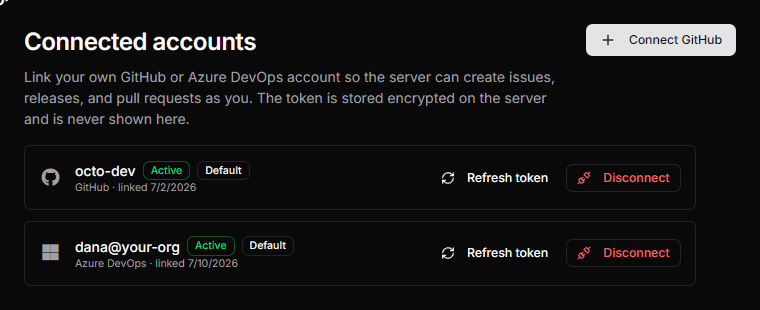
Each linked account is a row showing the account it points at, its status, and its actions:
| Status | What it means |
|---|---|
| Active | The link works; codev can act as you. |
| Needs reconnect | The token no longer works — it was revoked at the provider, or a refresh failed. Reconnect to restore it. |
| Revoked | You disconnected the account. |
The Connect button is labelled for whichever provider your instance uses — Connect GitHub or Connect Azure DevOps. If you have not linked anything yet, the page shows an empty state with the same button.
Connecting an account
Click Connect GitHub or Connect Azure DevOps. codev requests a verification code from the provider and opens a dialog with two steps.
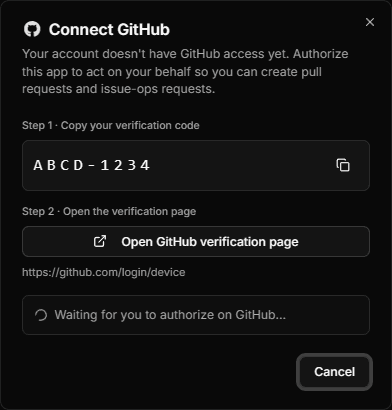
- Copy your verification code. The dialog shows a short code. Copy it with the button next to it.
- Open the verification page. Click Open GitHub verification page (or Open Azure DevOps verification page). Your provider's device-login page opens: GitHub at
github.com/login/devicewith the code already filled in, and Microsoft atmicrosoft.com/devicelogin, where you paste the code you copied. Approve the request there.
Once you approve, the dialog reports that you are connected and closes on its own. The account now appears on the Connections page as Active.
The verification code expires after a few minutes. If it lapses before you approve, the dialog offers Retry to fetch a fresh one.
Linking when an action asks for it
You do not have to link ahead of time. When you trigger an action that runs as you — requesting a release, creating an issue — and codev has no usable link for you, it prompts you to connect right then, runs the same device login, and retries your action automatically once you finish.
The prompt distinguishes two cases:
- No account linked — you have no active link for this provider. The dialog reads Connect.
- Connection needs re-authorization — a link exists but the token no longer works. The dialog reads Reconnect.
In both cases you complete the same two-step device login, and the action you were trying to take goes through without you starting it again.
Managing a connection
From the Connections page, each linked account offers:
- Refresh token — an Active account shows this. It renews the stored token immediately, without a new device login.
- Reconnect — a broken account (Needs reconnect or Revoked) shows this instead. It runs the device login again to restore the link.
- Disconnect — an active account also offers this. It removes the link: codev drops the stored token and, for GitHub, attempts to revoke it at the provider. Azure DevOps has no token-revoke endpoint, so disconnecting removes the link on codev's side only; the underlying refresh token is abandoned rather than revoked.
After disconnecting, the next action you take as yourself prompts you to link again. Disconnecting cannot be undone — you re-link with the device login if you need the connection back.
Setting up the provider first
Linking your own account works only after an organization owner has registered the provider so codev knows which OAuth app to use for the device login. That setup — the GitHub App with Device Flow enabled, or the Azure DevOps Service Principal — is covered on the provider pages.