GitHub
The GitHub integration lets codev work with your repositories — reading code, opening and updating pull requests, posting check results, and acting on behalf of individual contributors for Git operations.
You configure it under Settings > Organization > Integrations > GitHub. Only organization owners can manage it.
Authentication methods
GitHub supports three authentication methods. They serve different purposes, and you can register more than one.
| Method | What you provide | What it powers |
|---|---|---|
| GitHub App | App ID and a private key | The recommended way for codev to act on your repositories — clones, pull requests, check runs, and other repository operations. |
| OAuth App (Device Flow) | A Client ID, and optionally a Client Secret | Lets individual users link their personal GitHub identity to codev through a device login, so Git operations run as that user. The Client Secret is only needed to refresh and revoke those user tokens — starting a device login needs only the Client ID. |
Both methods are backed by a GitHub App — they just use different parts of it. The GitHub App method uses the app's private key so codev can act as an application on your repositories. The OAuth App (Device Flow) method uses the same app's OAuth client credentials so an individual user can authorize codev to act as them. Many teams configure both.
Legacy GitHub OAuth Apps are not supported. The device-login method uses the OAuth credentials of a GitHub App with Device Flow enabled — not a classic GitHub "OAuth App". Create or reuse a GitHub App under GitHub Settings > Developer settings > GitHub Apps.
Signing in to codev uses flxbl's OAuth app
This is the most common point of confusion, so it is worth stating plainly.
On the cloud instance, you sign in to codev with social login (for example, "Sign in with GitHub"). That sign-in always uses flxbl's own OAuth app. It is part of how the cloud service authenticates you, and you cannot replace it.
The OAuth App you register here is a different thing. It is used to link a contributor's personal GitHub identity for Git operations inside codev — and to refresh and revoke those tokens. Registering your own OAuth App does not change how you, or anyone on your team, signs in to codev.
| Action | Which OAuth app is used |
|---|---|
| Signing in to codev (cloud) | flxbl's OAuth app — always, and not configurable |
| Linking your GitHub identity for Git operations (device flow) | Your registered OAuth App if you add one; otherwise the instance's managed OAuth app |
Adding a GitHub OAuth App integration is about acting on GitHub as a user, not about logging into codev. If your goal is to change how people authenticate into the product, an integration is not where that happens.
On the cloud: you start already connected
On the cloud instance, GitHub is already connected through flxbl's installed GitHub App, so codev can work with the repositories you've granted it without any setup. The GitHub page shows this as connected via the installed App (Cloud mode).
You add your own GitHub integration on top of that when you want to:
- Use your organization's own GitHub App instead of the managed one.
- Scope a credential to a specific project.
- Register your own OAuth App for user device login and token refresh.
When you do, your integration takes precedence following the resolution order below.
Scoping and precedence
Each integration is either Global (all projects) or scoped to a specific project, and a global integration can be marked as the default for GitHub. When codev authenticates for a project, it picks the most specific match:
- A GitHub integration scoped to that project
- The integration marked default for GitHub
- A global GitHub integration
- The instance's managed GitHub App (on cloud, flxbl's installed App)
Repository operations always authenticate with a GitHub App.
Adding an integration
- Go to Settings > Organization > Integrations > GitHub.
- Under Add New Integration, choose the Authentication Method.
- Fill in the credentials for that method:
- GitHub App — App ID and the contents of the app's private key (
.pem) file. On GitHub Enterprise, also the GitHub Server URL — see GitHub Enterprise. - OAuth App (Device Flow) — the Client ID of a GitHub App with Device Flow enabled, and its Client Secret if you want token refresh and revoke. Legacy GitHub OAuth Apps are not supported.
- GitHub App — App ID and the contents of the app's private key (
- Set Availability to Global (optionally marking it the default) or to a specific project.
- Click Add Integration.
Existing integrations are listed with their method, scope, default marker, and status, and can be edited or removed at any time.
Where to create the GitHub credentials. GitHub Apps are created under GitHub's Settings > Developer settings > GitHub Apps. Both methods draw from a GitHub App — its private key for the GitHub App method, and its OAuth client credentials (with Device Flow enabled) for the OAuth App method. codev only stores the resulting identifiers and keys.
GitHub Enterprise
When your repositories are on GitHub Enterprise rather than github.com, register the GitHub App inside your enterprise and enter the enterprise's address as GitHub Server URL on a Global GitHub App integration. Leave the field empty for github.com.
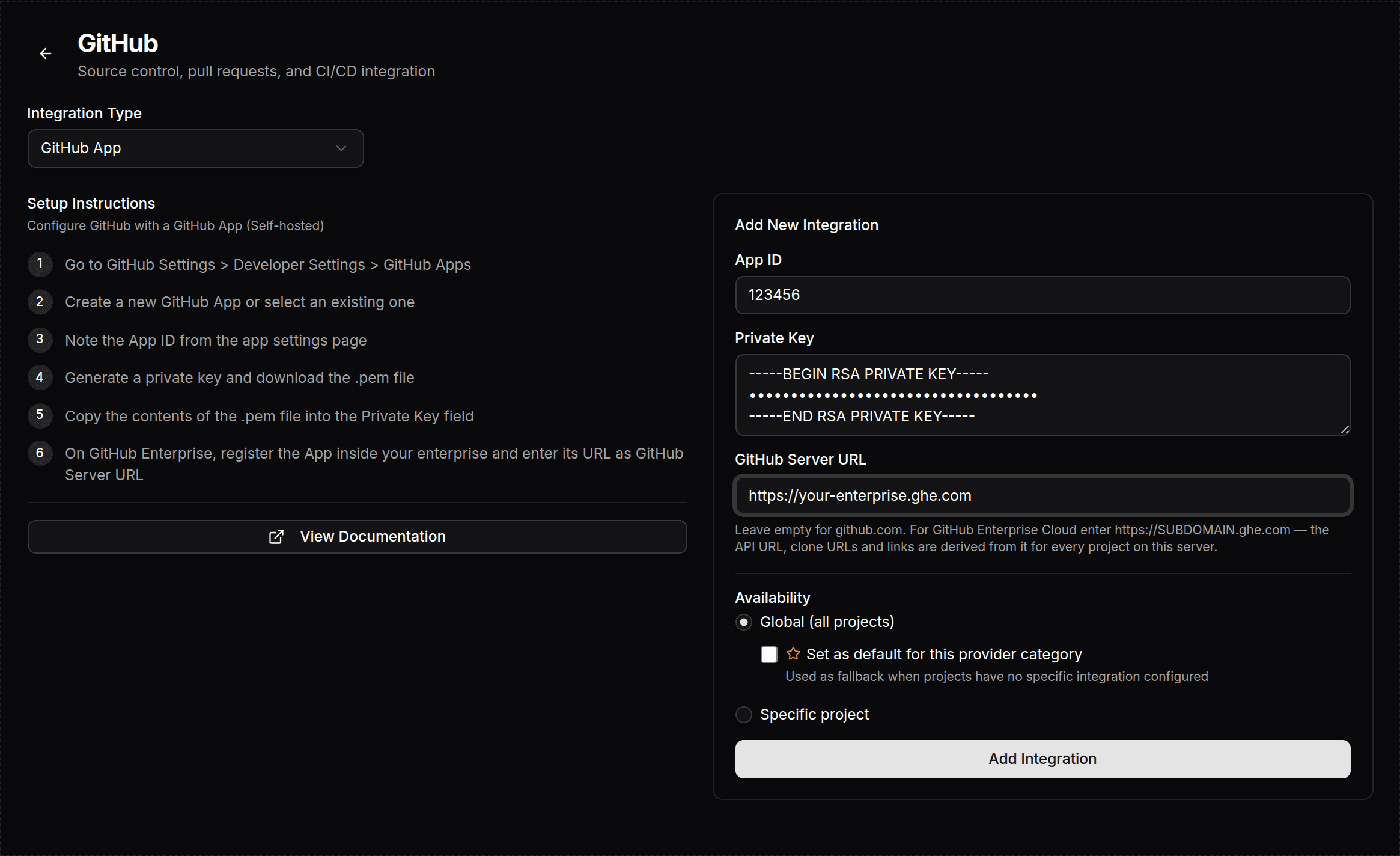
The address applies to every project on the instance; an instance works with one GitHub host. codev derives the GitHub API address, clone URLs, links to pull requests and commits, and the Install GitHub App link in onboarding from it:
| GitHub Server URL | GitHub API address |
|---|---|
https://SUBDOMAIN.ghe.com (GitHub Enterprise Cloud with data residency) | https://api.SUBDOMAIN.ghe.com |
https://github.example.com (GitHub Enterprise Server) | https://github.example.com/api/v3 |
The address must be an https:// origin without a path, query, port or credentials, and it must resolve to a public address. The field appears only when Availability is Global; a project-scoped integration cannot set a host. When the server rejects an address, the reason is shown on the form and nothing is saved. The onboarding wizard's App Integration step offers the same field.
A changed address reaches running work within two minutes. When no Global GitHub App integration sets a host, the server's own configuration applies, and github.com when there is none. A GitHub Enterprise Server that resolves to a private address is configured on the server instead — see Connecting GitHub as a CI/CD provider.
Self-hosting
On a self-hosted instance there is no managed GitHub App, so you provide the GitHub credentials yourself. Server-level provider configuration is covered in the sfp server documentation; the per-project and per-provider integrations on this page work the same way once the server is configured.
Once the OAuth App is registered, each user links their own GitHub identity so codev can act as them.