Assembly lanes
How a Workfloor assembly lane moves Salesforce changes through stages, how a project admin edits a lane's stages and agents, and how a new version is published.
An assembly lane is a project's delivery process: an ordered set of stages that a card moves through. Each stage says which agent works there, if any, and what moves the card on. A project can have several lanes, for example one for Salesforce changes and one for support work.
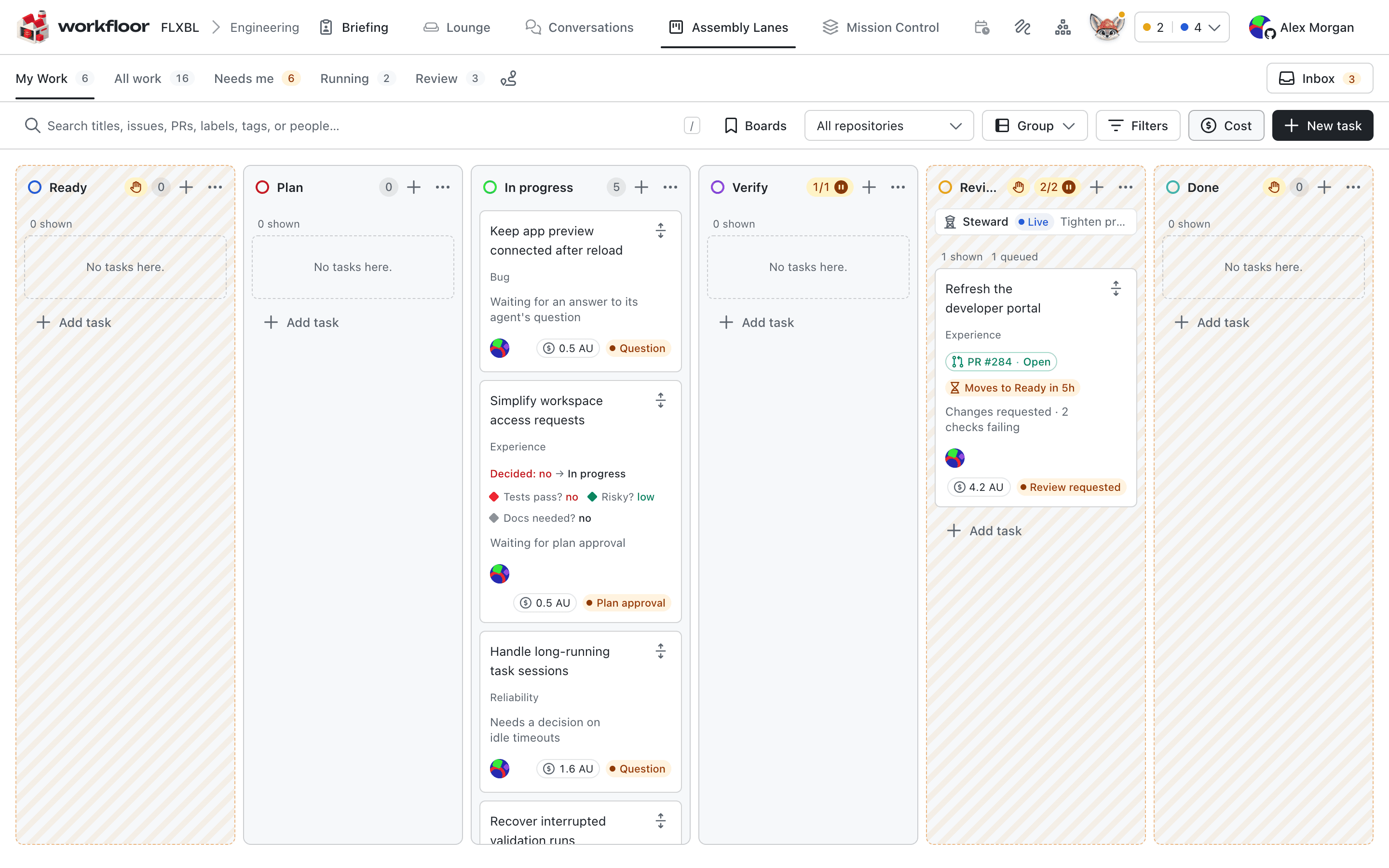
The lane board
Assembly Lanes in the top bar opens the board for the project's lanes. Each column is a stage and each card is one change: an Apex trigger to add, a validation rule to correct. A card moves left to right as its agent finishes work or as people move it. A stage with a WIP limit takes only that many cards at once; the rest wait at its door in order.
Edit a lane
Lanes are edited by project admins, on a desktop. Open Settings > Projects, choose the project, and open its Workflow tab. The tab lists the project's lanes; Edit workflow opens one.
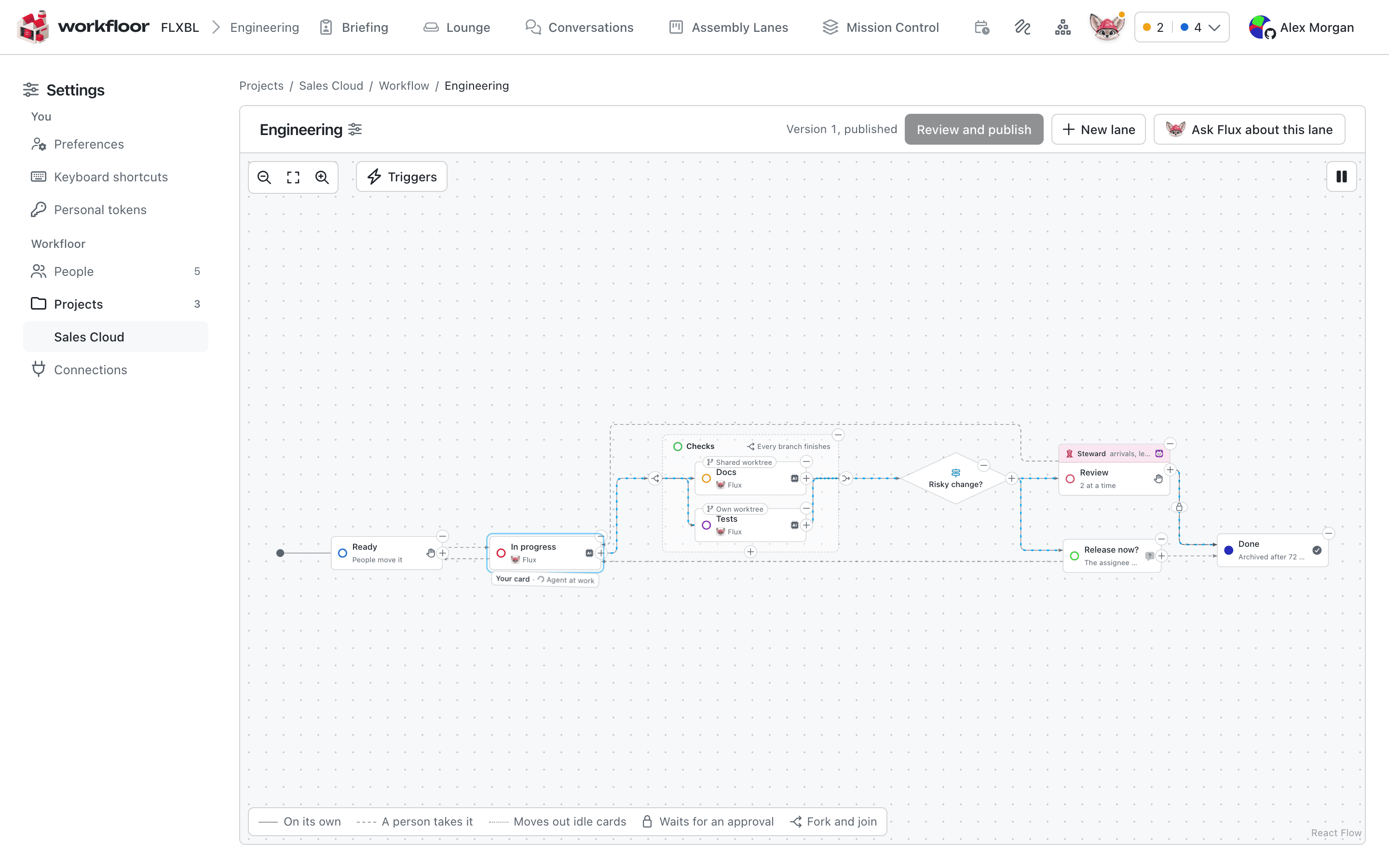
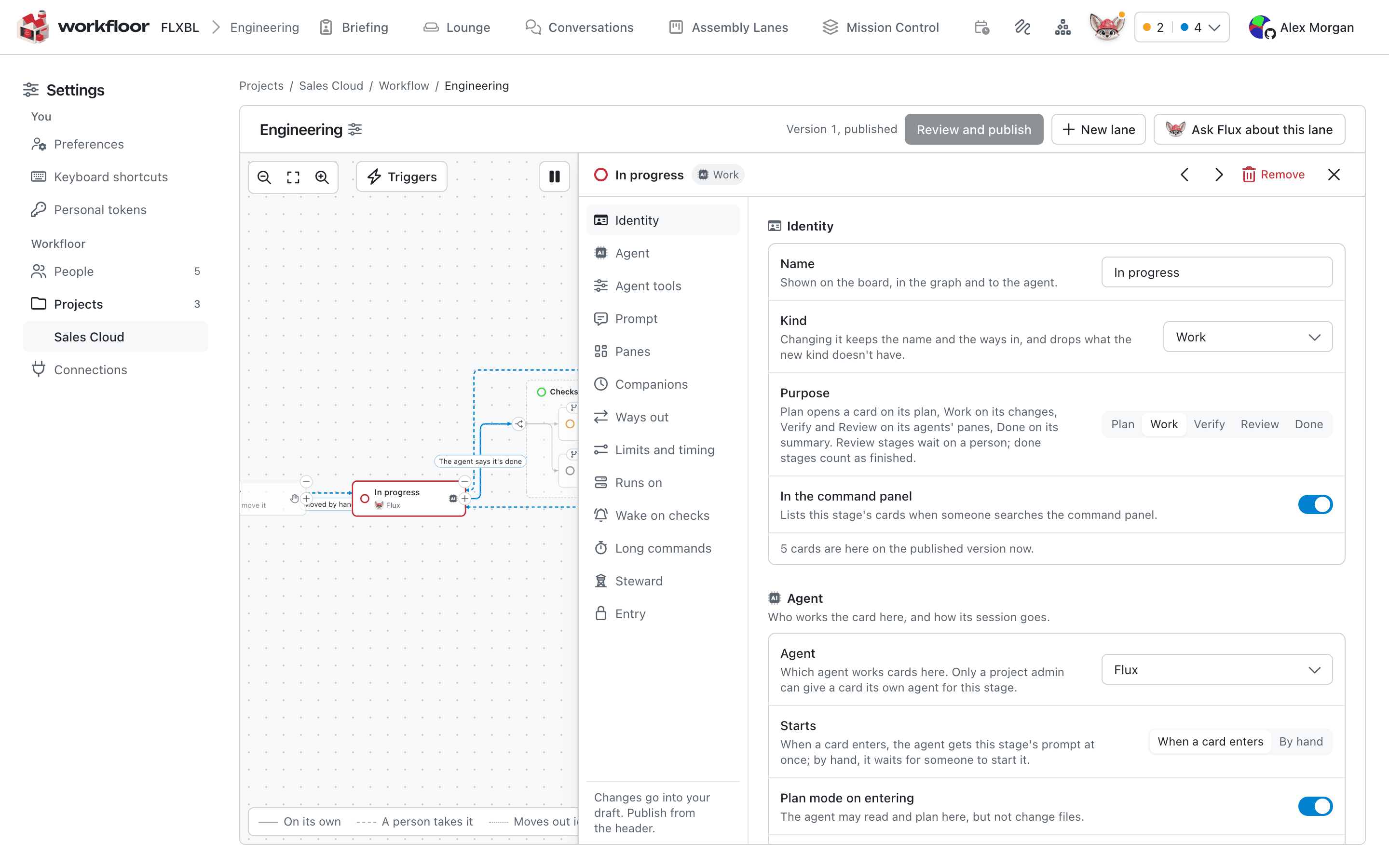
The editor draws the lane as a graph. Select a stage to open its settings beside the graph:
- Identity. The stage's name, its kind (work, decision, a question for the assignee, parallel branches, or done) and its purpose: Plan, Work, Verify, Review or Done.
- Agent. Which agent works cards at the stage, whether it starts when a card enters or by hand, and whether it works in plan mode. Flux works at a stage as a profile, such as Plan, Build, Verify or Review, chosen from the same list. A stage can also have no agent, so that people move cards on.
- Prompt. The instructions the agent receives on entering the stage, after the lane's own instructions. The card's brief and linked issue follow automatically.
- Ways out. Each way a card leaves the stage: the agent saying it is done, a person moving it, or a pull request merging, and who may take it.
- Limits and timing. The stage's WIP limit.
Use + on the graph to add a stage after another, and − to remove one. An admin can also select Ask Flux about this lane to have Flux draft a change, which the admin reviews and publishes.
Publish a version
Edits are kept as the admin's own draft. Nothing changes for anyone else until the draft is published. Review and publish lists what changes against the live version. A stage that is removed while it holds cards asks where those cards go.
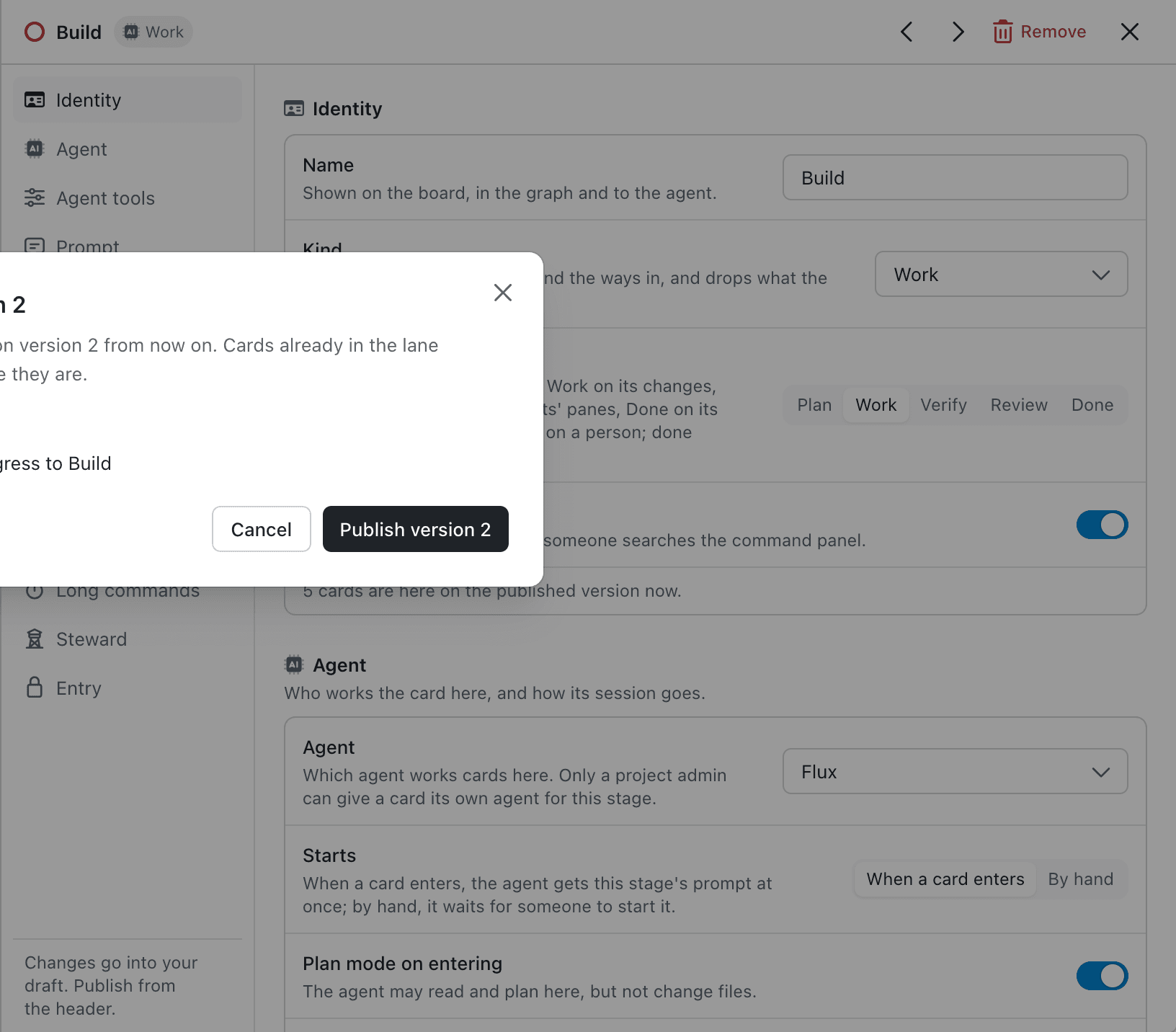
Publishing saves the next version of the lane. Cards already in the lane move onto it where they are; no agent starts and no move is recorded because of the publish.
Start from a template
New lane, on the Workflow tab, starts a lane from scratch (one stage and a Done stage after it), copies another lane's published version (without its cards), or uses a template. The only template is Triage, for support threads. A new lane opens in the editor.
Next: Agents.