Stage workbenches and scratch pads
How a Workfloor card's page changes with the stage it is in, what the Plan, Changes and Scratch pad views hold, and how Salesforce projects see metadata changes.
A card's page is a workbench: a header, a row of views, the open view and a rail of tabs. The stage's purpose, set in the lane editor as Plan, Work, Verify, Review or Done, decides which view opens first. A person can open any other view the card has, and their choice holds until the card leaves the stage.
| Stage purpose | Opens on |
|---|---|
| Plan | Plan |
| Work | Changes |
| Verify, Review | Scratch pad, or Changes while the Scratch pad is empty |
| Done | Summary |
The views row reads Plan, Changes, Scratch pad, Conversation, Summary and Preview. A view appears once the card has something for it: Plan once there is a plan, Changes once there are changes, Scratch pad once Flux has published to it, and Preview once the card's preview can answer. The stage's action sits at the right of the header: Approve plan, Move to Verify, Approve review, each with Send back… where the lane allows it.
The Plan view
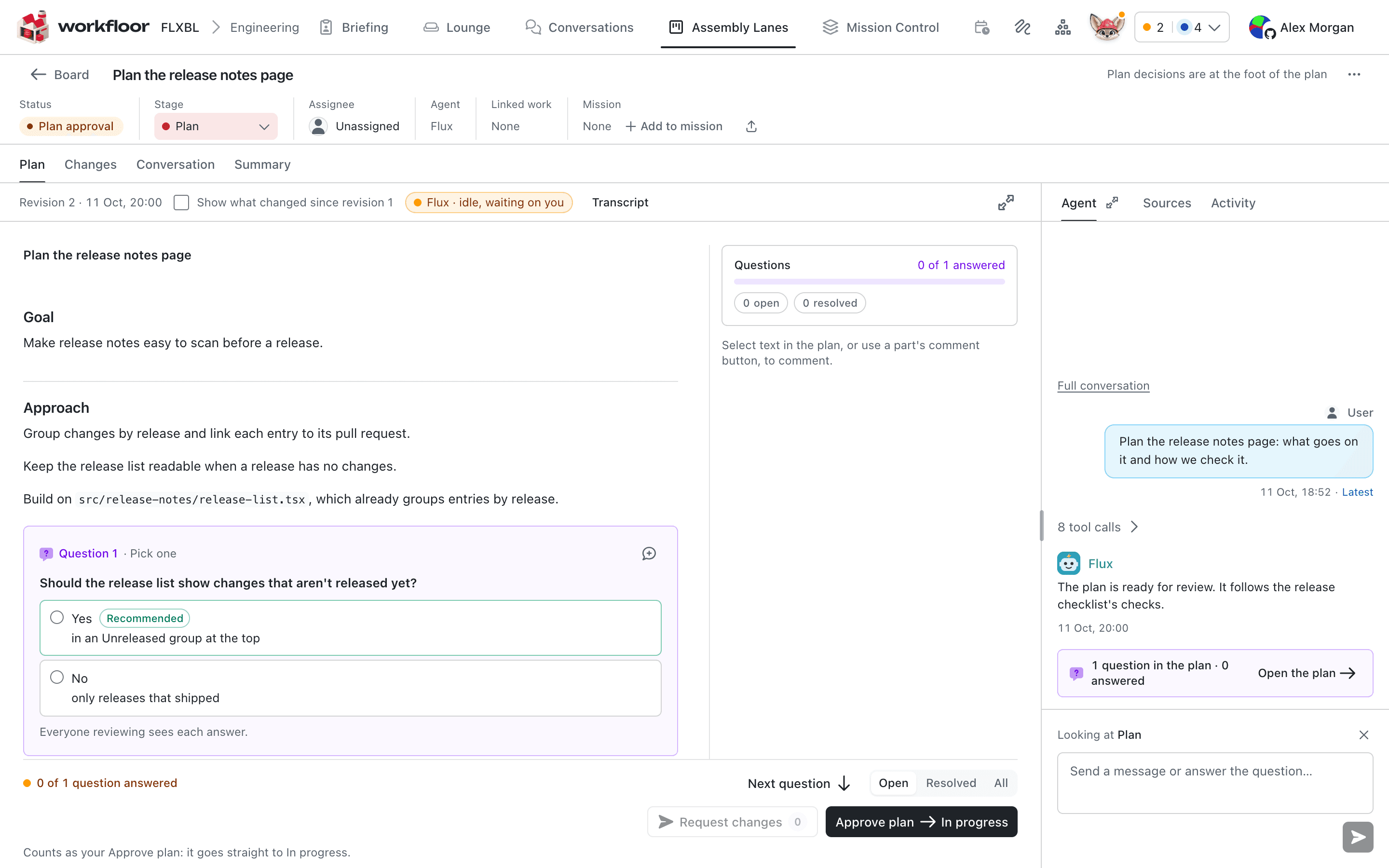
In a plan stage Flux writes a plan: goal, approach, steps with the files each touches, and risks.
- Comment on selected text. Comments queue until Request changes sends them to Flux, which publishes a new revision.
- Ask now puts a question about a passage to Flux. It answers in a thread and does not revise the plan.
- Questions in the plan carry options. The card shows Question until the assignee answers.
- Show what changed since revision 1 compares revisions.
- Approve plan moves the card on. It waits while Flux is revising or finishing its turn, while a newer revision has not been shown, while your own comments or answers are unsent, and, where the project requires it, while comments are open. The dock at the foot says which.
The Changes view
In a work stage Changes shows Flux's edits.
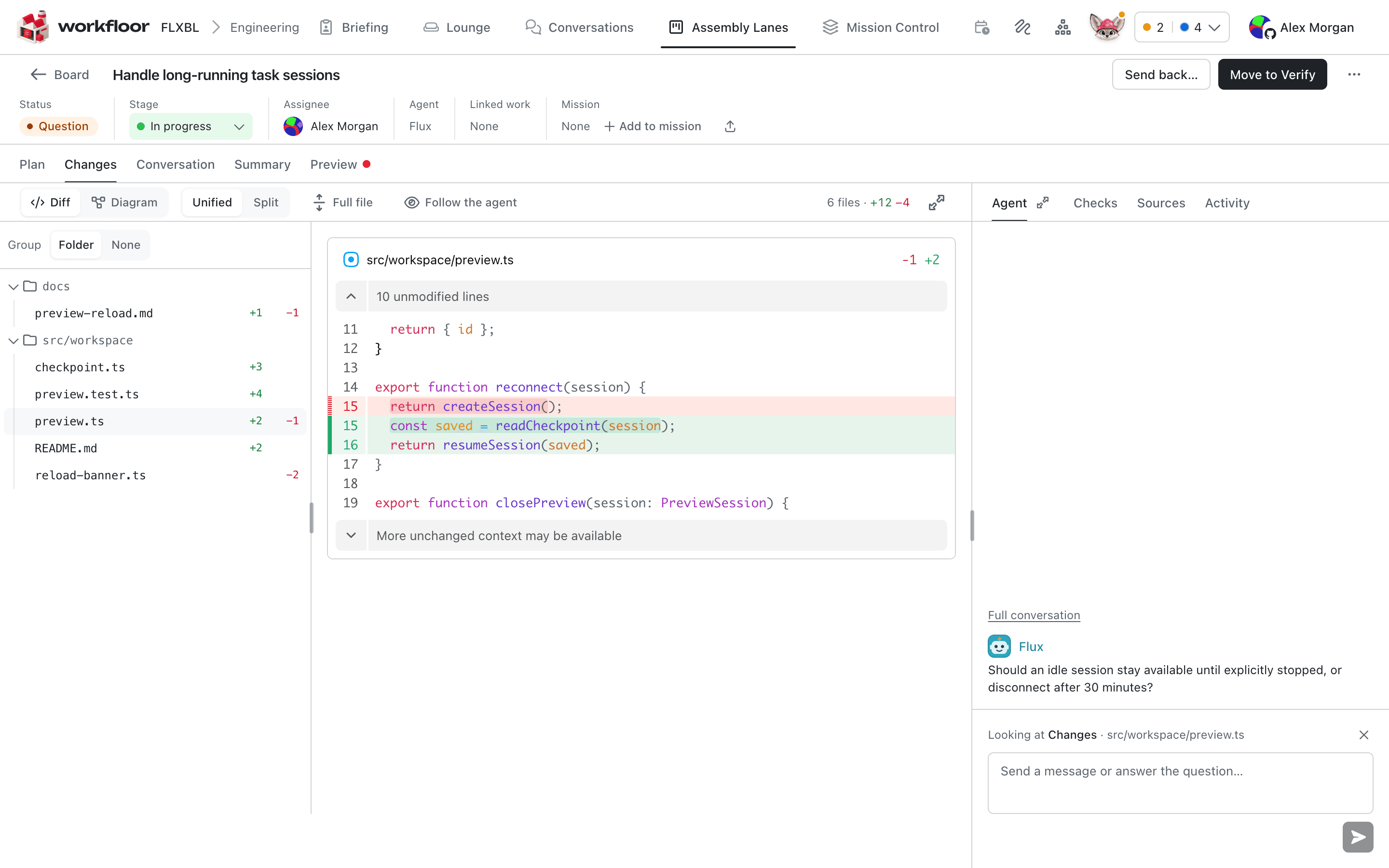
Files group by Step (each plan step with its progress), Folder or None. Follow the agent keeps the view on the file Flux is editing.
The rail
Agent leads the rail in every stage: Flux's latest turns, tool calls folded, and a box to write to it. Full conversation opens the Conversation view. The other tabs are Sources (what Flux read), Pull request, Companions, Activity, Issue, Checks and Decision, each shown when the card has something for it. Their order follows the stage: in a verify or review stage Decision, Checks and Pull request come right after Agent. Any tab can be opened in the main area and sent back. When you write to Flux, a line such as "Looking at Changes" says what is open and goes with the message unless you dismiss it.
The Salesforce workbench
A project admin chooses Settings > Projects, the project, then Workbench on the General tab.
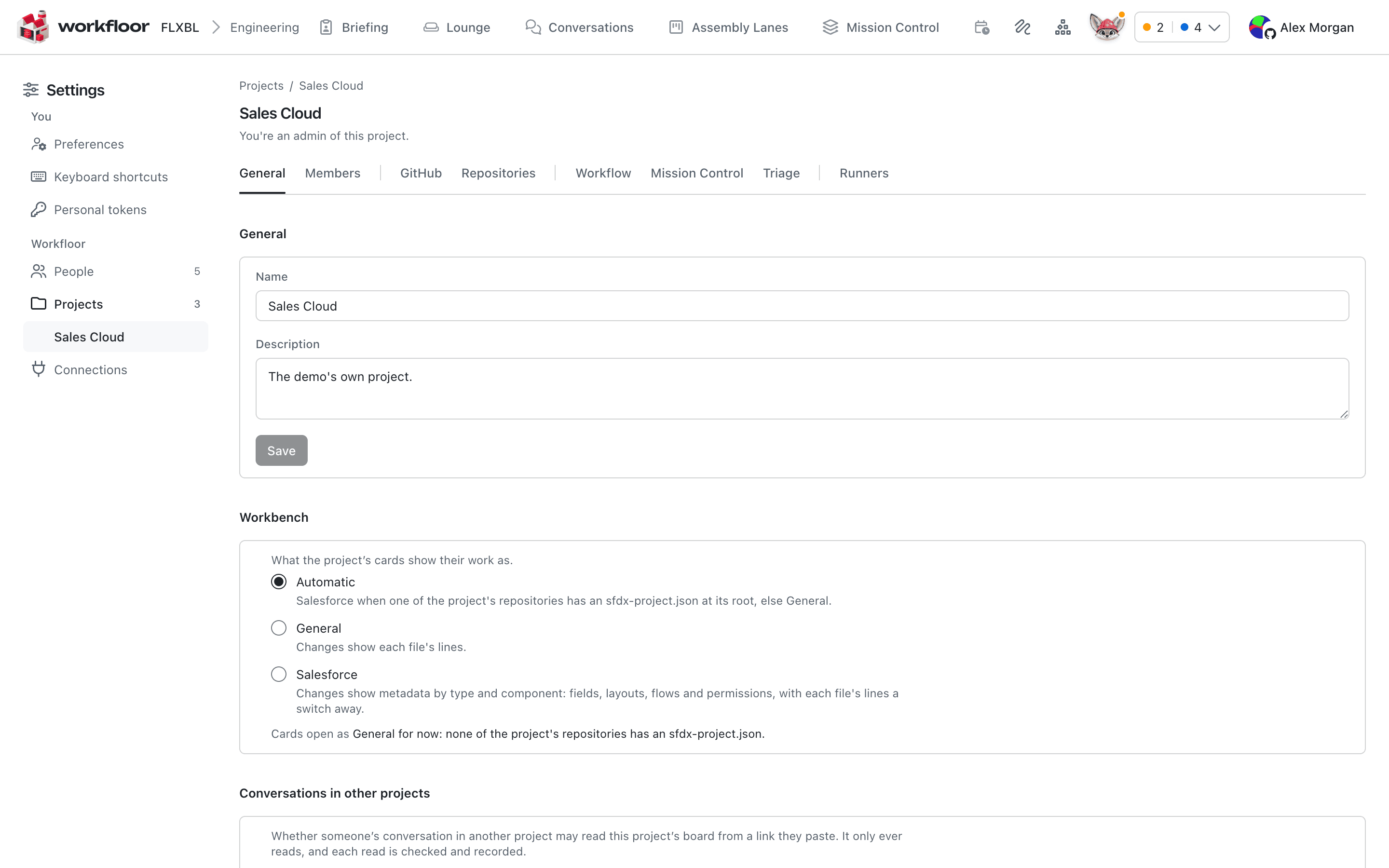
- Automatic: Salesforce when a repository has an
sfdx-project.jsonat its root, else General. - General: changes show each file's lines.
- Salesforce: changes show metadata by type and component (fields, layouts, flows, permissions), with each file's lines a switch away.
In the Salesforce workbench Changes groups files by type. A Metadata | Lines switch returns any file to the line diff. Metadata XML is compared as metadata: properties, picklist values, layout sections and fields, a flow's elements with what changed marked, permissions as a matrix. A file that cannot be read that way (over 1 MiB, not well-formed) shows its lines and says why; Apex code always shows lines. The screenshots on this page show the General workbench.
The Scratch pad
Flux publishes panes to the Scratch pad for a person to look at. A pane is replaced or patched when Flux publishes it again, and a dot marks one that changed since you looked.
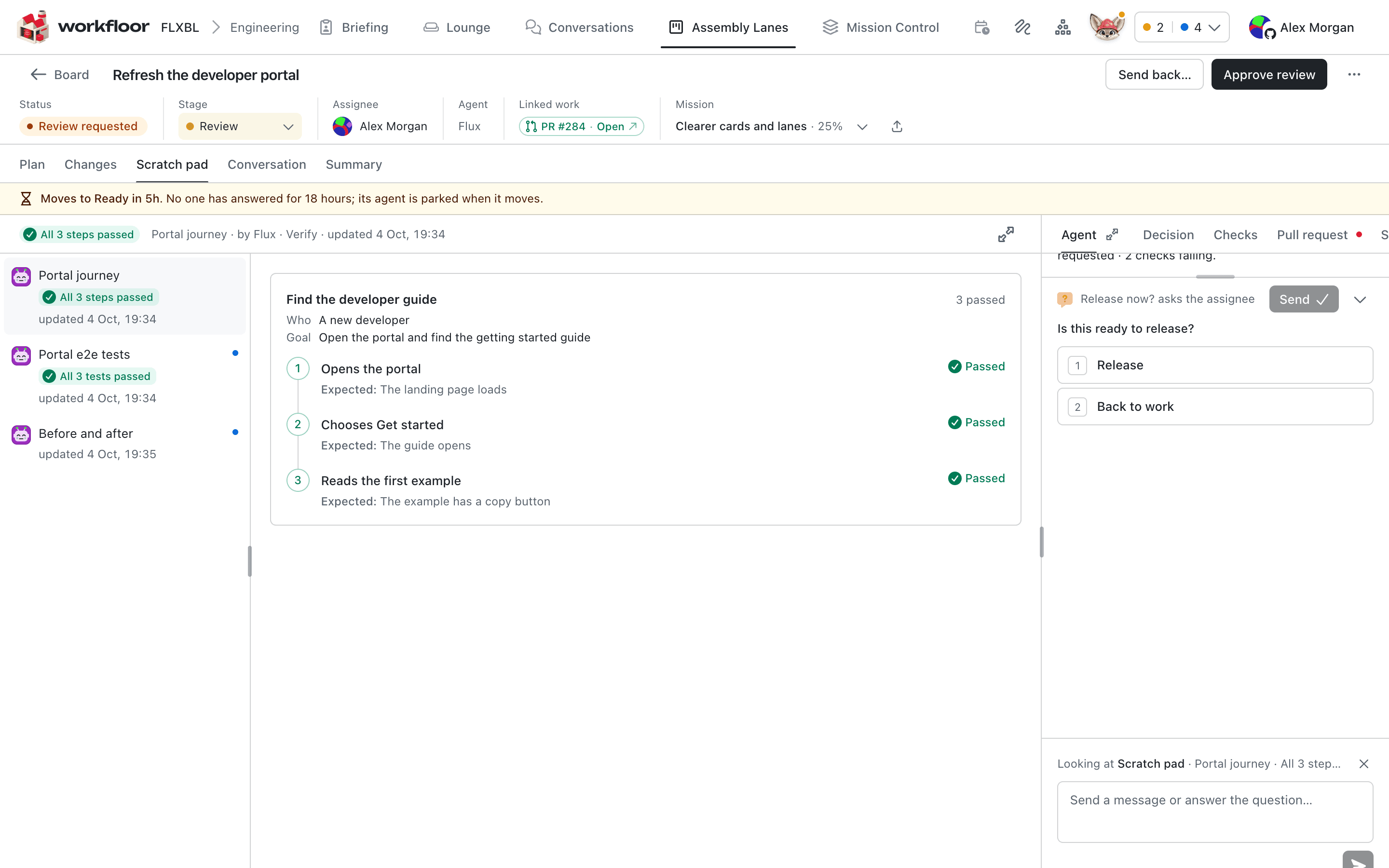
Panes can hold tables, charts and text, and also:
- Journeys: who, goal, and each step with what was expected and how it went.
- Test results: each test with its checks.
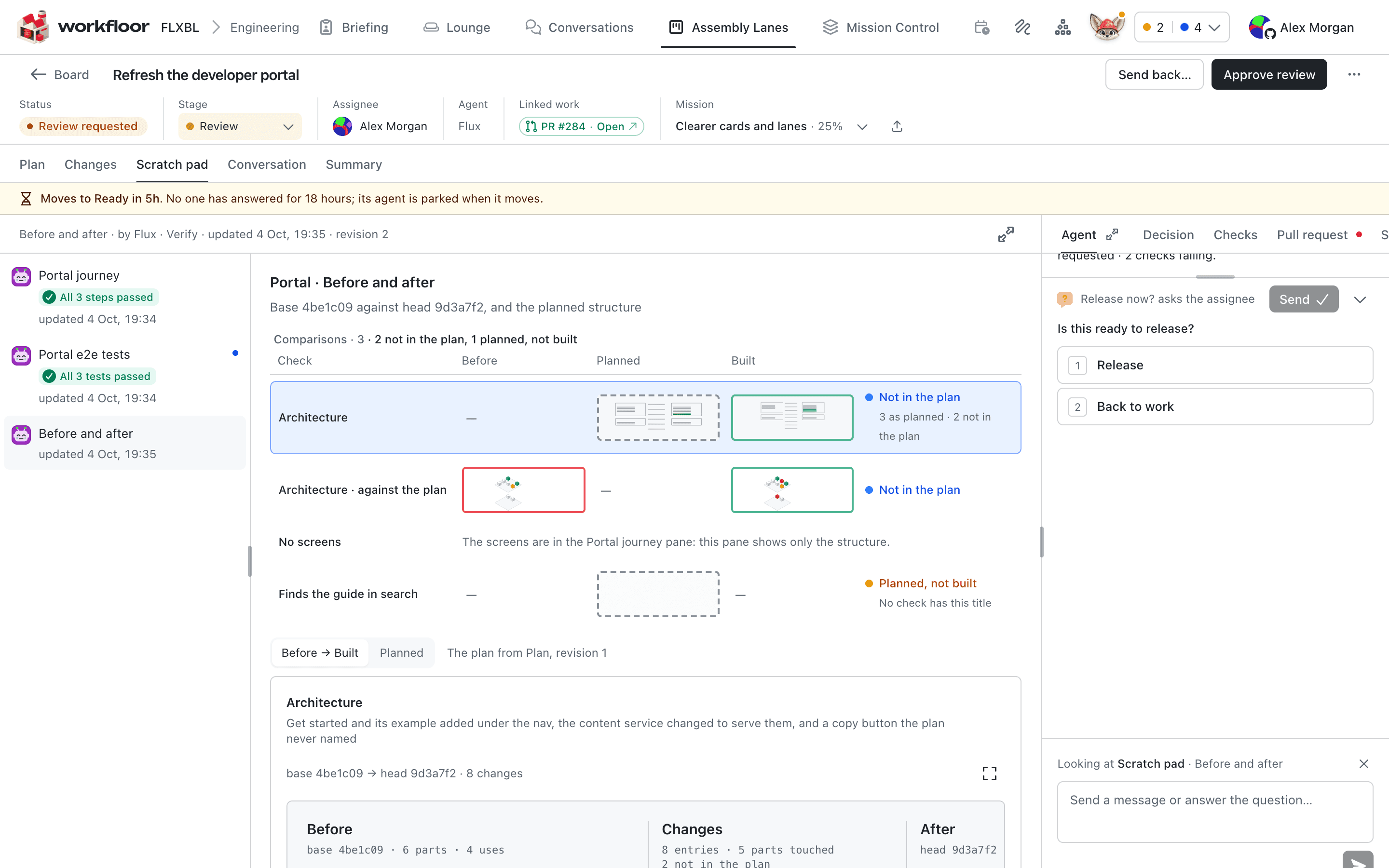
- Before and after: two pictures compared by Swipe, Side by side or Fade, with changed areas outlined on request.
- Architecture: the parts a change touches as Before, Changes and After, with a numbered list of changes. In a Salesforce project the default prompt asks for metadata components by type (objects, Apex classes, triggers, flows, permission sets, layouts).
- HTML mocks at desktop or phone width, run without scripts until you choose Run its scripts.
Add note on a compared picture marks a spot. Send 2 notes to the card's agent sends them to Flux as your message, with a crop of each spot.
A pane of comparisons published in a plan stage is kept as the plan; only another publish in a plan stage replaces it. Checks a later stage publishes are paired with the plan's by title. Each check reads As planned, Not in the plan or Planned, not built.
Judge the panes
A stage's Panes section holds the Panes prompt, what Flux shows there; without one, Workfloor's default for the stage's purpose and the project's kind applies. With Judge the panes on, on a work stage with an agent, a judge (Scored or Reasoned) reads the panes published in the stage against the prompt before the card's forward move out of it. A yes lets the move go. A no keeps the card and tells Flux what is missing; after three noes the card waits for its assignee. A person can choose Move anyway… with a reason, which goes into the next stage's handoff log. A judge that cannot answer lets the move go. Try on a card tests it first.
Handoffs
Each stage entry has a handoff log of the notes that came with the card. Summary lists them with their authors and whether Flux has had each (Not sent yet, Sent), and takes a new note.
Next: Approvals between stages.
Flux in Slack
How to ask Flux about a Workfloor project from Slack, bind a channel to a project, turn a conversation into a card, and get updates and questions about your cards back in Slack.
Approvals between stages
How a Workfloor lane stops a Salesforce card from moving on until someone agrees, through protected ways out, plan approval, judged decisions, Flux's questions and permission requests.