Preview orgs and environments
Look at a Workfloor card's running change instead of only its diff, through the app the repository previews or an org or sandbox that Flux hands to the card.
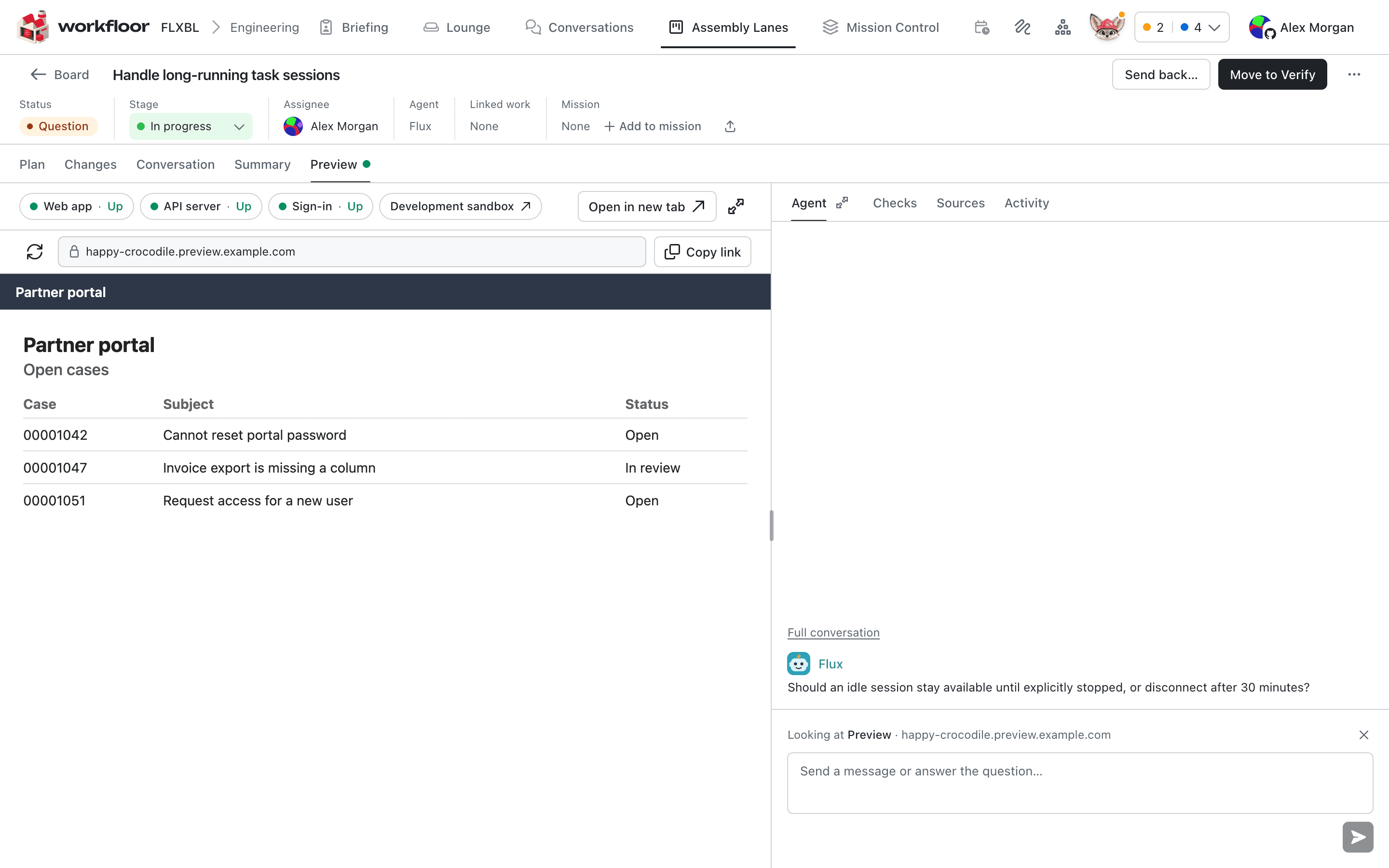
A card's Preview tab lets a reviewer open the running change, not only the diff. It can show two things: the card's own stack, when the repository declares a preview, and links to environments, such as a Salesforce sandbox, that the card's agent has handed to the card.
Previews are available where your team's Workfloor has them switched on. Without them, the card shows no Preview tab.
A preview the repository declares
A repository declares its preview in its dev container configuration, under customizations.workfloor.preview. It lists the services of the card's stack, each as a port the card's workspace was given, a path, and optionally a health path:
"customizations": { "workfloor": {
  "ports": ["WEB", "API"],
  "preview": { "services": {
    "web": { "label": "Web app", "port": "WEB", "path": "/", "health": "/" },
    "api": { "label": "API server", "port": "API", "path": "/api", "health": "/api/health" }
  } }
} }
The service at / is the entry. Workfloor gives each card's stack an address of its own, made from the card's name, and serves the services under their paths on it. Nothing is rewritten on the way.
On the card, Preview shows:
- one chip for each service with its state (Up, Down, Checking, Starting, Waking), and a red line saying what is down;
- the address with Reload and Copy link;
- the app itself in a frame, Open in new tab, and an expand control for a larger view.
A preview can instead be declared "opens": "tab", for an app that hands off to another site with its own sign-in. The card then shows its services and a button named for the app's entry service (Open Web app, for example), and the app opens in its own tab, where its sign-in works.
Checks
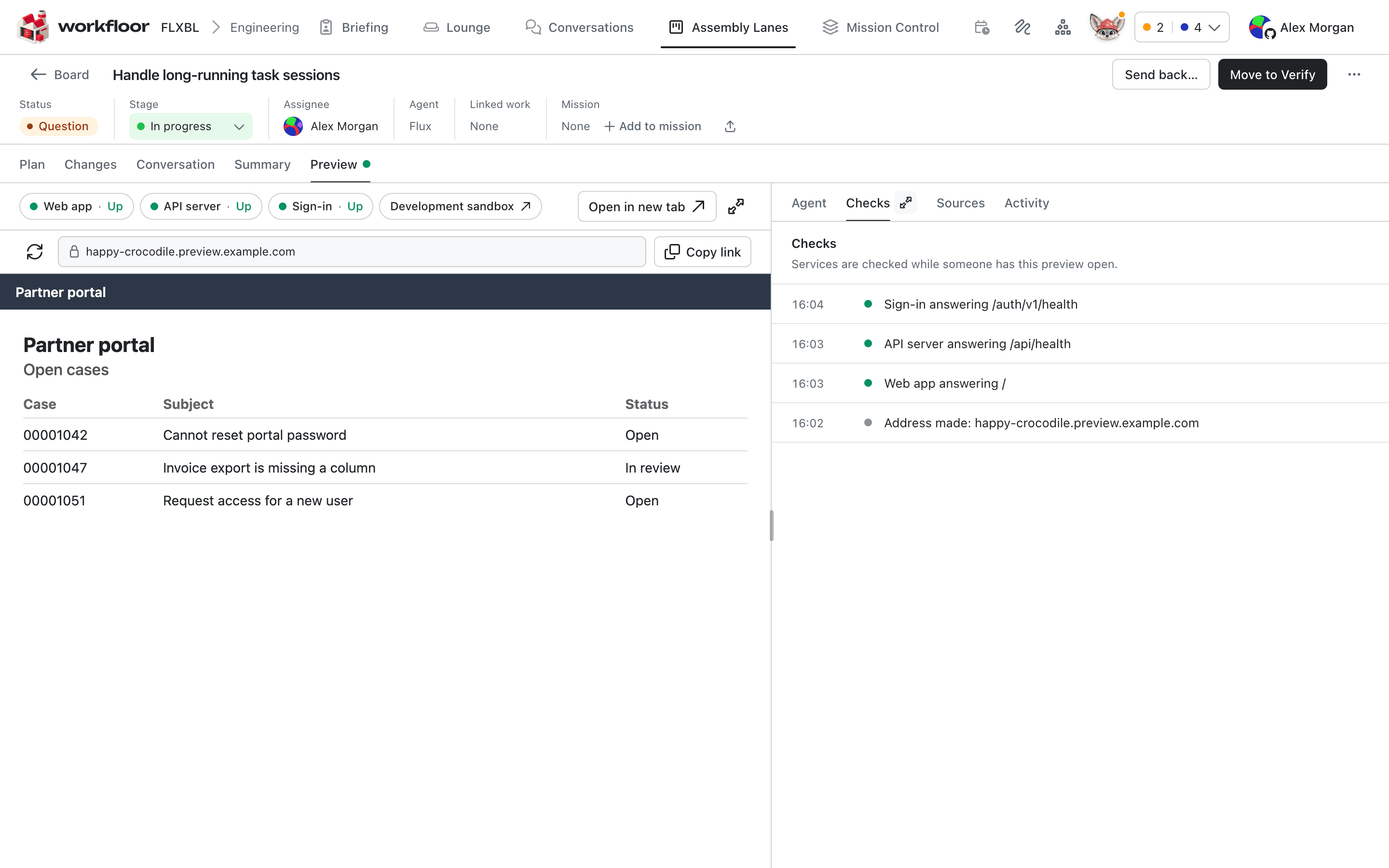
Checks, in the card's right-hand tabs, lists each change of a service: the address being made, a service starting to answer, a service stopping. Services are checked only while someone has Preview or Checks open on the card.
Who can open it, and idle stacks
Only a signed-in member of the card's project can open a preview, and the check is made again on every request. Anyone who opens the address, in the frame, a new tab or from a copied link, is checked as a signed-in member of that project.
A card's stack that nobody has used for a while is stopped on the machine the card runs on. Opening Preview or Checks starts it again: the chips read Starting, and a card in the frame lists each service until the entry answers, and then the app loads by itself. If the card's sandbox has gone to sleep, the same look wakes it, and the card shows the steps of the wake.
Environments the card's agent gives it
The card's agent, Flux or Salesforce AutoPilot, can give the card's Preview a link to an environment it holds that people should open. For a Salesforce card, that is an org the agent fetched for the card, such as a development sandbox or a scratch org. It appears as a chip with a name such as Development sandbox, and under the heading Environments the agent gave this card where the card runs no app of its own.
Each link has Open in new tab; it opens the environment's own page, and you sign in there with your own Salesforce login. Workfloor never frames, fetches or checks such a link.
- A link is an
httpsaddress only, with no user, password, session or token in it. An address like a Salesforce front-door URL with a session id is refused; the agent gives the org's login or home page instead. - A card holds up to five links, each with a name. They stay until the card is archived.
- Only the card's own agent can give them, not a helper working beside it.
Where previews are not switched on, the card's agent cannot add these links.
Next: Your first card for the rest of what a card holds.
Briefing
Use the Workfloor Briefing to see the cards that need you, what is running, what was interrupted and what finished lately, with Flux's summary of your shift and of the whole project.
Flux in Slack
How to ask Flux about a Workfloor project from Slack, bind a channel to a project, turn a conversation into a card, and get updates and questions about your cards back in Slack.