Setting up operation targets
How a Workfloor project admin adds operation targets, sets their read and write levels with Infisical PAM or a codev source, checks them, and gives a lane's stage access.
An operation target is a system outside Workfloor that a project's agents may reach: a server, a database, a cluster or a Salesforce org. A project admin sets targets up on the project's Targets tab. Nothing is reachable until a stage of a lane gives access. How agents get read and write access describes what happens at each command.
The Targets tab is for project admins, on a desktop. Open Settings > Projects, choose the project, and open Targets.
Add a target
Add target opens a dialog with:
- Name: lower-case letters, digits, dots, dashes and underscores, such as
acme-prod. A target cannot be renamed. - Description: what the system is.
- Attributes: one
key: valueper line, such ascustomer: acmeandenvironment: prod. Flux finds targets by them. A target whoseenvironmentisprodorproductioncounts as production. - Runs on: labels the card's sandbox or runner must carry to reach the target. With none, any of the project's sandboxes and runners can. A target that accepts connections only from known addresses, or that sits inside your network, is the case a project registers its own runner for: give the runner a label and name it here. See Sandboxes and runners.
Import takes a JSON list from a provisioner, up to 1 MiB, with each credential's value if you have it. It adds and changes the targets it names and never removes one.
Set the levels
A target has a Read level, a Write level, or both. Each level names:
- Infisical domain: the address of your Infisical.
- PAM account: the account's path,
<folder>/<account>. - Account type: SSH, PostgreSQL, MySQL or Kubernetes.
- Credential: a name for it in this project, such as
support-ro.
The credential is the client id and secret of a machine identity's universal auth in Infisical. Enter it with the target or later under Credentials. Workfloor seals it, and nobody sees its value again. A credential is sealed for the domain it was entered for.
The read level should be an account that can only look. An identity used on a write level cannot be used on any read level in the same Workfloor. One credential can serve many targets' read levels, or many targets' write levels.
Check a level
Each level has a Check button. It signs in with the credential and looks for the account in Infisical. The result shows beside the level:
- Works, for a read level.
- Works: opens without approval, for a write level that needs no approval.
- Works: waits for approval in Infisical, for a write level whose account requires approval.
- Didn't finish: check again.
- A refusal with its reason, for an account that is missing, needs MFA or is disabled.
Record production work
Under Operation register, choose A GitHub issue and give a repository, as owner/name, that is one of the project's own, with a title template and a body template. Flux then opens an entry before it reads a production target (other than a codev target) or makes a write whose level has not been checked as opening without approval.
Under Approvals channel, give a Slack incoming webhook. Workfloor posts each write that waits for approval there once, with its target, window, card and a link to approve it. The webhook is sealed and not shown again.
Use a codev source
For a Salesforce project, the codev source panel fills the target list from codev. Give:
- Tenant: the codev tenant's address.
- Repositories: the project's repositories whose environments become targets.
- Categories: Dev, Test, Snapshot or Release (production). All but Dev are on by default.
- Application token: a codev application token, from the tenant's Settings, Application tokens.
Save and sync makes one target for each active environment of those repositories and categories, with a read and a write level. Workfloor syncs daily, and Sync now syncs at once. A target the source made changes only through the source. Remove takes the source and its targets away. A codev target runs only Salesforce AutoPilot's org grant.
Give a stage access
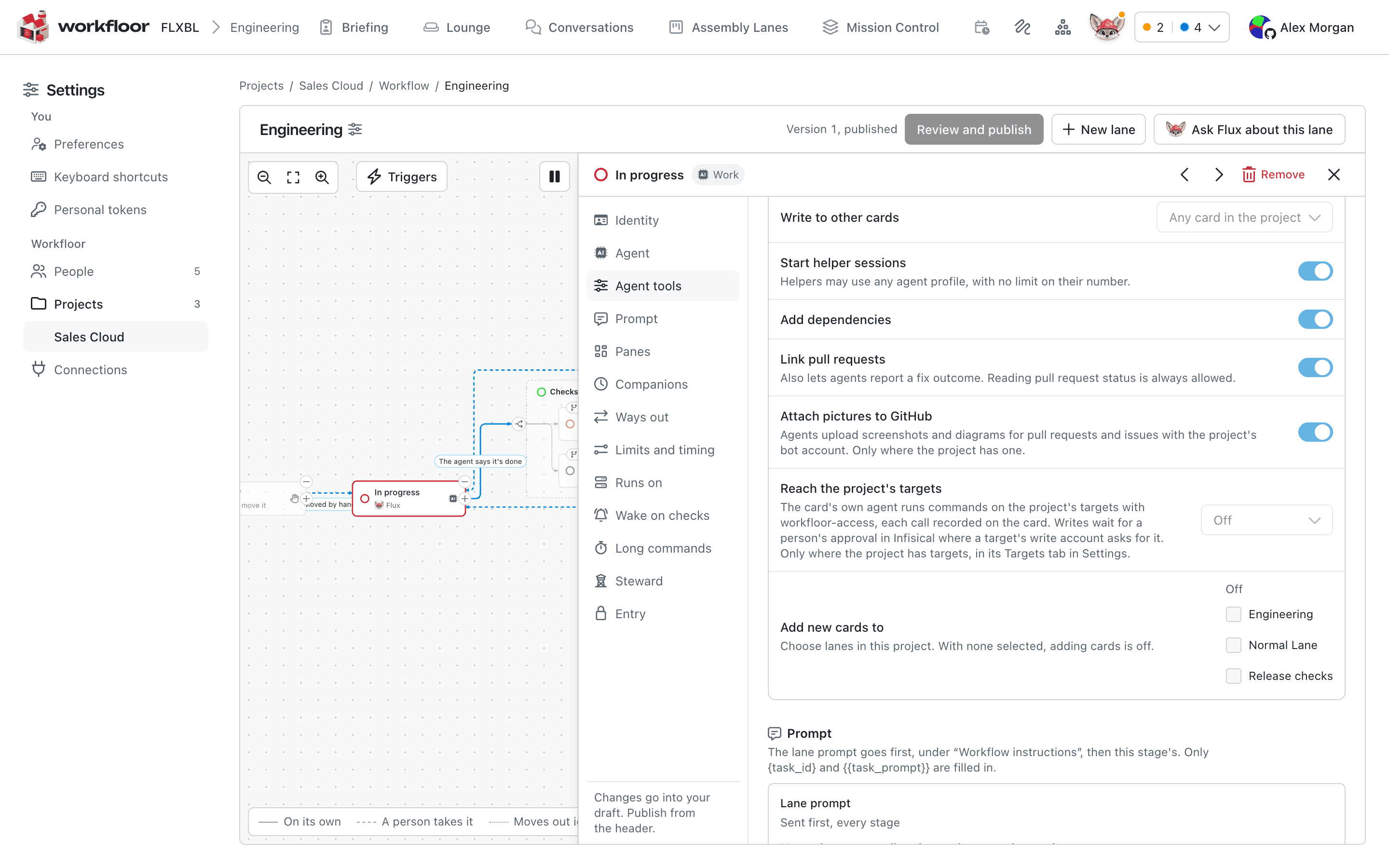
A card's agent has no access to targets unless its stage gives it. In the lane editor, select the stage and open Agent tools. Reach the project's targets has three choices: Off, Read and Read and write. Publish the lane to apply it. In the Triage template, Investigate gives read and Operate gives read and write.
Next: Support triage shows a lane that uses targets.