Sandboxes and runners
A Workfloor card's agent runs in a sandbox made for that card, and a project registers its own runner only for support access and work that must run inside its network.
Every agent needs a machine to work on: somewhere to check out the repositories, run the project's commands and run Flux. In Workfloor a card gets a sandbox of its own. A project registers a runner of its own only for support triage and operation access, or for work that must run inside its network.
Sandboxes
A sandbox is a machine made for one card. Workfloor makes it when the card's agent first starts, prepares the card's workspace on it, and removes it once the card is archived. No other card's work lands on it.
A sandbox does not run all the time:
- It sleeps when the card is idle and is woken when there is work for it: a start, a message for Flux, or a person opening the card's Preview.
- It stays awake while Flux is working, and for a while after someone last looked at the card's preview.
- A project can have a limit on how many sandboxes run at once. A card over the limit waits, oldest first, and the board marks it Waiting for a sandbox.
Sandboxes come from sandbox profiles that Workfloor provides. A project's admins choose which of them the project's cards use, and in what order, on the project's Sandboxes tab (Settings > Projects, the project). The same tab lists the project's sandboxes with the card each one serves and its state: Starting, Online, Asleep or offline or Removing.
Replace a sandbox
Workfloor restarts a sandbox that stops answering, and makes a new one if it does not come back. The card's assignee or a project admin can also do it from the card's menu with Replace sandbox…. A new sandbox prepares the workspace again from the card's branch, so changes that were not pushed on the old one are lost, and Flux is told so.
Runs on
What a card needs from its machine is said with labels. A sandbox profile and a runner each carry labels, such as linux, and a card goes only where every label it needs is carried.
The project's Runs on panel sets the labels its cards need when neither their stage nor their lane names any. A stage or a lane can name its own in the lane editor. If nothing carries a label, the panel warns that cards will wait.

A project's own runner
A runner is a machine you run yourself that runs a project's agents. Ordinary delivery work does not need one: cards run on sandboxes. A project registers a runner for two cases:
- Support triage and operation access. An operation target can name, in its Runs on, the labels a machine must carry to reach it, so commands against a production system run on a machine your team controls. See Setting up operation targets.
- Work inside your network. Repositories, orgs or systems reachable only from inside your network, such as over a VPN, need a machine that is inside it.
A runner dials out to Workfloor over one wss:// connection, as a self-hosted CI runner does, and Workfloor never connects to the machine.
Which cards run on it
A card runs on one of the project's runners when that runner carries every label the card needs. Any other card gets a sandbox, made from the first profile the project chose that carries those labels. If neither a runner nor a chosen profile carries them, the card waits. A card that already has a sandbox keeps it. A project that has chosen no sandbox profiles runs its cards only on runners.
What the machine needs
- Linux (x64 or arm64) or macOS on Apple silicon.
- Node.js 22 or later, with npm, and git.
- An ordinary user. The runner refuses to run as root, because agents run commands as the runner's user.
Register a runner
Open Settings > Projects, choose the project, and open its Runners tab. Select New registration token, then Make token.
Copy the command shown. The token works once and for one hour, and Workfloor does not show it again.
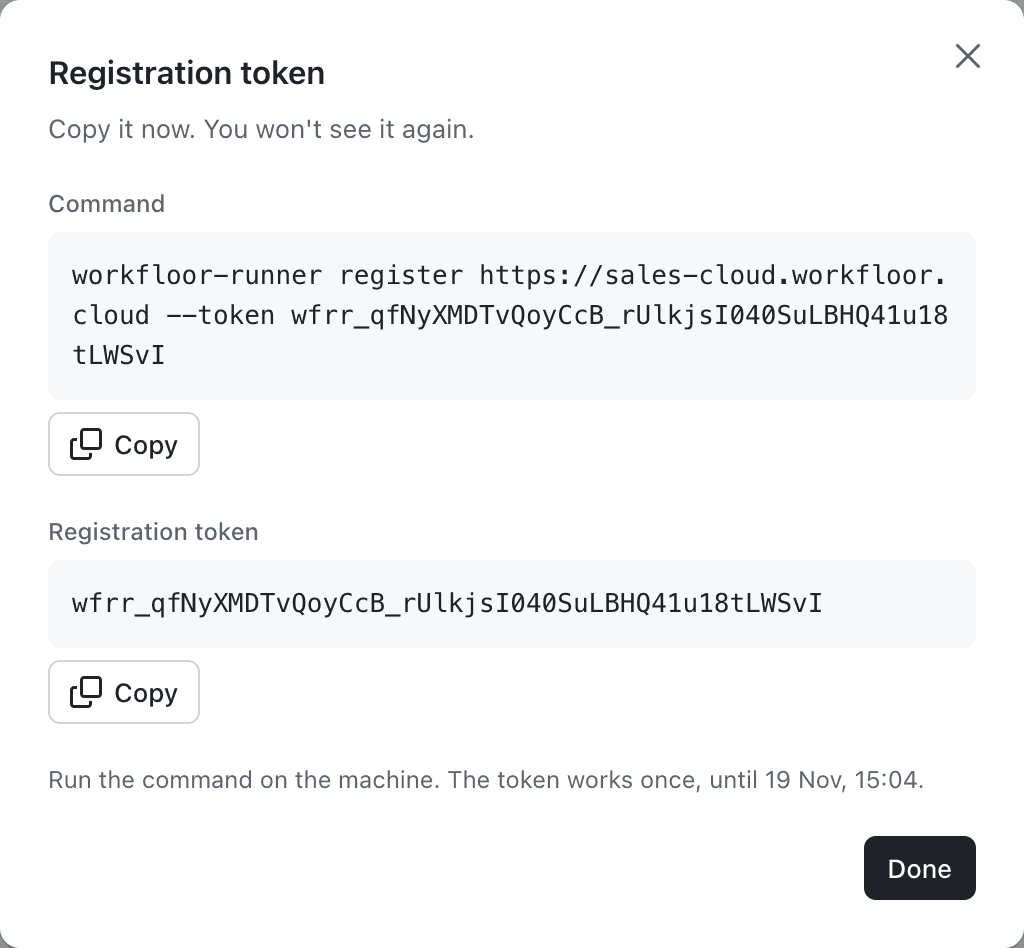
On the machine, install the runner for your own user and check what the machine has:
npm config set prefix ~/.npm-global
export PATH="$HOME/.npm-global/bin:$PATH"
npm i -g @flxbl-io/workfloor-runner
workfloor-runner doctor
Register it with the command from the dialog:
workfloor-runner register https://<your-team>.workfloor.cloud --token <token>Run it as a service of your own user:
workfloor-runner service install --slots 4On Linux this writes a systemd user unit, and on macOS a launchd agent. workfloor-runner service status shows its state.
The runner then appears on the Runners tab as online, with its version, free disk space and how many of its slots are in use. A runner registered here serves only this project. Its labels are the ones its owner sets with workfloor-runner run --labels, and automatic ones from the machine, such as linux or x64.
Drain, update and remove
- Drain makes a runner take no new work while running agents finish. Resume lets it take work again. Force drain stops running agents now and records their turns as interrupted.
workfloor-runner updateon the machine drains the runner, installs the new version, and restarts it.- Revoke closes the runner's connection within 15 seconds. Cards on it wait for a person to move them, and the machine must register again with a new token to be used. Remove deletes a revoked runner from the list.
Next: Your first card.
Agents
The agents a Workfloor project is offered, Flux and Salesforce AutoPilot, and what a project admin can set for them.
Your first card
Create a card in a Workfloor assembly lane for a Salesforce change, then follow it from the brief through Flux's plan, changes and pull request to a merged change.