The Foreman's Lounge
Use the Workfloor Lounge, a notice board for the whole project, to pin a note about a card, a pull request or a passage of a plan, and open a Slack channel where Flux keeps a summary of the discussion.
The Lounge is the project's notice board. Anyone in the project can pin a note on it, about a card, an issue, a pull request, a passage of a plan or nothing in particular. Notes are for today's work: each one clears at the end of the day unless someone keeps it longer.
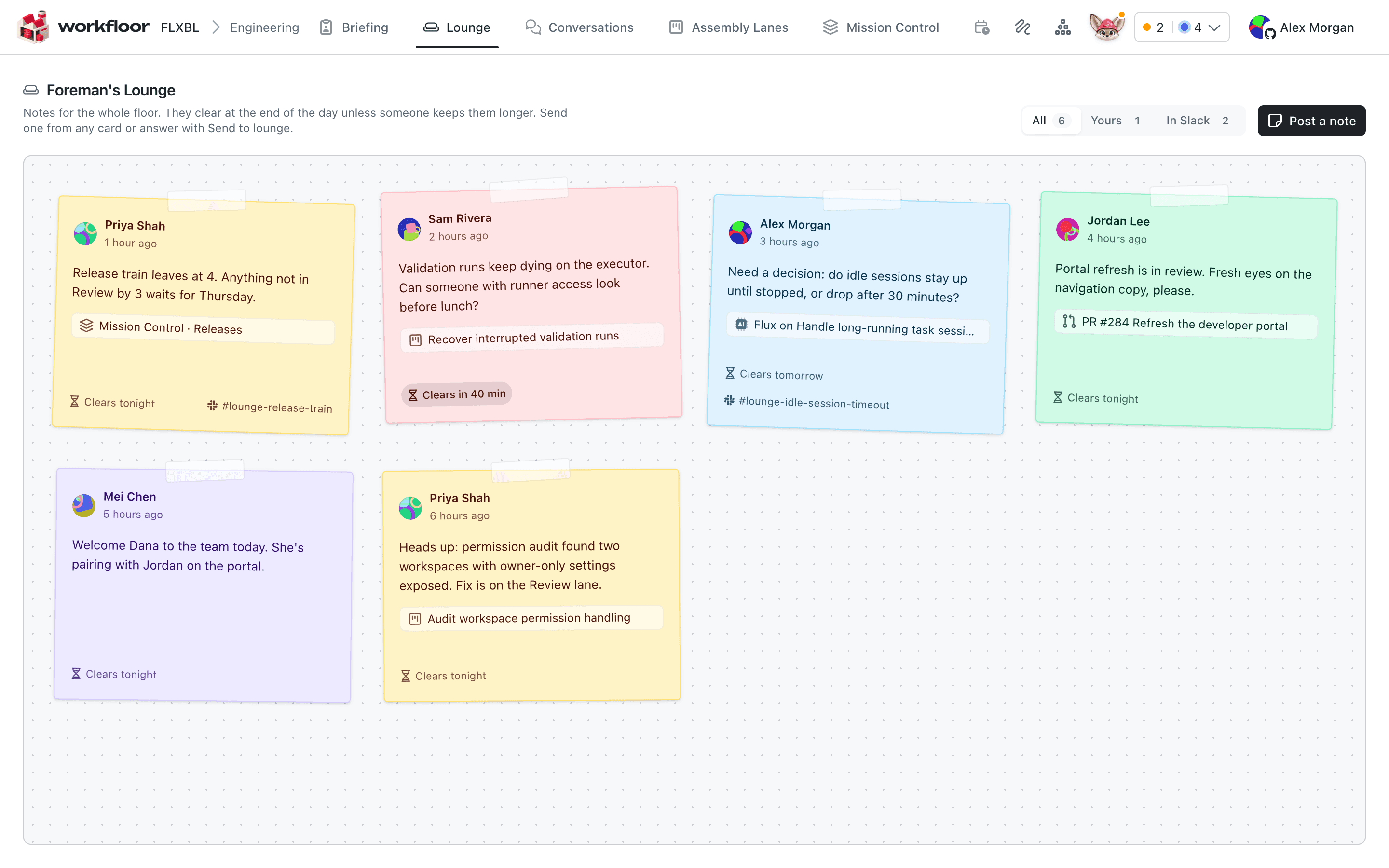
Use it for the things a team would say across a room. For example: "Release train leaves at 4", "Can someone look at this card before lunch?" or "Fresh eyes on this pull request, please".
Post a note
You can post a note from three places:
- Post a note in the Lounge.
- Send to lounge… in a card's menu, which makes the note about that card.
- Send to lounge, which appears when you select text anywhere in Workfloor, such as a passage of a plan or one of Flux's answers. The note quotes what you selected.
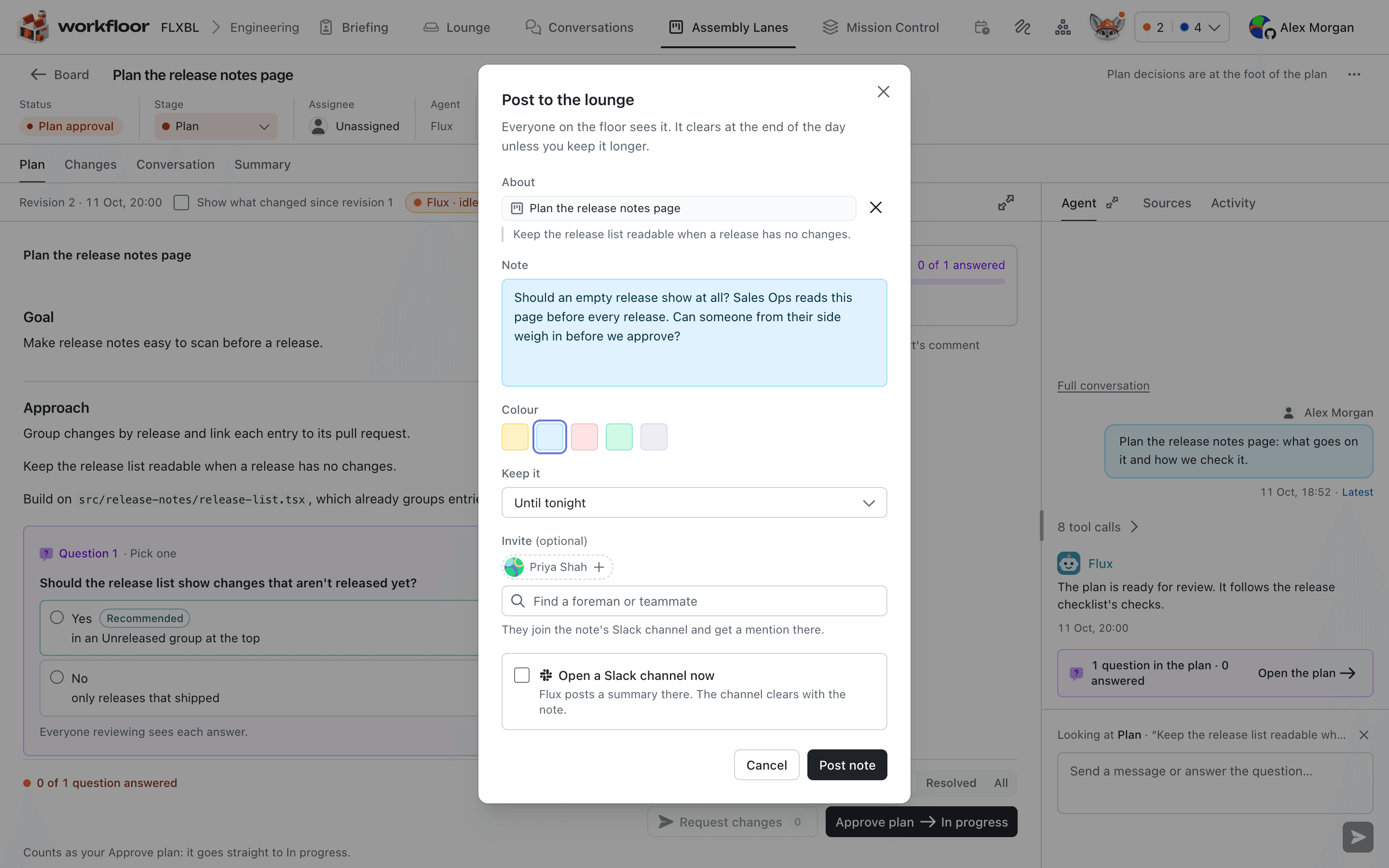
The Post to the lounge dialog asks for:
- About — what the note is about, filled in when you post from a card or a selection. You can remove it.
- Note — what you want to say.
- Colour — the note's colour on the board.
- Keep it — how long the note stays, from Until tonight to Until tomorrow night.
- Invite (optional) — people to bring into the note's Slack channel. They join the channel and get a mention there, so inviting anyone opens a channel. A note about a card invites the card's foreman for you, unless that is you.
- Open a Slack channel now — opens the channel straight away. Flux posts a summary there, and the channel clears with the note.
Post note pins it. Everyone in the project sees it.
Read and keep a note
Select a note to open it. The note shows what it is about, with Open the card when it is about a card, and when it clears.
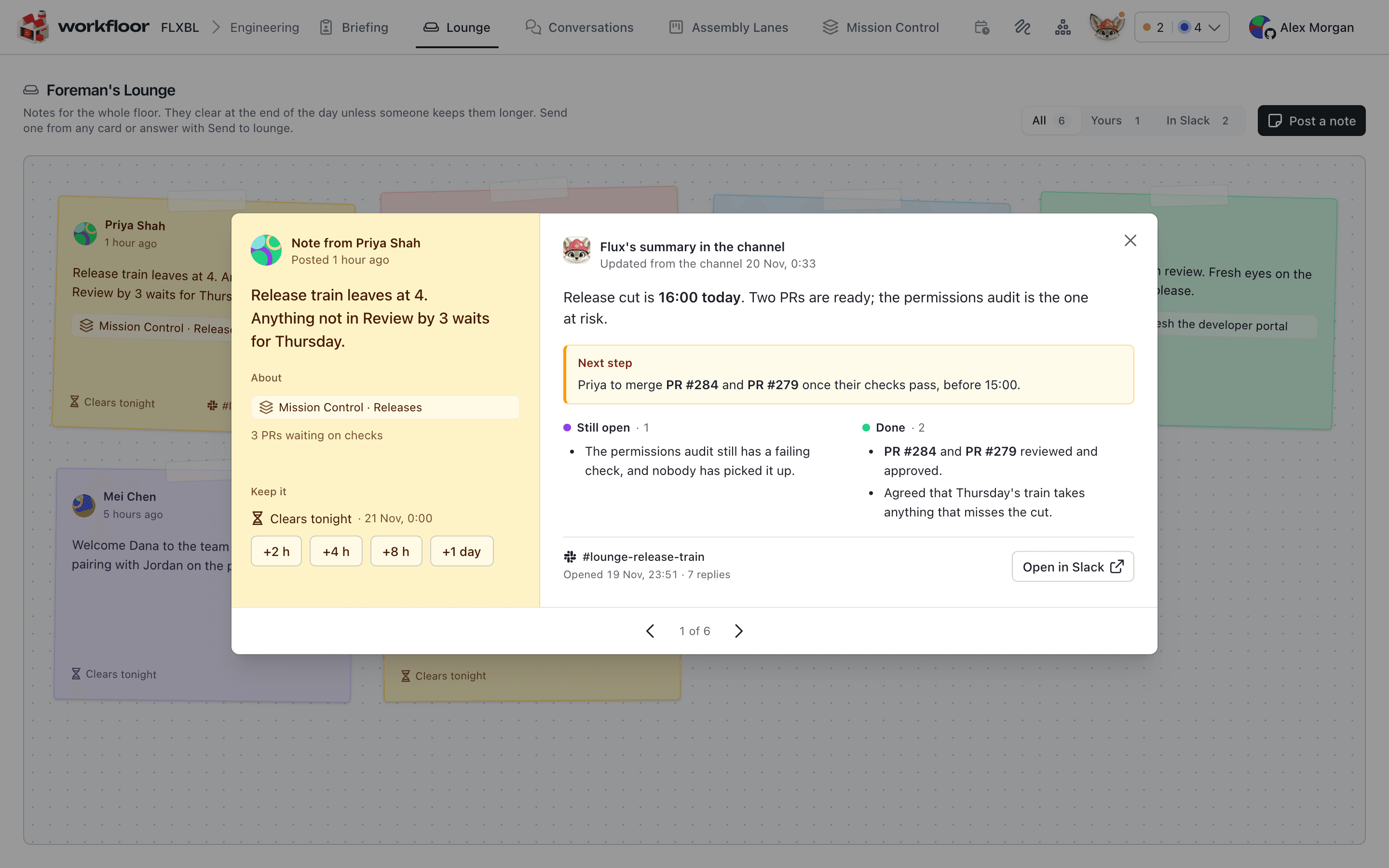
- Keep it adds time: +2 h, +4 h, +8 h or +1 day. Anyone can keep a note longer, and the note shows who did.
- Remove takes a note down early. Only the person who pinned it can remove it.
- The arrows at the foot move to the previous or next note.
The filters at the top of the Lounge show All notes, Yours, or the notes In Slack.
Discuss it in Slack
A note does not hold replies itself. The discussion happens in a Slack channel of its own.
If the note has no channel, Open in Slack starts one. Flux posts a summary of the note there and keeps it up to date as people reply. The note in Workfloor then shows Flux's summary in the channel: a short account of where things stand, the next step, what is still open and what is done. People who missed the discussion can catch up from the note, without reading the whole channel.
The channel clears with the note.
Next: Knowing what needs you.
Reviewing a plan together
How several people review Flux's plan for a Workfloor card, with shared comment threads, each reviewer's own colour, comments kept private until sent, and approvals that need more than one person.
Knowing what needs you
How Workfloor tells each person on a team what waits on them, through the Needs me view, the Briefing, Slack messages and the board's Inbox, and how a private conversation with Flux becomes team work.