Reviewing a plan together
How several people review Flux's plan for a Workfloor card, with shared comment threads, each reviewer's own colour, comments kept private until sent, and approvals that need more than one person.
Flux's plan for a card is often the best place for a team to agree on a change before it is built. A developer checks the approach, a business analyst checks it against the requirement, and the assignee approves it. Workfloor's plan review is built for that. Comments sit in the plan, Google Docs style, and everyone on the card sees the same threads.
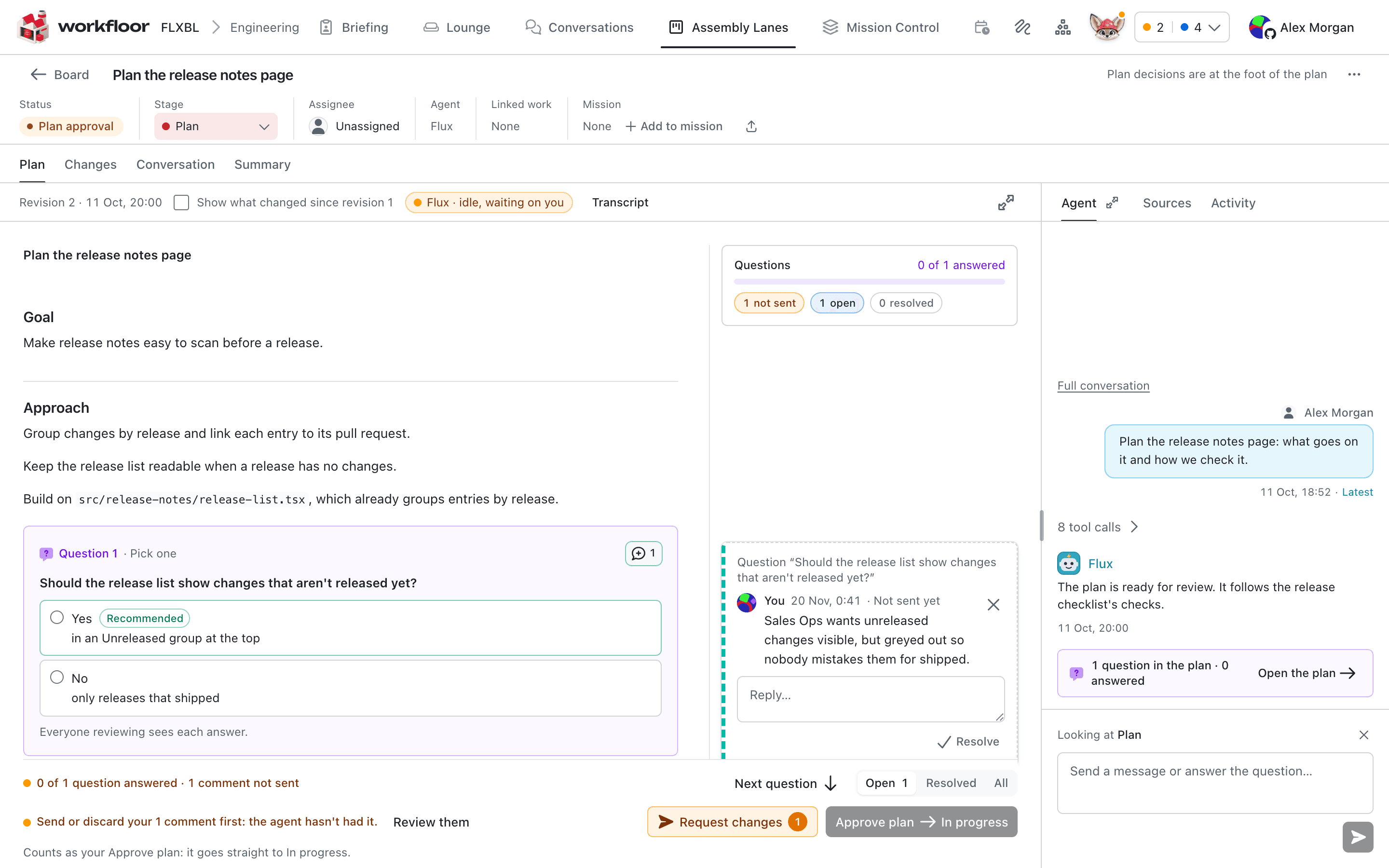
Comments are shared, and yours wait until you send them
Select text in the plan, or use a part's comment button, then write your comment and choose Add comment. The comment becomes a thread beside that passage.
A comment you add is not sent to Flux at once. It waits in your own queue, marked Not sent yet, and only you see it. This lets you read the whole plan and comment as you go, then send your review in one go.
- The counts above the threads show how many of your comments are not sent, and how many threads are open and resolved.
- Request changes sends all your waiting comments and replies to Flux as one message. Its badge shows how many are waiting. Flux revises the plan, and each reviewer sees the new revision.
- Until your comments are sent or discarded, the plan reminds you that Flux has not had them, and Approve plan waits.
Once sent, your comments are in the shared threads. Anyone on the card can reply. Flux answers inside each thread, so a discussion stays beside the passage it is about.
Asking without changing the plan
Ask puts a question to Flux about a passage and asks for an answer only. Flux answers in the thread and leaves the plan as it is. Use it when you want to understand the approach before you comment on it.
Each reviewer in their own colour
Each reviewer's highlights in the plan, and the edge of their threads, keep one colour. With several reviewers, you can see whose comment is whose at a glance.
When someone else has the plan open, the review shows their avatar and a line such as "Sam is here".
Answers everyone sees
When Flux asks a question inside the plan, the question offers its options, and anyone reviewing can choose one. The plan says so under each question: "Everyone reviewing sees each answer."
Resolving threads
Resolve closes a thread once it is settled, and Reopen opens it again. A resolved thread shows who resolved it. The filters at the foot of the plan show Open, Resolved or All threads.
A project admin can make resolving part of approval. Require resolved comments to approve a plan, under Plan review on the project's Workflow tab in Settings, keeps Approve plan waiting until every thread is resolved. Everyone can see the setting, and only admins change it.
When more than one person must approve
Approve plan is a move along the lane, so the lane decides who may make it. Usually the assignee approves. A lane can ask for more. A protected way out (the move that leads on from the stage) can require from 1 to 6 approvals, from admins, members, the assignee or named people. The card then waits until enough of them approve.
Three rules keep this honest:
- The person who moved the card does not count as one of the approvals, unless the lane allows it.
- When Flux publishes a new revision of the plan, approvals given for the old one are dismissed, unless the lane says otherwise.
- One decline stops the move and clears the approvals already given.
The card shows who it is waiting on. Needs me lists the cards where you are one of the approvers, and Flux tells named approvers in Slack. See Approvals between stages for how a lane sets this up.
Notes on pictures
Some stages ask Flux to compare pictures in a pane, such as a page before and after a change. You can leave a note on a picture with a pin or a box. Each note is a thread.
Like plan comments, your notes stay yours until you send them. The pane counts them, for example Send 2 notes to the card's agent. It then shows what will be sent, and Send to agent sends the notes as your message, with a crop of each marked area. Flux answers in each note's thread. See Stage workbenches and scratch pads.
Next: The Foreman's Lounge.
One card, several people
How a Workfloor card's assignee, other members and Flux share one card, from reassigning it and messaging Flux together to the handoff log a card carries between stages.
The Foreman's Lounge
Use the Workfloor Lounge, a notice board for the whole project, to pin a note about a card, a pull request or a passage of a plan, and open a Slack channel where Flux keeps a summary of the discussion.