Changesets (Beta)
A changeset is a small, governed way to move selected metadata from one org into another without going through the full build-and-release path. An administrator picks components from a source org, codev captures them as an immutable snapshot, and that snapshot can then be validated, installed into other orgs, and — when the change needs to return to version control — raised as a pull request.
Changesets are a deliberate bypass of the normal developer flow:
developer change → pull request → build → release → deployThey are meant for low-risk, admin-owned configuration where waiting for a build is unnecessary — and they keep the controls you expect elsewhere in codev: project ownership, environment locks, approval for full installs, and an immutable record of exactly what was moved.
Changesets are in beta. The flow described here works end to end, but the feature is still evolving and some behaviour may change. Use it for low-risk metadata; keep larger or higher-risk changes on the normal build-and-release path.
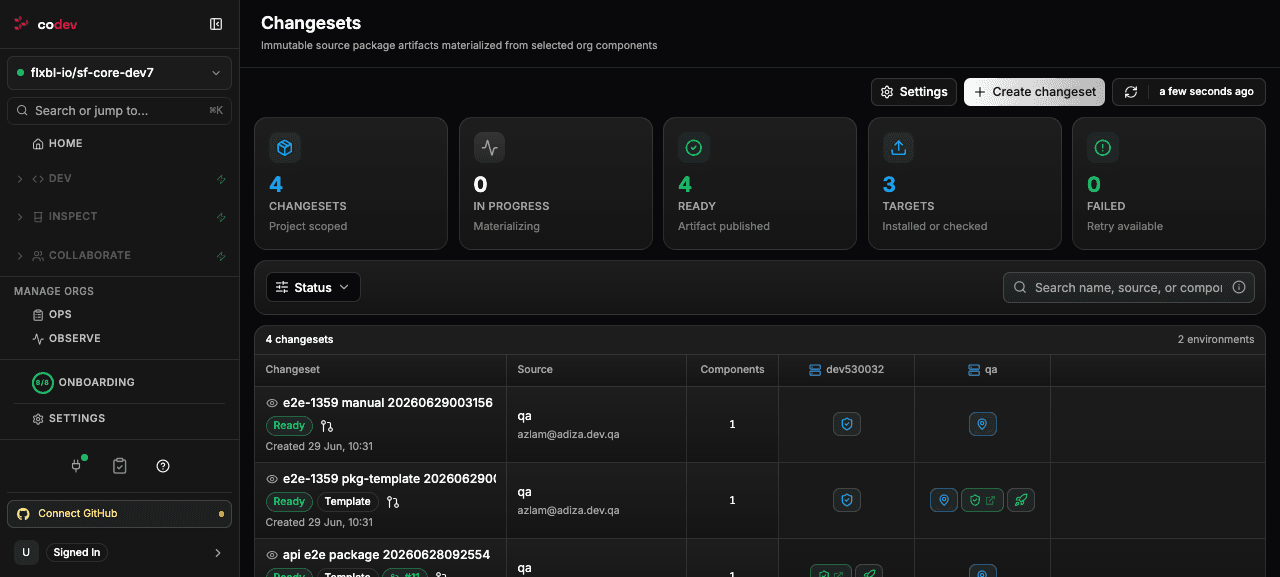
You will find Changesets under CI/CD > Changesets.
When to use a changeset
Reach for a changeset when an administrator needs to apply a narrow, low-risk change from a source org — a value set, a static resource, an admin-owned setting — and the change is already understood and agreed.
Keep work on the normal path instead when it is feature development, when it carries deployment risk, or when it should be reviewed as code before it ships. A changeset is a controlled shortcut, not a replacement for builds and releases, and it does not expand dependencies for you — you move exactly the components you select.
Creating a changeset
A changeset is built from a live selection in Org Explorer:
- Click Create changeset.
- Choose the source org to read components from.
- Browse the org tree and add the components you want — each one is a metadata type and member (for example
GlobalValueSet / Region). You can preview a component's source before adding it, and set whether each component is deployed or deleted in the target (see Deploying and deleting metadata). - Give the changeset a name, and — if your project requires one — pick a template (see Governing what can be selected).
- Create the changeset.
codev then materializes it. Materialization locks the source org for the duration, retrieves the selected metadata, stores an immutable snapshot of the retrieved source, and publishes the changeset as an artifact that can be installed. The snapshot is the source of truth from this point on — later changes in the source org do not change what the changeset will install or raise as a pull request.
A changeset moves through a small set of states:
| State | Meaning |
|---|---|
| Pending | Queued for materialization. |
| Materializing | Reading the selected source from the org and capturing the snapshot. |
| Ready | Snapshot captured and artifact published — the changeset can be validated, installed, or raised as a pull request. |
| Failed | Materialization did not complete. Use Retry to run it again. |
Deploying and deleting metadata
Each component in a changeset carries an action that decides what happens to it in the target org:
| Action | What it does |
|---|---|
| Deploy | The default. codev captures the component's source and deploys it into the target org. |
| Delete before deploy | The component is removed from the target org before the deploy step runs (a pre-destructive change). |
| Delete after deploy | The component is removed from the target org after the deploy step (a post-destructive change). |
A delete entry records only the metadata type and member name — codev does not retrieve source for it. When a changeset is validated or installed, the components are grouped into Pre-destructive, Deploy, and Post-destructive, and applied in that order: pre-destructive deletions first, then the deploy, then post-destructive deletions. Choosing the stage lets you remove a component before its replacement lands, or clean one up once the new metadata is in place.
Whether a project allows deletes at all — and which stages — is set on the template. A project whose template permits only deploys cannot add delete entries. See Governing what can be selected.
Validating and installing into environments
Once a changeset is Ready, you work with it per environment. The page lays this out as a matrix: each changeset is a row, each environment is a column, and every cell shows the latest outcome for that changeset in that environment with a link to the run.
There are two actions against a target environment:
- Validate runs a check-only deployment. It locks the target environment, confirms the changeset would deploy cleanly, and commits nothing. Validation does not require approval, so it is safe to run freely.
- Install runs the full deployment. It locks the target environment and goes through the same approval step as a release before anything is committed.
This gives you a check-first workflow: validate a changeset across the environments you care about, then install it where the result is clean.
To see exactly what a changeset would change, open its detail view and compare the materialized snapshot against a target org. codev shows a side-by-side diff of the captured source versus what is currently in that org.
Raising a pull request from a changeset
An admin change applied through a changeset still needs to land in source control eventually — until it does, the installed components differ from the source codev expects on that environment and can show up as drift the next time the environment is checked. From a materialized changeset you can create a pull request against a tracked branch.
The pull request is built from the immutable snapshot — codev never re-reads the source org at this point, so the PR represents exactly what was validated or installed. When a component already exists in the target branch, codev writes it back to its existing location; new components are placed under the project's default package directory. Delete entries are written as destructive changes rather than source files, staged pre- or post-destructive to match the changeset. codev commits the files to a new branch and opens the pull request through your connected source control integration. Review and merge are then normal source-control operations.
Governing what can be selected
Project owners decide how much freedom changesets allow, under Settings on the Changesets page (owners only). A project runs in one of two selection modes:
| Mode | What users can select |
|---|---|
| Any | Any component visible in Org Explorer. |
| Template only | Only components allowed by an owner-defined template. |
A template narrows what a changeset may contain. A template can allow:
- specific metadata types (for example
GlobalValueSet); - exact components (for example
StaticResource / RegionLookupData); - the contents of the latest published version of a package — useful when a developer has already defined a package of admin-editable metadata.
A template also sets its allowed actions — whether changesets created under it may only Deploy, or may also Delete. A template that allows deletes covers both the pre- and post-destructive stages. Leave Delete off to restrict a project to additive changes only.
The template a changeset was created under is recorded on that changeset, so later edits to the template never change the rules that were in force when it was created.
Who can do what
- Project members can create changesets, validate them, install them, and raise pull requests. A full install still passes through approval.
- Project owners additionally configure the selection mode and templates.
Repository credentials used for the pull request are resolved by codev and are never exposed to users.
Beta limitations
Because changesets are in beta, a few capabilities are intentionally not part of the feature yet:
- No automatic dependency expansion — you select the components you want; codev does not pull in their dependencies for you.
- Snapshot retention is not yet configurable.
- Pull requests are opened, not merged — codev raises the pull request; review and merge stay with your normal source-control process.
Related
- Builds — the normal merge-driven path changesets sit beside
- Release candidates and Releases
- Access and locks — how environments are locked during changeset work
- Source control integrations — used when raising a pull request