Scheduled runs
Change Analysis and Change Validation check individual PRs. Scheduled runs give you a broader view — they run Apex tests and code analysis across your environments on a recurring cadence, so you can track quality trends over time.
Apex Test Run
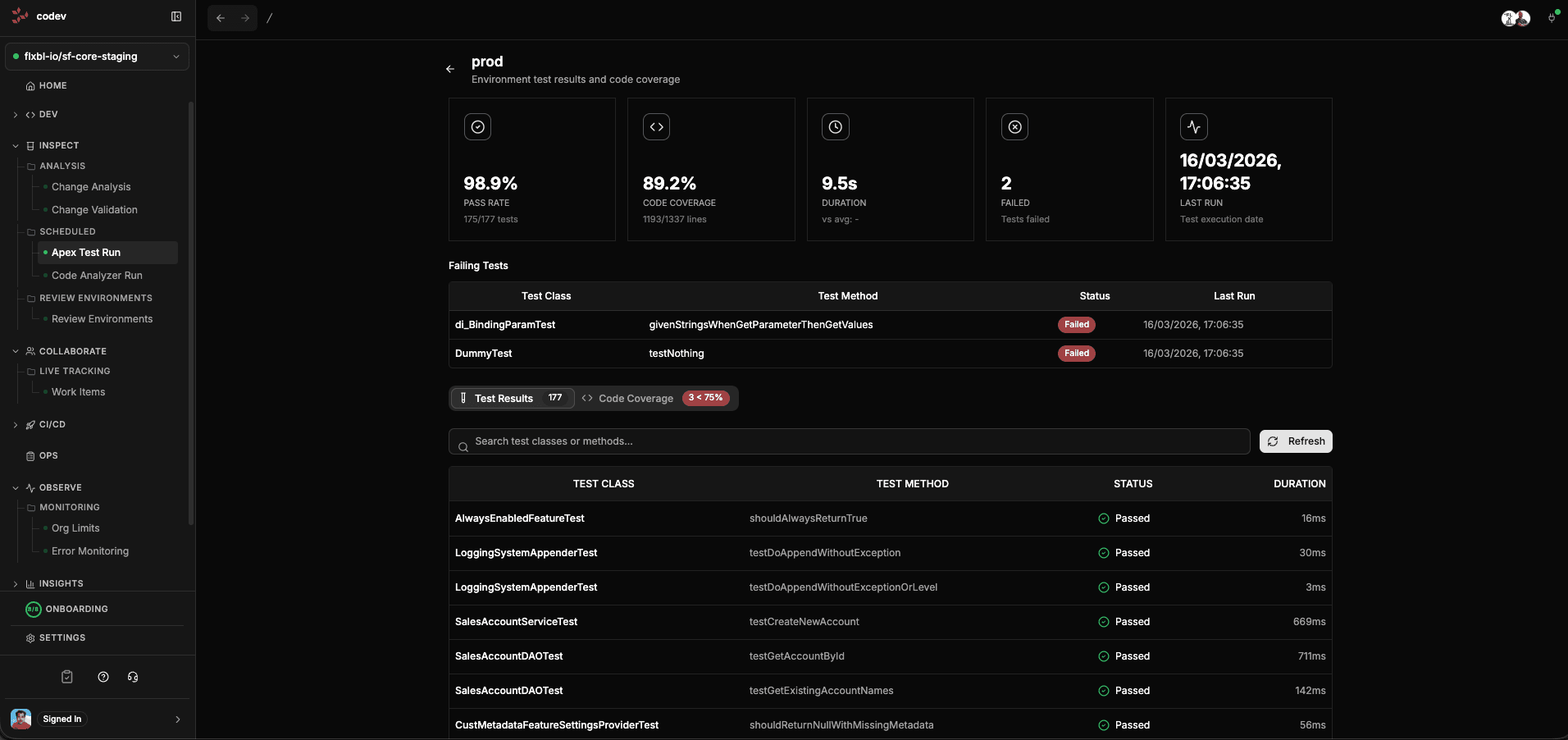
Scheduled Apex test runs execute tests against your registered environments on a recurring schedule. This gives you a continuous view of test health across your orgs — not just when a PR is opened, but at all times.
The dashboard shows key metrics at a glance: pass rate, code coverage percentage, test duration, number of failing tests, and when the last run completed. Below that, you can drill into:
- Failing Tests — which tests are currently broken, with the specific test class and method
- Test Results — full results for every test class, with pass/fail status and execution duration
- Code Coverage — coverage percentages per class
What gets tested
Each scheduled run authenticates to the target org, triggers Apex tests asynchronously, polls for completion (up to 4 hours), and collects results with coverage metrics. codev supports multiple test levels:
- Run local tests — all tests except those in managed packages (most common)
- Run all tests in a package — tests scoped to a specific package
- Run specified tests — specific test classes or methods
- Run all tests in org — everything including managed package tests
Configuring Apex Test Run schedules
Scheduled test runs are configured per environment. When you register an environment in codev (under Environments > Environment Management), you can enable Daily Test Run in the environment's metadata settings. This creates a recurring schedule that runs all local tests against that environment daily at 6 AM UTC.
To customize the schedule, set a testrunCron value in the environment metadata with a standard cron expression (e.g., 0 2 * * * for 2 AM UTC, or 0 */6 * * * for every 6 hours).
You can also trigger a one-off test run manually from the environment detail page or from the Workflows > Scheduled Runs page.
You can pause or resume any scheduled run from the Workflows > Scheduled Runs page.
Code Analyzer Run
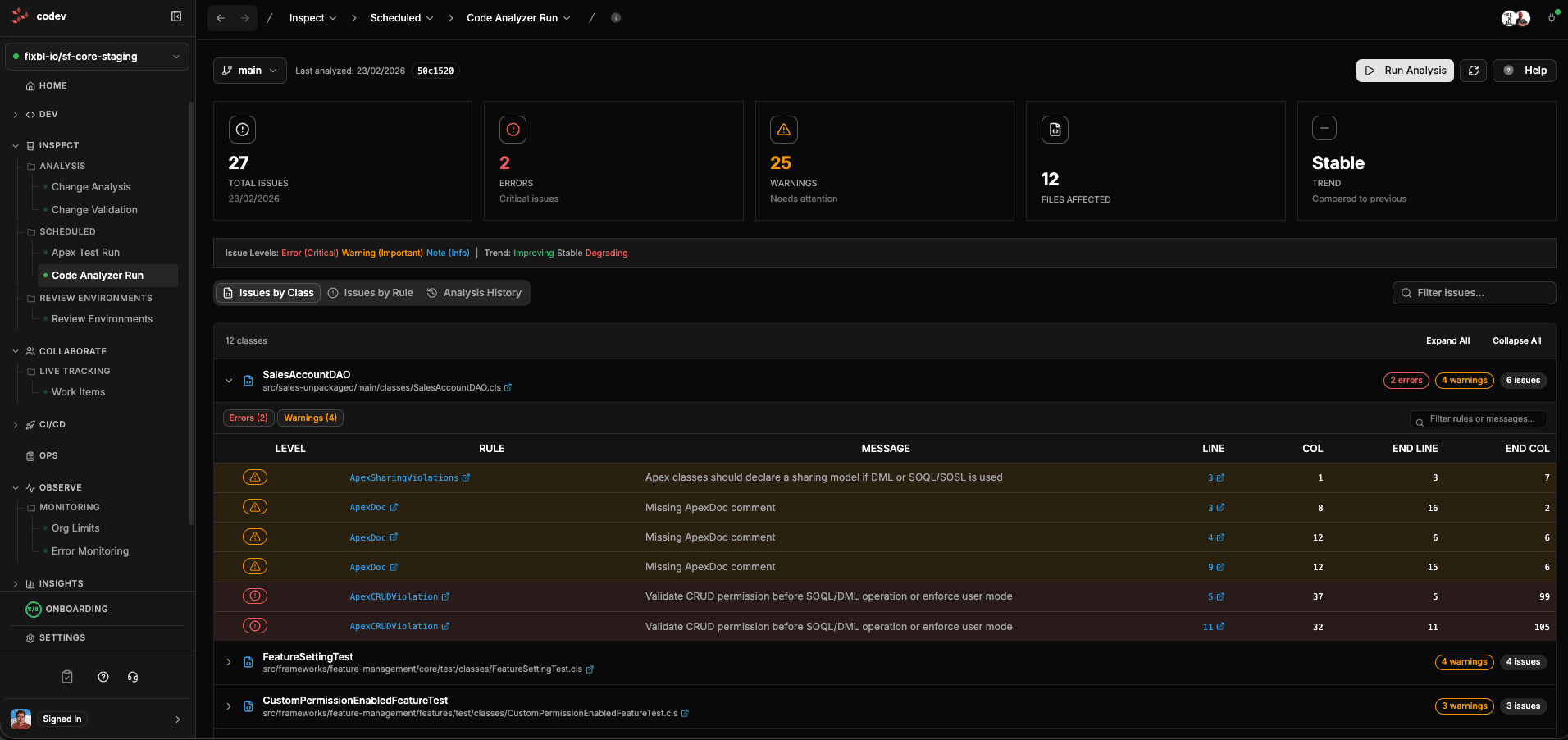
Scheduled code analysis runs Salesforce Code Analyzer against your entire repository on a recurring basis. Unlike Change Analysis (which only checks the PR diff), this produces a full report of all code quality issues across your codebase.
The dashboard shows:
- Metric cards — total issues, errors, warnings, files affected
- Quality trend — whether your codebase is improving, stable, or degrading over time
- Issue severity indicators — color-coded levels so you can focus on what matters most
Results can be viewed in three ways:
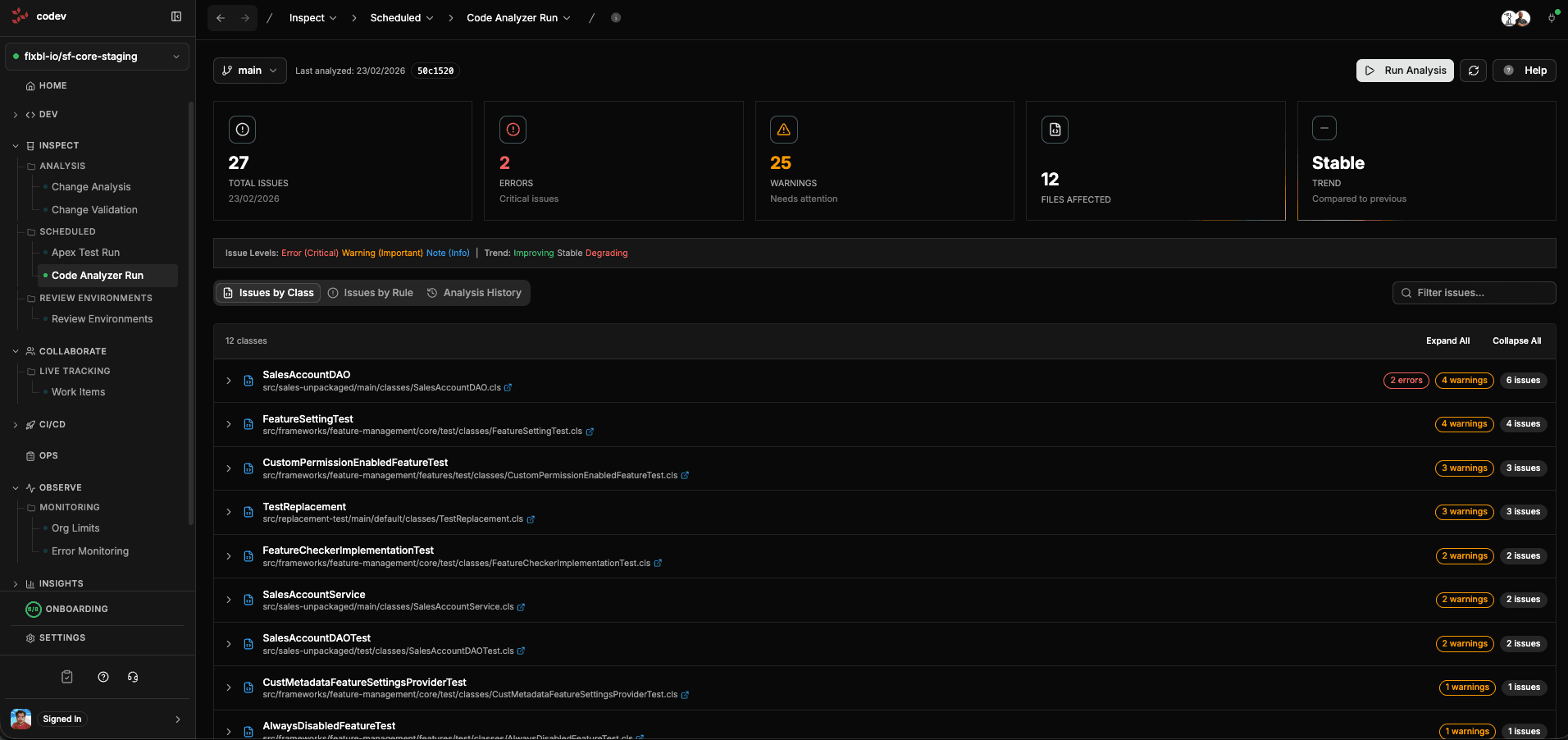
- Issues by Class — issues grouped by the file they appear in. Expand each class to see specific rules violated, the message, and the exact line and column number.
- Issues by Rule — issues grouped by the rule that flagged them, so you can see which rules are most frequently violated across your codebase.
- Analysis History — how the total issue count has changed over time, so you can track whether code quality is improving after cleanup efforts.
Configuring code analysis
Code analysis is scheduled automatically per project. The first time you visit the Code Analyzer Run page, codev creates a daily schedule (3 AM UTC) and triggers an immediate analysis. Subsequent runs happen automatically on that schedule.
codev analyzes every branch configured in your project settings (under Settings > Projects > Branches). By default, it analyzes main. To analyze additional branches like develop or release/*, add them to your project's branch list.
To customize which rules the analyzer checks, add a config/code-analyzer.yml or config/code-analyzer.yaml file to your repository. This controls the engines (PMD, ESLint, CPD) and their rules.
The file follows the Salesforce Code Analyzer v5 configuration format:
# config/code-analyzer.yml

engines:
  pmd:
    # Disable specific PMD rules by name
    disable_rules:
      - ApexUnitTestClassShouldHaveAsserts
      - AvoidDebugStatements

    # Custom PMD rule sets (paths relative to repo root or URLs)
    custom_rulesets:
      - config/pmd/custom-rules.xml

    # Java heap size for PMD (MB)
    java_max_heap: 1024

  eslint:
    # Path to ESLint config file
    config_file: config/.eslintrc.json

    # Additional plugins to load
    plugins:
      - '@salesforce/eslint-plugin-lwc'

  cpd:
    # Minimum number of duplicate tokens to report
    minimum_tokens: 100

    # File extensions to scan for duplicates
language: apex| Engine | Language | What It Checks |
|---|---|---|
pmd | Apex | Security, best practices, performance, design |
eslint | LWC JavaScript / Aura | JavaScript quality, security, best practices |
cpd | Apex, JavaScript | Copy-paste / duplicate code detection |
For full engine configuration options, see the Salesforce Code Analyzer documentation.
You can trigger a manual analysis by clicking Run Analysis on the Code Analyzer Run page. codev keeps the last 10 runs per branch and calculates quality trends by comparing recent runs.
Filtering results
Use the filter controls at the top of the issues list to narrow results by:
- Severity level — focus on errors only, or include warnings and notes
- Specific rules — filter to a particular rule to see all its violations
- Specific classes — filter to files you are working on