Review environments
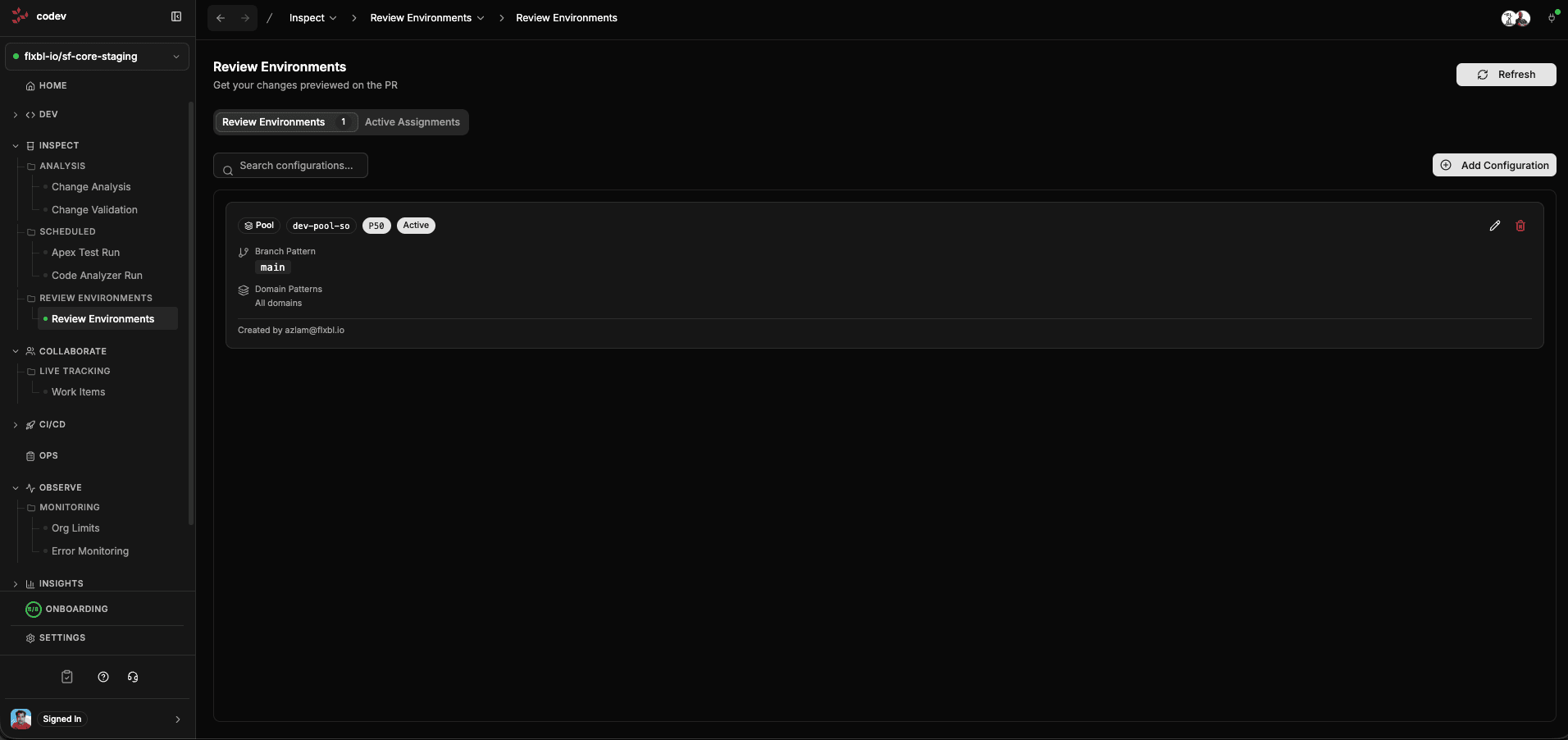
Review environments define where Change Validation deploys your PR changes. They connect your pull requests to Salesforce environments — automatically assigning the right org for each PR based on rules you configure.
Without review environment rules, change validation would not know where to deploy. With them, every PR automatically gets an environment matched to its branch and domain.
Choosing a setup
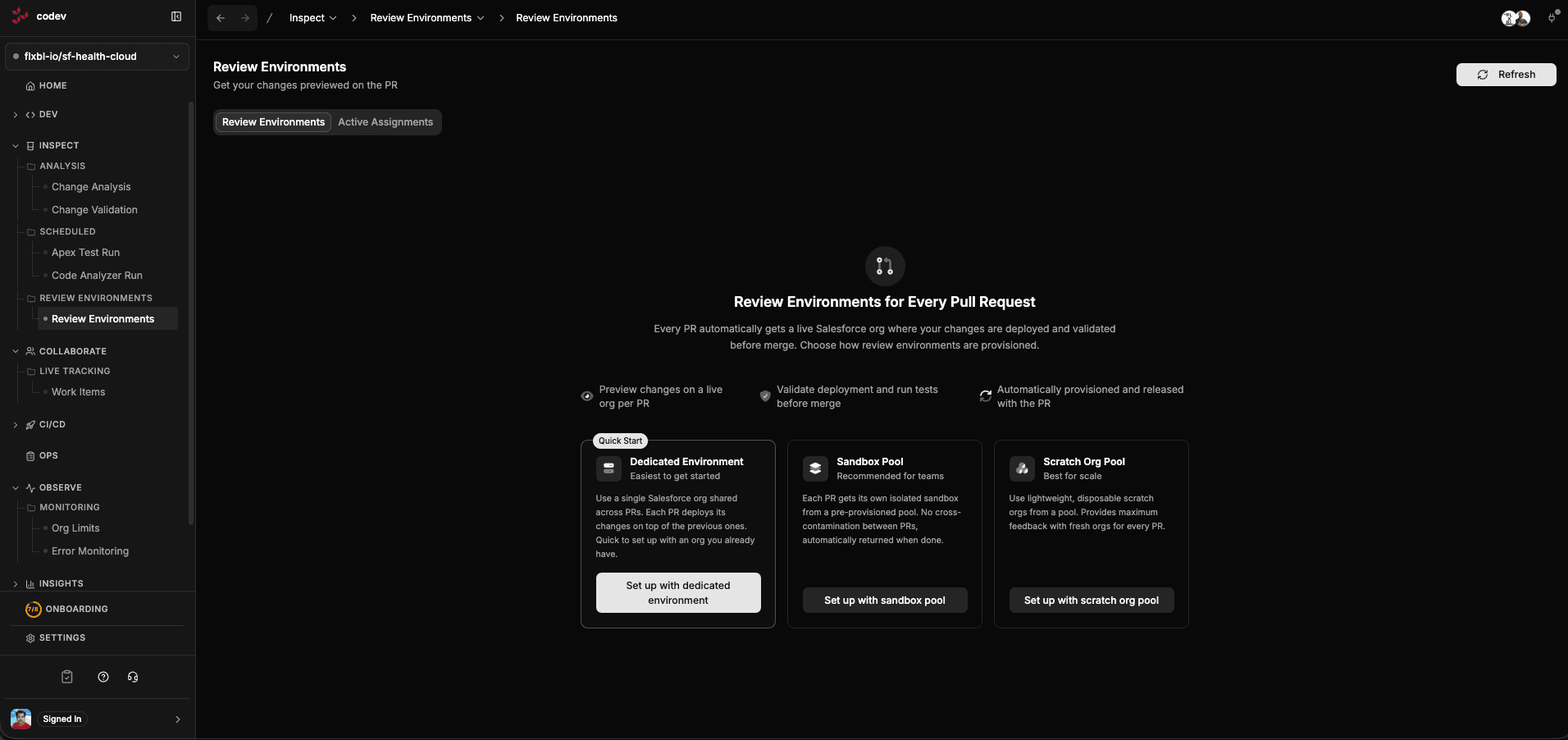
codev offers three approaches, depending on your team size and needs:
Dedicated environment
Easiest to get started. Use a single Salesforce org that is shared across PRs. Each PR deploys its changes on top of the previous ones. This is the quickest way to get validation running — all you need is an existing org.
The tradeoff is that PRs share the same org, so changes from one PR may affect validation of another. For small teams or projects with limited cross-package dependencies, this works well.
Sandbox pool
Recommended for teams. Each PR gets its own isolated sandbox from a pre-provisioned pool. There is no cross-contamination between PRs — each validation runs in a clean environment that is automatically returned to the pool when done.
Scratch org pool
Best for scale. Each PR gets a lightweight, disposable scratch org from a pool. Fresh orgs are provisioned with all packages and dependencies pre-installed, providing maximum isolation and consistent feedback for every PR.
How assignment rules work
An assignment rule maps a combination of branch pattern and domain pattern to a target — either a pool or a dedicated Salesforce org.
For example, a rule might say: "For PRs targeting main, across all domains, use the pool dev-pool-so." Another rule might say: "For PRs targeting release/*, for the service domain, use the dedicated org staging."
When change validation runs, codev evaluates the PR's target branch and impacted domains against these rules and allocates the matching environment.
Creating assignment rules
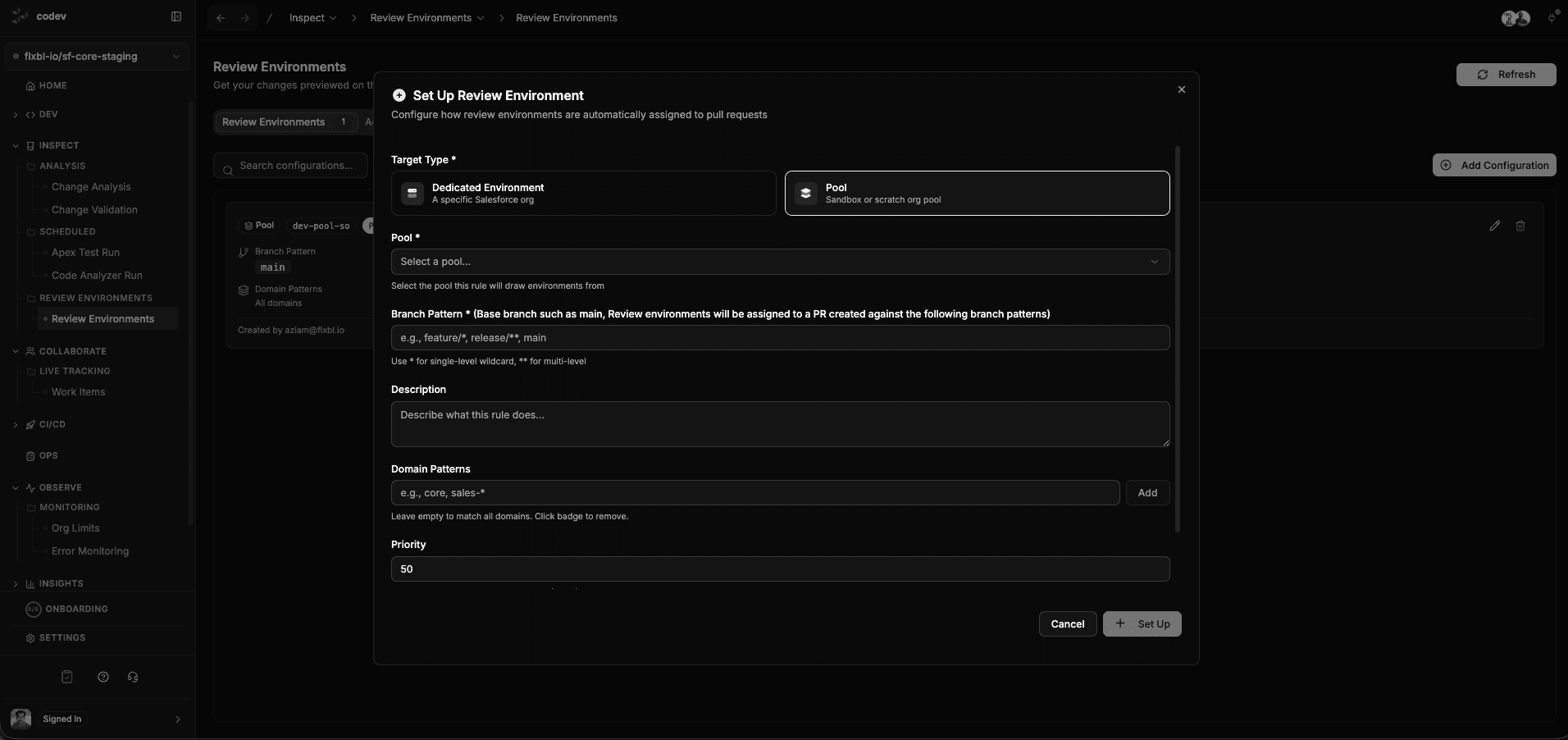
Click Add Configuration on the Review Environments page. The setup dialog asks for:
- Target Type — choose Pool (sandbox or scratch org pool) or Dedicated Environment (a specific Salesforce org)
- Pool — if using a pool, select which one. The pool must already be created in Pools Management
- Branch Pattern — which base branches this rule applies to (e.g.,
main,release/*,feature/*).*matches any characters, including/, sorelease/*matches every branch underrelease/. Consecutive wildcards (**) are not supported. - Domain Patterns — which domains this rule applies to. Leave empty to match all domains. Use comma-separated values for multiple (e.g.,
core, sales-*) - Priority — when multiple rules match, the highest priority wins
- Description — optional notes about what this rule is for
Viewing active assignments
Switch to the Active Assignments tab to see which environments are currently assigned to PRs. This shows the pool, branch, domain, and how long the assignment has been active.
How review environments connect to validation
The full flow:
- A PR is opened or updated
- Change Validation detects impacted domains
- For each domain, codev evaluates the review environment rules against the PR's target branch and domain name
- The matching rule determines whether to use a pool or dedicated environment
- codev acquires exclusive access (pool: fetch + acquire lock; dedicated: lock with access token)
- Validation deploys and tests against the environment
- codev releases access when validation completes
This happens automatically — developers do not need to think about which environment to use.
Getting started
- Choose your approach — dedicated environment (quickest), sandbox pool, or scratch org pool
- If using a pool, create it first in Pools Management with available instances
- Create an assignment rule on this page mapping your main branch to the target
- Enable the PR validation workflow in Change Validation > Workflow Settings
- Open a PR — validation will automatically allocate an environment and run