Browser Sessions
Sometimes you need to actually click through a change, not just run tests — to reproduce a bug, walk a stakeholder through a feature, or sanity-check a pull request in a real org. Browser Sessions give you a cloud browser, already logged in to a review environment, that you drive live and that records itself for replay.
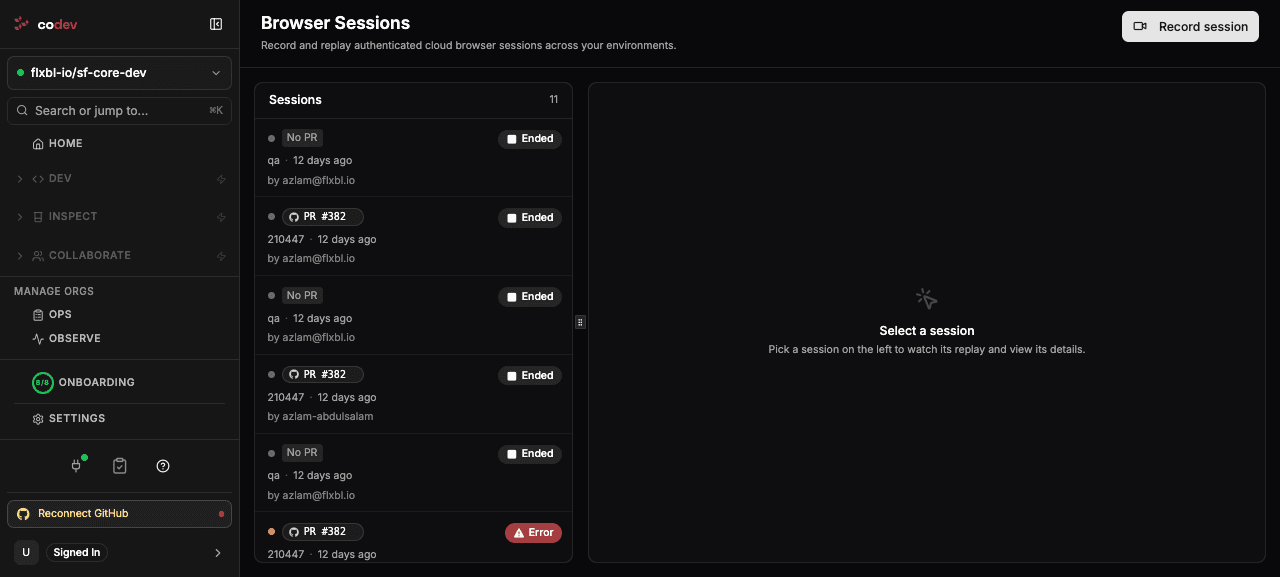
Recording a session
There are two ways to start one.
On a pull request, comment sfp record. codev starts a browser on the review environment assigned to that pull request and replies with a link to open it. (The PR needs a review environment first — comment sfp assign if it does not have one.)
From the Browser Sessions page, or an environment's Browser Sessions tab, use Record session and pick either a pull request's review environment or a named environment. You can point the session at a Lightning path to land on when it opens.
A session takes around twenty seconds to provision. Once it is live, open the browser tab and drive it — everything you do is recorded. The browser is logged in to the org through Salesforce's frontdoor, so you never handle an access token yourself.
Replaying
Stop a session with sfp record stop or the Stop button, and codev finalises the recording. Every session has a Replay — a video you can watch afterwards, with a page selector when the session moved across several pages. Replays are available on the Browser Sessions page and on an environment's Browser Sessions tab, and a per-pull-request view gathers the sessions for one PR.
Lifecycle and limits
A session runs for up to 60 minutes; you can extend an active one in steps of up to 15 minutes, never past that cap. It ends when you stop it, when the pull request is closed or merged, or when the cap is reached. Its status moves through provisioning → live → ended (or expired / error).
Who can record
Recording against a pull request's review environment is open to project members — the review-environment assignment is the reviewer's own grant of access. Recording against a named, shared environment auto-logs into that org, so it is limited to owners.
Setup
Browser Sessions are powered by Browserbase. Configure the Browserbase integration once — an API key and a project ID — under Settings → Integrations → Browserbase. Until it is configured, the page prompts you to set it up.