Jira
The Jira integration connects codev to your Atlassian Jira site so that the work items referenced in your commits are visible throughout your delivery pipeline — and, optionally, so that codev reports deployment and build status back to the matching Jira issues.
You configure it under Settings > Organization > Integrations > Jira. Only organization owners can manage it.
What the Jira integration does
The integration works in two directions. Reading work items is enough for most teams; write-back is optional and needs the OAuth method.
| Capability | Supported | Needs |
|---|---|---|
| Read a Jira issue and show its summary, status, assignee, and a link | ✅ | Basic Auth or OAuth |
| Search issues with filters (project, status, assignee, type) | ✅ | Basic Auth or OAuth |
| Detect Jira issue keys in commit messages and surface them on builds, release candidates, and releases | ✅ | Basic Auth or OAuth |
| Report deployments to Jira's Deployments panel | ✅ | OAuth + write-back enabled |
| Report builds to Jira's Builds panel | ✅ | OAuth + write-back enabled |
| Add a cumulative deployment-timeline comment to each referenced issue | ✅ | OAuth + write-back enabled |
| Create, edit, transition, or close issues | ❌ | Use Jira Automation (see below) |
codev never edits your issues directly. To move an issue's status when it is deployed, drive a Jira Automation rule from the deployment data codev writes back.
Authentication methods
Jira offers two methods. They are independent — you can register one or both, and each can serve a different purpose.
| Method | What you provide | What it powers |
|---|---|---|
| Basic Auth (API Token) | Base URL, your Atlassian email, and an API token | Reading issues and searching — everything that displays and links work items. |
| OAuth Client Credentials | Base URL, Client ID, and Client Secret | Writing deployment and build status back to Jira's DevOps panels and adding the timeline comment. |
If both are registered, codev reads issues through Basic Auth and writes back through OAuth. If only OAuth is registered, it can also read issues, with the scope its DevOps app allows.
Write-back is Atlassian Cloud only. The OAuth method targets Jira Cloud sites (*.atlassian.net). Reading via Basic Auth works against any reachable Jira site that accepts an API token.
You bring your own Jira
Unlike GitHub on the cloud instance, there is no flxbl-managed Jira connection. Jira is always something your organization connects itself — on both the cloud and self-hosted instances. Until you register a Jira integration, work items are not read and nothing is written back.
Adding the integration
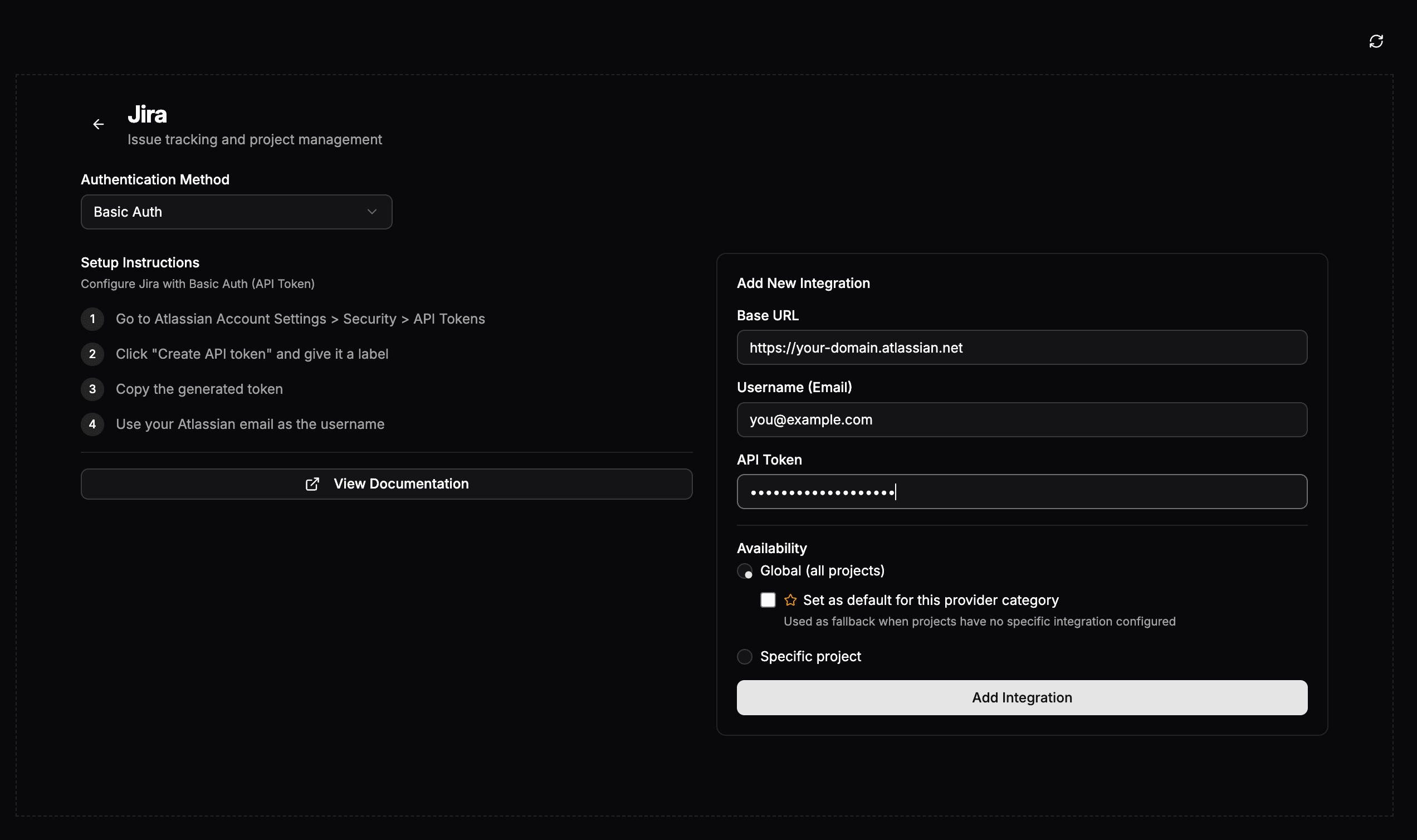
- Go to Settings > Organization > Integrations > Jira.
- Under Add New Integration, choose the Authentication Method.
- Fill in the credentials:
- Basic Auth (API Token) — your site Base URL (
https://your-domain.atlassian.net), your Atlassian email as the Username, and an API Token created at Atlassian Account Settings > Security > API tokens. - OAuth Client Credentials — your site Base URL, and the Client ID and Client Secret of a Jira OAuth credential (see Creating the OAuth credential below).
- Basic Auth (API Token) — your site Base URL (
- Set Availability to Global (optionally marking it the default for Jira) or to a specific project.
- Click Add Integration.
Existing integrations are listed with their method, scope, default marker, and status, and can be edited or removed at any time.
Creating the OAuth credential
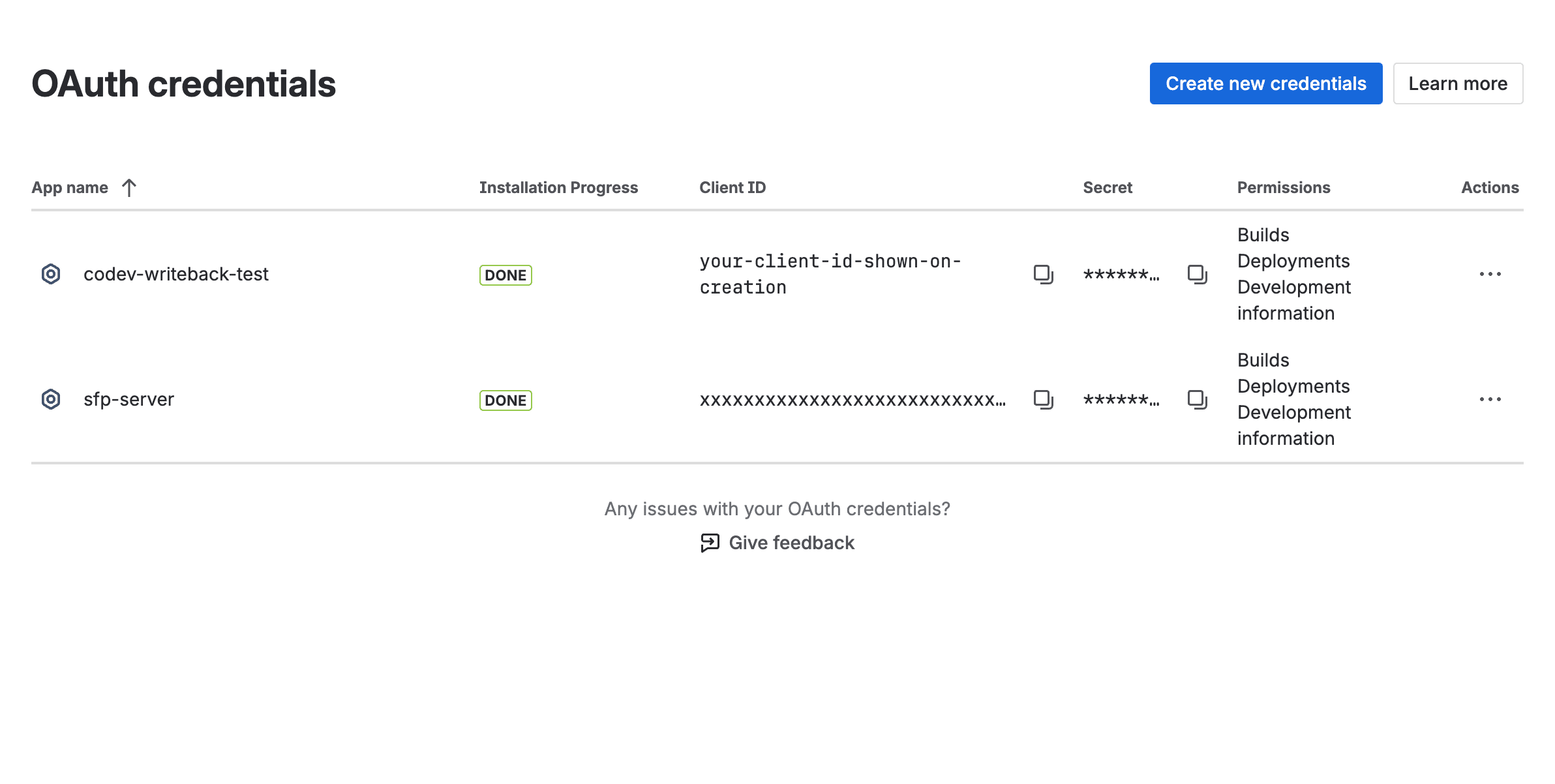
The OAuth Client Credentials method authenticates to Jira's DevOps APIs (Deployments and Builds), and the credential for those APIs is created by a Jira site admin — not in the Atlassian Developer Console.
- In Jira, open the settings gear (top right) > Apps, then OAuth credentials in the left sidebar. The direct URL is
https://your-domain.atlassian.net/secure/admin/oauth-credentials— the/jira/settings/...routes do not reach this page. - Select Create new credentials.
- Give it a name and a Server base URL (your codev instance URL), and grant both the Deployments and Builds permissions. Both are required; a credential missing either one is accepted on this page but rejected when codev writes.
- Copy the generated Client ID and Client Secret into the OAuth Client Credentials fields on the codev Jira integration form, along with your site Base URL.
Create the credential on this site OAuth credentials page, not as an OAuth 2.0 app in the Atlassian Developer Console (developer.atlassian.com). A Developer Console app is a three-legged (user-authorization) app; the DevOps APIs require the site-admin client-credentials app created here, and reject a Developer Console app's token with invalid_client.
Scoping and precedence
Each integration is either Global (all projects) or scoped to a specific project, and a global integration can be marked the default for Jira. When codev needs Jira credentials for a project, it picks the most specific match:
- A Jira integration scoped to that project
- The integration marked default for Jira
- A global Jira integration
Showing work items
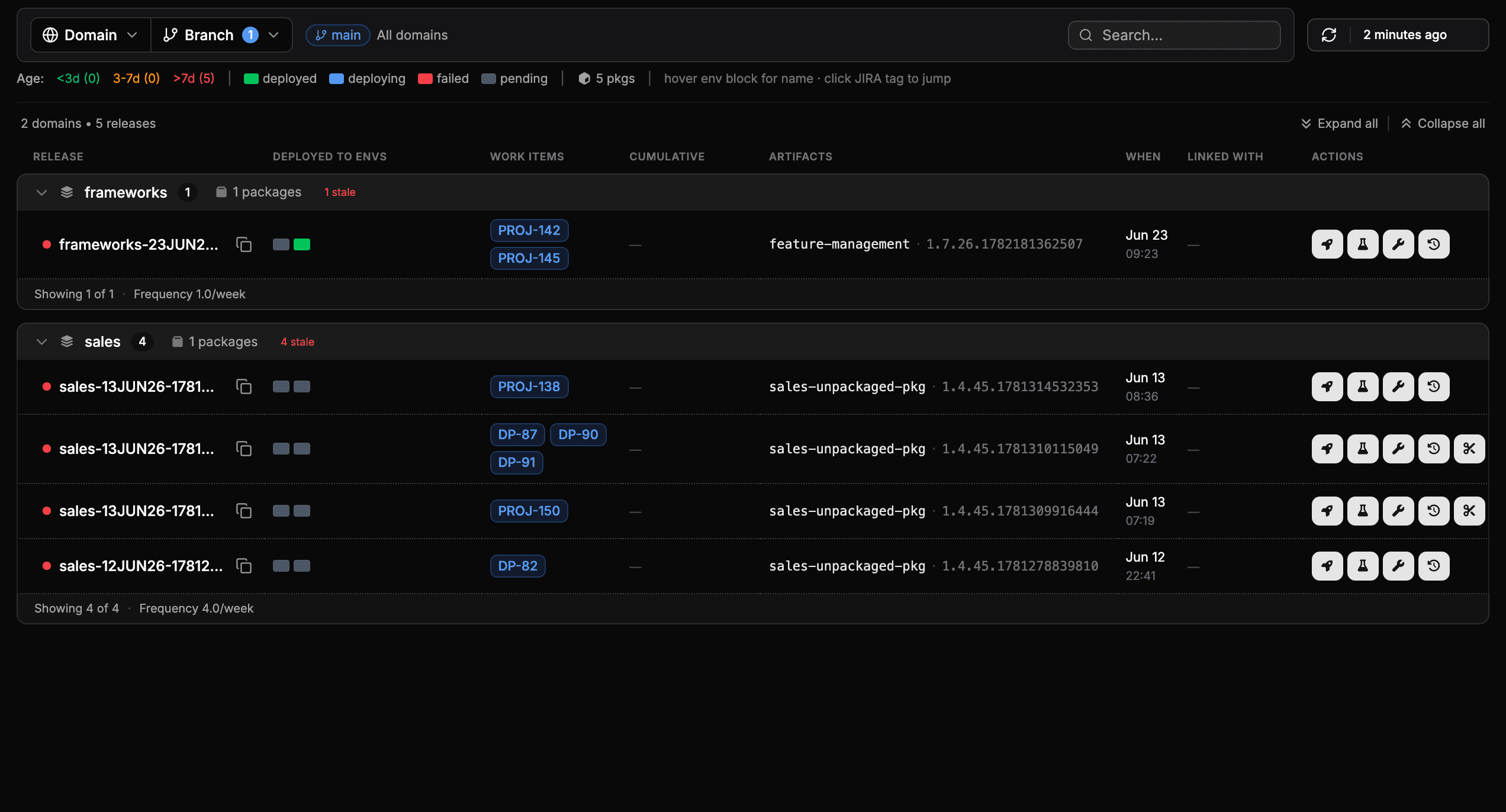
Once a read-capable integration is registered, codev extracts Jira issue keys from your commit messages (for example, DP-123 or [PROJ-456]) and surfaces them where you plan and ship. For the full set of recognised commit-message formats — and a common pitfall, since an issue key in round parentheses is not detected — see Work items. Detected keys are surfaced:
- On a release candidate, under the Work Items tab, grouped by source with the Jira issues shown as clickable keys.
- In the release request flow, as indicative work items, so you can see which issues a release will deploy and whether the deployment is full or partial.
How keys are detected and linked is part of each project's configuration:
| Setting | What it controls |
|---|---|
jiraProjects | Limits work items to specific project keys, e.g. ["DP", "PROJ"]. |
baseUrl | The browse URL used to build issue links, e.g. https://your-domain.atlassian.net/browse. |
workItemRegexFilter | A custom pattern for issue keys when the default ABC-123 style does not fit, e.g. (FGK|FFK)-[0-9]{3,4}. |
Writing status back to Jira
Write-back is optional. It is active for a project only when both conditions are met:
- An OAuth Client Credentials integration is registered, and
- Write-back is enabled in the project's configuration.
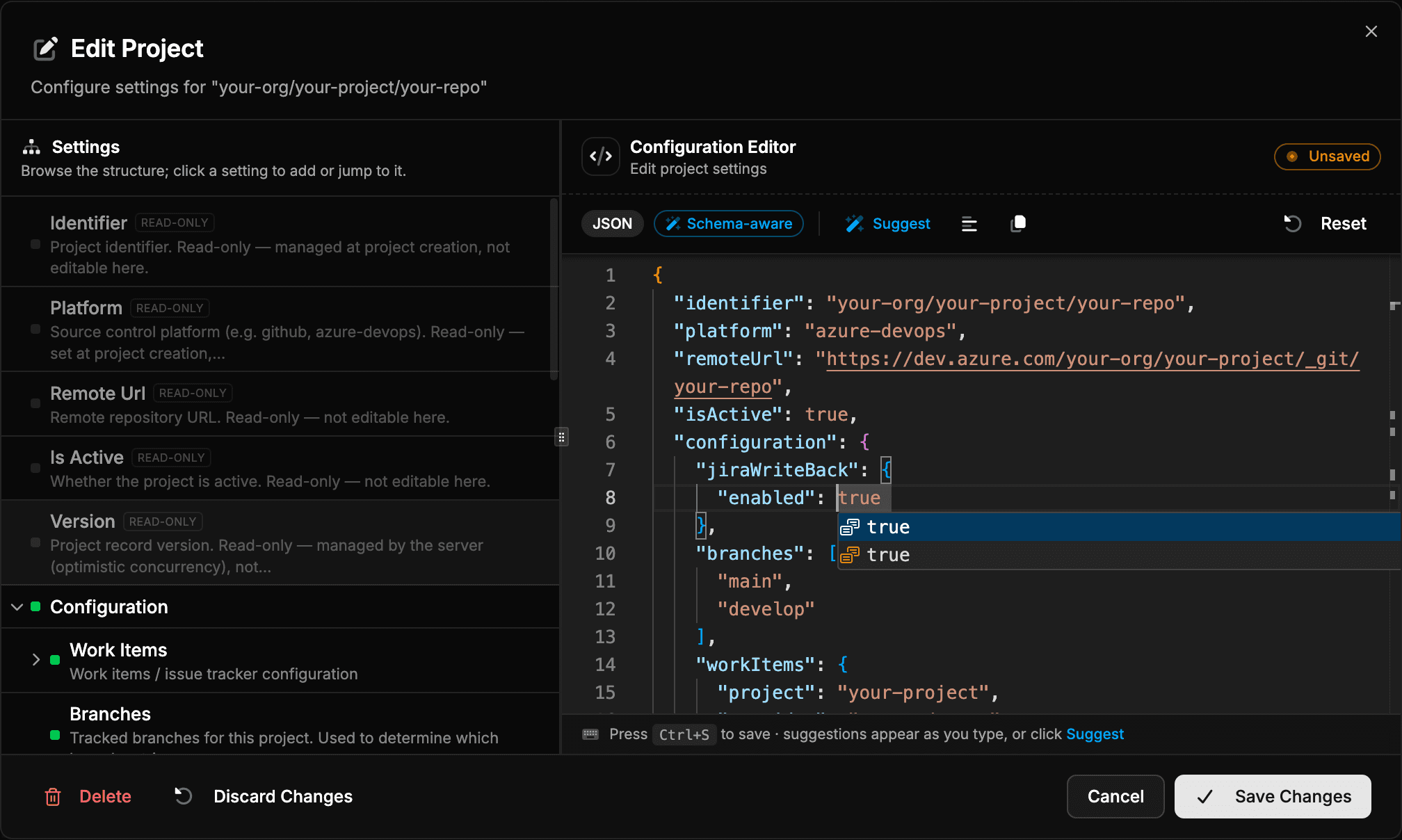
jiraWriteBack.enabled set to true.When active, codev reports to Jira as your pipeline runs:
| Event | What appears in Jira |
|---|---|
| A release is deployed to an environment | A deployment entry in the Deployments panel of every issue referenced in the release, marked successful or failed, with the environment and a link back to codev. |
| A release is finalized | The deployment timeline is updated to reflect the finalized release. |
| A build completes | A build entry in the Builds panel of the referenced issues, with a link to the run. |

codev maps your environments to Jira's environment types — review and dev environments as development, test and snapshot as testing, and release as staging.
It can take a few minutes to appear. Jira indexes deployment and build data asynchronously, so the Deployments and Builds entries may not show on an individual issue immediately — they usually appear within a few minutes, and can take longer the first time a new credential reports data. The project-level Development > Deployments view is the most reliable place to confirm the data has arrived.
Moving issues automatically. codev writes deployment and build data but does not transition issues itself. Use a Jira Automation rule that reacts to the deployment data — for example, transition an issue to Done when it is deployed to your release environment.
Troubleshooting
Deployments and builds don't appear, and the server reports a 400 from Jira. A token is being issued — authentication works — but the DevOps write is rejected. The usual causes:
- The OAuth credential is missing the Deployments or Builds permission. Re-open it at Settings > Apps > OAuth credentials, confirm both are granted, and — if you recreate it — re-enter the new Client ID and Client Secret on the codev form.
- The credential is a Developer Console (three-legged) OAuth app rather than the site OAuth credentials (client-credentials) app. Recreate it on the OAuth credentials page — see Creating the OAuth credential.
- Write-back is registered but not enabled for the project — see Writing status back to Jira.
A deployment or build doesn't show on an individual issue. Jira indexes this data asynchronously. Confirm it arrived on the project-level Development > Deployments view, which updates before the per-issue panels.
A referenced issue key isn't detected. Check the project's jiraProjects and workItemRegexFilter settings, and note that a key inside round parentheses is not detected — see Work items.
Self-hosting
The two methods work the same on a self-hosted instance, with the same Cloud-only restriction on OAuth write-back. Server-level configuration is covered in the sfp server documentation.
Once a read-capable integration is registered, see how detected issue keys appear across your pipeline.