Connecting an org with an External Client App
Register a Salesforce org in codev with an External Client App and the JWT bearer flow, instead of an SFDX auth URL.
codev registers a Salesforce org with one of two credential shapes:
| Credential | What it stores | How it expires |
|---|---|---|
| SFDX auth URL | A refresh token issued to a connected app | The refresh token can be revoked or expire |
| External Client App | A consumer key plus an RSA private key | Nothing expires; each access token is signed on demand |
The External Client App option uses the OAuth JWT bearer flow. codev signs a new assertion with the private key every time it needs an access token, so there is no refresh token to rotate and no interactive web login at registration time.
From Spring '26, Salesforce no longer offers classic Connected App creation in new orgs. External Client Apps are the replacement, and they support the JWT bearer flow.
Both credential shapes work everywhere codev uses an org — builds, releases, pools, and environments. The choice affects how the credential is stored and renewed, not what the org can do.
Before you start
You need:
- An integration user in the Salesforce org. Use a dedicated service account rather than a person's login — the registration is shared across every project on the instance.
- The owner role in codev, or an application token. Registering an org and reading its credential are both restricted to those.
opensslon your machine, to generate the key pair.
Step 1: Generate a certificate and private key
The app authenticates with an X.509 certificate. Salesforce holds the certificate; codev holds the matching private key.
openssl req -x509 -newkey rsa:2048 -nodes \
  -keyout server.key -out server.crt \
  -days 365 -subj "/CN=codev-jwt/O=your-org/C=AU"
This writes two files:
server.key— the private key, in PEM form. This goes into codev.server.crt— the certificate. This is uploaded to Salesforce.
Keep server.key out of source control. -days 365 sets the certificate lifetime; when it expires, generate a new pair and follow Rotating a credential.
Step 2: Create the External Client App
In Salesforce Setup, go to Apps → External Client Apps → External Client App Manager and click New External Client App.
Under Basic Information:
| Field | Value |
|---|---|
| External Client App Name | A name of your choosing, for example codev JWT |
| API Name | Fills in automatically from the name |
| Contact Email | An address your team monitors |
| Distribution State | Local — the default |
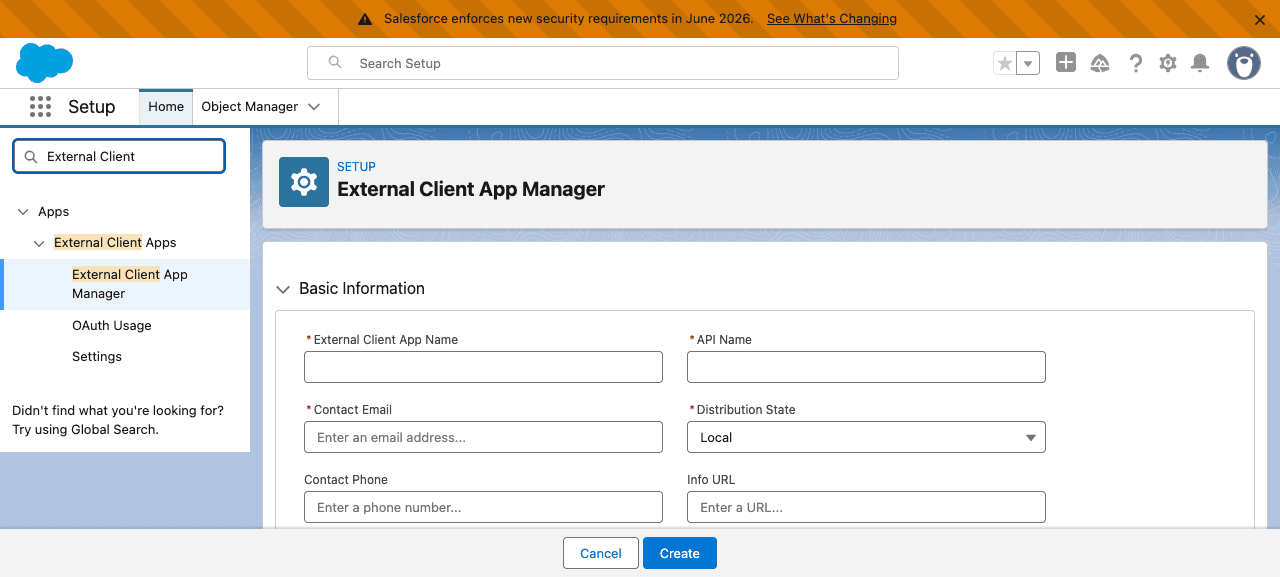
Expand API (Enable OAuth Settings) and tick Enable OAuth. That reveals the rest of the OAuth configuration:
- Callback URL — required by Salesforce even though the JWT bearer flow never redirects.
http://localhost:1717/OauthRedirectis a workable value. - OAuth Scopes — move these from Available to Selected:
Manage user data via APIs (api)Manage user data via Web browsers (web)Perform requests at any time (refresh_token, offline_access)
Under Flow Enablement, tick Enable JWT Bearer Flow. A Certificate Upload control appears directly beneath it — upload the server.crt from Step 1.
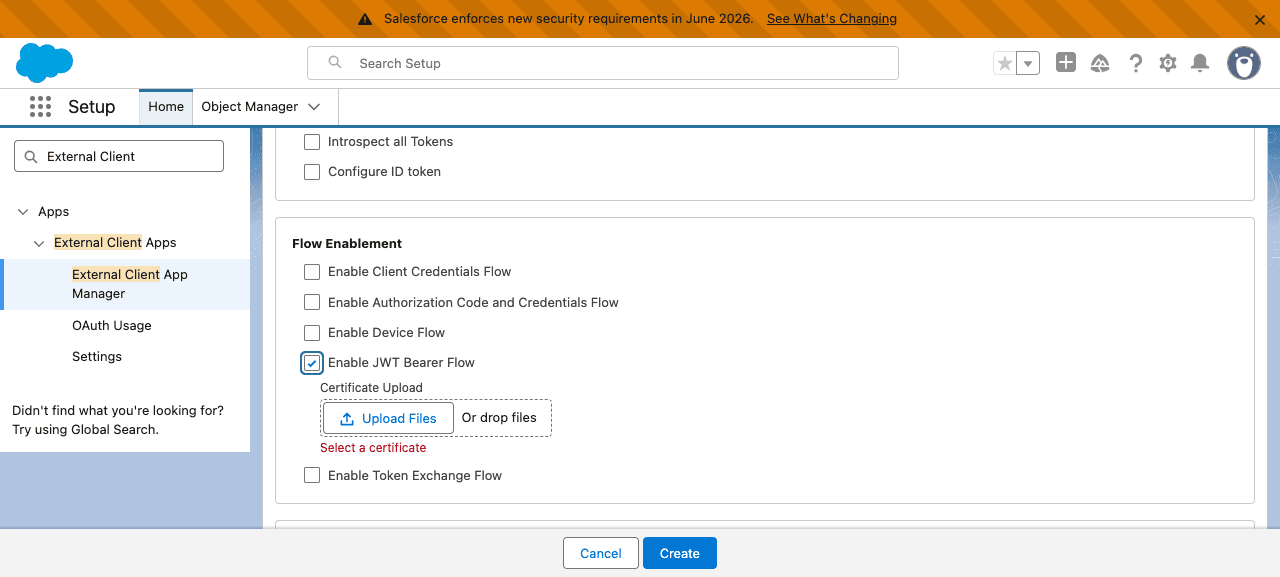
Leave Issue JSON Web Token (JWT)-based access tokens for named users unticked. It is off by default.
Do not tick Issue JSON Web Token (JWT)-based access tokens for named users.
With it on, Salesforce returns a JWT-format access token instead of a session id. The org authenticates and queries normally, so registration appears to succeed — but the SOAP Metadata API rejects that token shape, and every deployment to the org then fails.
codev checks for this at registration and refuses the org with an explanatory message rather than letting it fail later during a deploy.
Click Create.
Step 3: Pre-authorize the integration user
A new app is created with App Authorization: All users can self-authorize. The JWT bearer flow does not self-authorize, so this has to change before the credential will work.
On the app, open the Policies tab and click Edit. Under OAuth Policies, set Permitted Users to Admin approved users are pre-authorized. Salesforce asks you to confirm, because the change denies access to any user currently using the app. Click Save.
Then assign the integration user's profile or a permission set to the app. Setting Permitted Users alone is not enough — with the policy set but no profile assigned, authentication fails with:
invalid_app_access: user is not admin approved to access this appStep 4: Copy the consumer key
Open the app's OAuth settings and copy the Consumer Key. It starts with 3MVG9.
Each org issues its own consumer key, even for the same app definition and the same certificate.
A key from production does not authenticate against that production org's sandbox. When you connect a sandbox, create the app there too and use the key that sandbox issued. The certificate and private key can be reused across orgs; the consumer key cannot.
Step 5: Register the org in codev
Go to Settings → Orgs and click Add Org, then choose the External Client App tab.
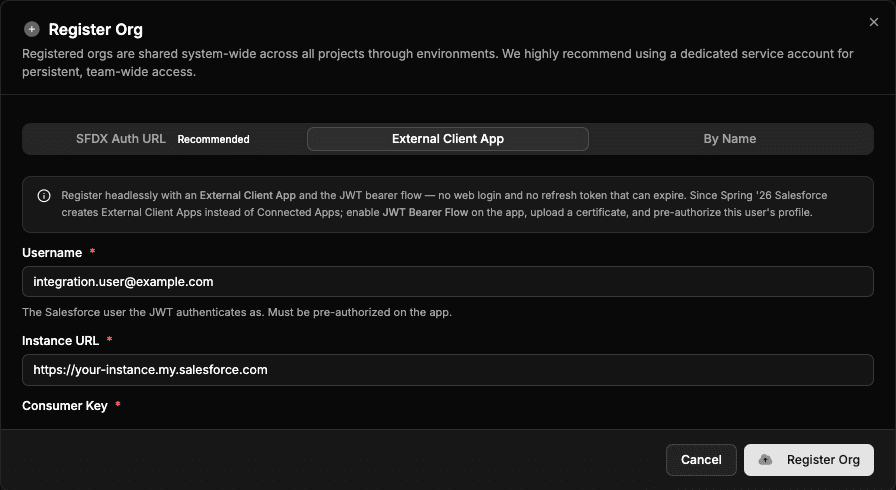
Fill in:
| Field | Value |
|---|---|
| Username | The integration user the JWT authenticates as — the user pre-authorized in Step 3 |
| Instance URL | The org's My Domain URL, for example https://your-instance.my.salesforce.com |
| Consumer Key | The key copied in Step 4 |
| Private Key (PEM) | The full contents of server.key, including the -----BEGIN and -----END lines |
Check This is a DevHub org if the org provisions scratch orgs, and Set as default to make it the default Dev Hub.
Click Register Org. codev authenticates with the credential before saving it, so a rejected registration means the credential does not work — not that it was stored and will fail later.
The private key is encrypted at rest and is never returned to member users.
Sandboxes
For a sandbox, use the sandbox's own login host as the instance URL — https://your-instance--sandboxname.sandbox.my.salesforce.com. The JWT audience resolves to https://test.salesforce.com for sandboxes and https://login.salesforce.com for production.
An External Client App created in a production org does not exist in its sandboxes, including sandboxes created after the app. Each sandbox needs its own app, and issues its own consumer key.
Registering a sandbox by name
The By Name tab registers a sandbox through an already-registered production org, without a separate credential for the sandbox. It works the same way when the production org uses an External Client App — codev authenticates to the production org with the JWT credential and asks Salesforce for a sandbox session from there.
The resulting registration is a just-in-time one: it stores no credential of its own and its session is derived from the parent whenever it is needed. Its authType reads refresh_token rather than jwt, because what Salesforce returns for the sandbox is an auth code exchanged for a refresh token — the External Client App applies to the parent, not to the sandbox.
Salesforce applies two rules to that request, and both are about the production user, not the credential:
- The user must have created the sandbox. Otherwise:
User must be sandbox creator to be authorized. - The user must exist inside the sandbox copy. Otherwise:
Unable to lookup authUserId ... for SandboxOrgId.
If you adopt an External Client App and switch to a new integration user at the same time, By Name stops working for every sandbox that predates that user — it did not create them, and it does not exist inside them.
Those sandboxes still register normally through the External Client App or SFDX Auth URL tabs, which authenticate to the sandbox directly. Sandboxes created by the new user, after that user exists in the source org, work with By Name as usual.
Rotating a credential
To move an already-registered org onto an External Client App, or to replace an expiring certificate, open the org's row menu and choose Edit Org. The Credentials section has the same two options, and opens on whichever shape the org uses now.
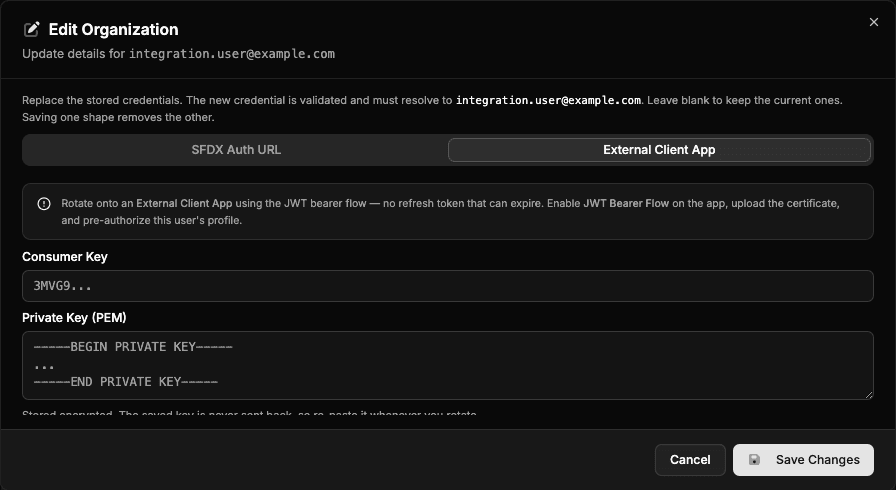
Paste the new consumer key and private key, then Save Changes. Points worth knowing:
- The new credential is validated before it is stored, and must resolve to the same username. A credential that opens a different org is rejected, so a rotation cannot silently repoint the registration.
- Saving one credential shape clears the other. An org is on one shape or the other, never both.
- The stored private key is never sent back to the browser, so re-paste it on every rotation.
- Leave both fields blank to change only the flags or metadata.
Scratch org creation from a JWT Dev Hub
When a Dev Hub is registered this way, codev pins the scratch org signup app while it creates orgs. Without that pin, Salesforce tries to replicate the calling app into the new scratch org and the creation fails with C-1016 / RemoteOrgSignupFailed.
This is automatic — there is nothing to configure — but it explains the pinning scratch org signup app line in pool provisioning logs.
Troubleshooting
| Message | Cause |
|---|---|
client identifier invalid | The consumer key is not from this org. Copy the key that this org issued (see Step 4) |
invalid client credentials | The private key does not match the certificate uploaded on the app |
user is not admin approved to access this app | Permitted Users is set to pre-authorized but the user's profile or permission set is not assigned to the app (Step 3) |
This External Client App issues JWT-based access tokens | Issue JSON Web Token (JWT)-based access tokens for named users is ticked. Untick it and register again |
no login URL is stored | The registration has no instance URL to resolve the JWT audience against. Re-register with the instance URL filled in |
To confirm a stored credential still works, use Test Connection on the org's row menu.