Variables and secrets
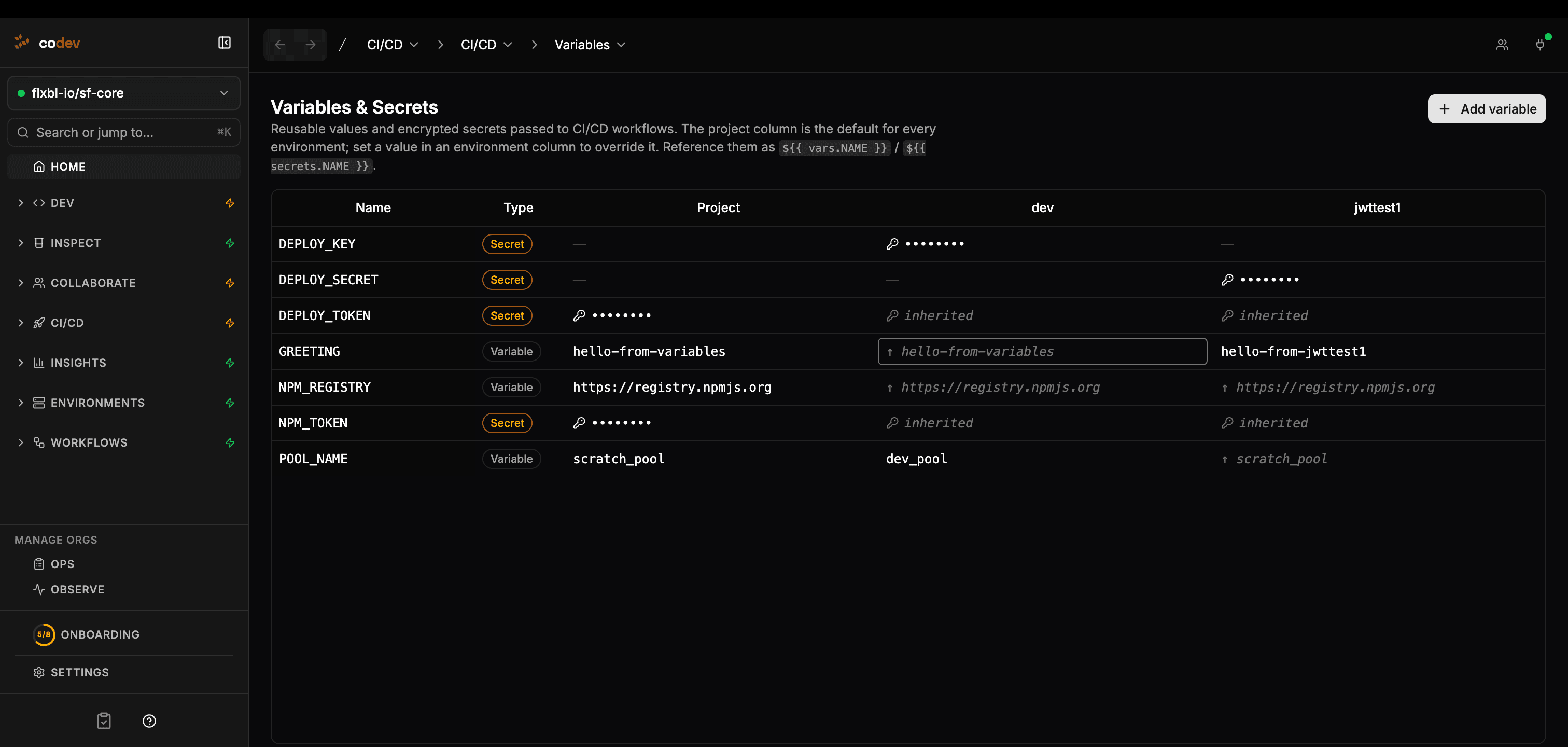
Variables and secrets let you define reusable values once in codev and pass them into CI/CD workflows without hard-coding them in project files.
Use variables for non-sensitive configuration such as pool names, registry URLs, feature flags, or target branches. Use secrets for credentials such as tokens, API keys, or passwords.
How scoping works
Each value belongs to one of two scopes:
| Scope | What it means |
|---|---|
| Project | The default value for the repository. Every environment inherits it unless that environment has its own value. |
| Environment | A value for one named environment. It overrides the project value for that environment only. |
When a workflow runs for an environment, codev resolves the project values first, then applies the environment values on top. If the same key exists at both scopes, the environment value wins.
In the matrix:
- The Project column is the default for every environment.
- An environment cell with its own value is an override.
- An environment cell marked inherited uses the project value.
- A blank cell means no value is available at that scope.
Creating values
Open CI/CD > Variables and click Add variable.
Variable names must use uppercase letters, numbers, and underscores, and must start with a letter. Examples:
POOL_NAME
NPM_REGISTRY
NPM_TOKEN
API_ENDPOINT
New values are created at the project scope. After creating a row, click an environment cell to set an environment-specific override.
Turn on Secret when the value is sensitive. Secrets are encrypted at rest, shown as masked values in the UI, and never returned to the browser after they are saved.
Secret values are write-only. To change a secret, enter a new value. codev cannot reveal the existing value.
Editing and removing values
Click any cell in the matrix to edit it.
- Editing the Project cell changes the default used by every environment that inherits it.
- Editing an environment cell creates or updates that environment's override.
- Remove override deletes only the environment value, so that environment falls back to the project value.
- Delete on the project cell removes the project value.
- The row delete action removes that key from the project and all environment overrides.
Managing values from the command line
The same store is available through the sfp server variable commands, so you can seed a new project or manage values from a pipeline instead of the app. Every command targets a repository — pass --repository owner/repo, or set the GITHUB_REPOSITORY environment variable when running inside CI.
# Set a project default
sfp server variable set --repository owner/repo --key POOL_NAME --value scratch_pool

# Override it for a single environment
sfp server variable set --repository owner/repo --key POOL_NAME --value dev_pool --environment dev

# Store a secret — pipe it from a file or another command so the
# plaintext never lands in your shell history
sfp server variable set --repository owner/repo --key NPM_TOKEN --secret < token.txt

# List a scope (secret values stay masked)
sfp server variable list --repository owner/repo
sfp server variable list --repository owner/repo --environment dev

# Read or delete a single value
sfp server variable get    --repository owner/repo --key POOL_NAME
sfp server variable delete --repository owner/repo --key POOL_NAME --environment dev
All commands accept --json for scripting and follow the standard sfp output conventions.
Preview what a workflow will receive. sfp server variable resolve --repository owner/repo --environment dev prints the effective values for a scope as the exact SFP_VAR_ / SFP_SECRET_ environment variables a workflow would get, showing whether each came from the project or overrides it from the environment. Secret values stay masked. This is the quickest way to confirm a value is set correctly before relying on it in a pipeline.
How workflows receive values
When codev starts a workflow, it resolves the variables and secrets for the repository and target environment. The resolved values are exposed to commands and scripts as environment variables.
| codev value | Runtime environment variable |
|---|---|
Variable POOL_NAME | SFP_VAR_POOL_NAME |
Variable NPM_REGISTRY | SFP_VAR_NPM_REGISTRY |
Secret NPM_TOKEN | SFP_SECRET_NPM_TOKEN |
The key is not renamed other than the prefix. A variable named POOL_NAME always becomes SFP_VAR_POOL_NAME; a secret named POOL_NAME becomes SFP_SECRET_POOL_NAME.
Bash script example
#!/usr/bin/env bash
set -euo pipefail

echo "Using pool: ${SFP_VAR_POOL_NAME}"

npm config set registry "${SFP_VAR_NPM_REGISTRY}"
npm config set //registry.npmjs.org/:_authToken "${SFP_SECRET_NPM_TOKEN}"
Node.js script example
const poolName = process.env.SFP_VAR_POOL_NAME
const token = process.env.SFP_SECRET_NPM_TOKEN

if (!poolName) throw new Error("POOL_NAME is not configured")
if (!token) throw new Error("NPM_TOKEN is not configured")

console.log(`Using pool ${poolName}`)
codev masks secret values in workflow logs, but scripts should still avoid printing secrets. Treat SFP_SECRET_* values like any other credential.
Using values in string replacements
Variables and secrets can also be referenced from supported string replacement values using GitHub-style tokens:
${{ vars.POOL_NAME }}
${{ secrets.NPM_TOKEN }}
Use this when a value needs to be inserted into metadata during build, validation, install, or deployment instead of read by a shell script.
For example, a package replacement file can keep the placeholder in source and resolve the environment-specific value at runtime:
replacements:
  - name: "API endpoint"
    pattern: "%%API_ENDPOINT%%"
    glob: "**/*.cls"
    environments:
      default: "${{ vars.API_ENDPOINT }}"
      prod: "${{ vars.PROD_API_ENDPOINT }}"

  - name: "API token"
    pattern: "%%API_TOKEN%%"
    glob: "**/*.cls"
    environments:
      default: "${{ secrets.API_TOKEN }}"
Use environment variables such as SFP_VAR_POOL_NAME inside scripts. Use ${{ vars.POOL_NAME }} and ${{ secrets.NPM_TOKEN }} inside supported string replacement values.
See sfp: String Replacements for the full replacement file format.
Security behavior
| Behavior | What to expect |
|---|---|
| Secret storage | Secrets are encrypted and are not shown again after saving. |
| Workflow delivery | Values are resolved when a workflow runs, not saved as permanent run details. |
| Logs | Secret values are masked before workflow logs are shown. |
| Project defaults | Project values are inherited by every environment unless overridden. |
| Environment overrides | Environment values only affect workflows for that environment. |
Troubleshooting
| Symptom | What to check |
|---|---|
| A script cannot read a value | Confirm the script uses SFP_VAR_<KEY> for variables or SFP_SECRET_<KEY> for secrets. |
| An environment is using the project value | Check whether the environment cell says inherited. Set an override in that environment column if it needs a different value. |
| A secret cannot be viewed | This is expected. Enter a new secret value to replace it. |
| A replacement token is not changed | Check the token spelling and make sure the value is used in a supported string replacement field. |
| A secret replacement fails | Confirm the secret exists for the project or target environment. Missing secrets fail instead of silently becoming empty. |