Configuring approval gates
Decide which environments require approval, who may approve, how long a request waits, and whether the requester and approver must differ.
An approval gate is what makes a release to an environment pause for a decision instead of deploying straight away. This page covers how to choose which environments are gated, who may approve, how long a request waits before it expires, and how to require that the requester and the approver are two different people.
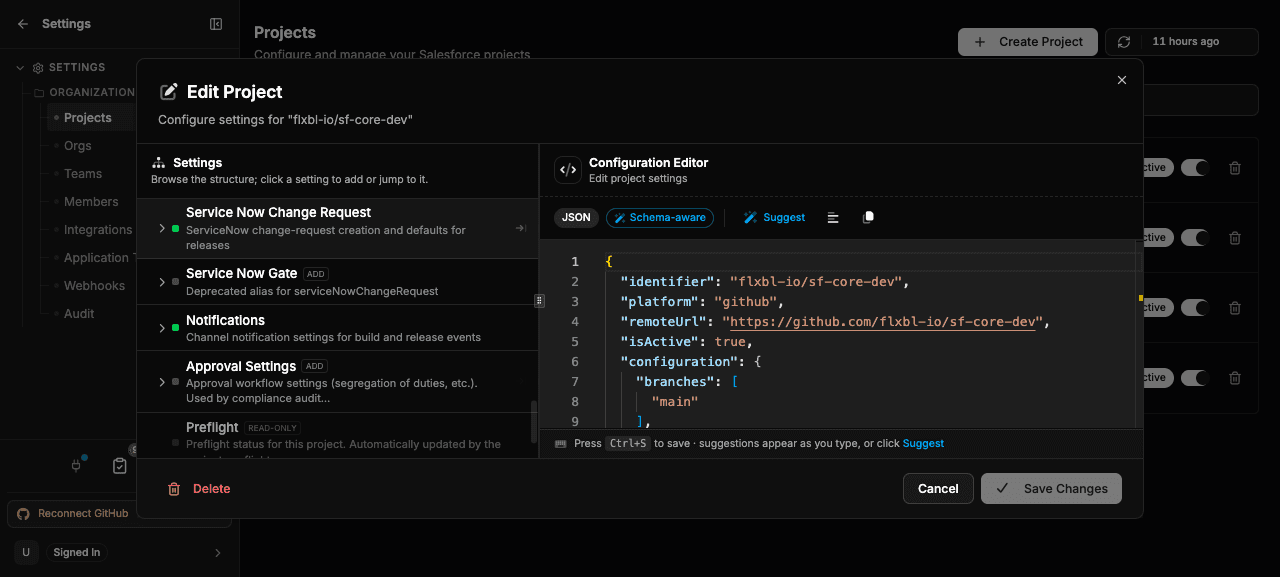
These settings live in your project configuration. Open your project's settings and edit the configuration — the settings are part of the same JSON document that holds the rest of your project's behavior.
Which environments require approval
By default, every release to an environment requires a human approval. You do not have to configure anything to get this behavior.
To change it for a specific environment, set a gate policy under releaseApprovalGates:
{
  "releaseApprovalGates": {
    "environments": {
      "staging": { "gates": [] },
      "production": { "gates": ["human"] }
    }
  }
}
Each environment's gates list decides what must approve a release to it:
gates value | Meaning |
|---|---|
| omitted / environment not listed | The default — a human approval is required. |
["human"] | A human approval is required. |
["servicenow"] | A ServiceNow change request must be approved — see ServiceNow release gating. No human approval. |
["human", "servicenow"] | Both — a human approves in codev and the ServiceNow change request must be approved. |
["human", "manual-steps"] | A human approves, and the release then waits until the environment's outstanding manual pre-deployment steps are completed — see Gating releases on pre-deployment steps. manual-steps combines with either of the other gates. |
[] | No gate — releases to this environment deploy without approval. |
Only the environments you list are affected; every other environment keeps the default human approval.
Manual deployment steps
Adding manual-steps to an environment's gates makes a release to that environment wait, after its approval, until every pre-deployment step that applies to the release has been completed in that environment. How long it waits and how often it rechecks are set per environment with manualSteps:
{
  "releaseApprovalGates": {
    "environments": {
      "production": {
        "gates": ["human", "manual-steps"],
        "manualSteps": { "timeoutHours": 72, "pollIntervalMinutes": 10 }
      }
    }
  }
}
timeoutHours accepts 1 to 90 (default 72) and pollIntervalMinutes accepts 1 to 60 (default 10). The same values are editable in codev under Workflow Settings on an environment's Pre/Post Steps. Declaring, completing and reviewing steps is covered in Deployment Steps.
Who can approve
By default — when nothing names its own approvers — the owners of a project are the approvers, and any owner can approve any request. You do not have to name anyone. Naming approvers (below) narrows this: where a specific approver list applies, only those people can approve, and owners who aren't on it no longer can.
An approver does not have to be an owner. You can let a member — a release manager, a QA lead — approve without giving them owner permissions over the rest of the project.
Set up a non-owner approver
Making someone who is not an owner an approver takes two steps: add them to the organization, then name them where the approval happens.
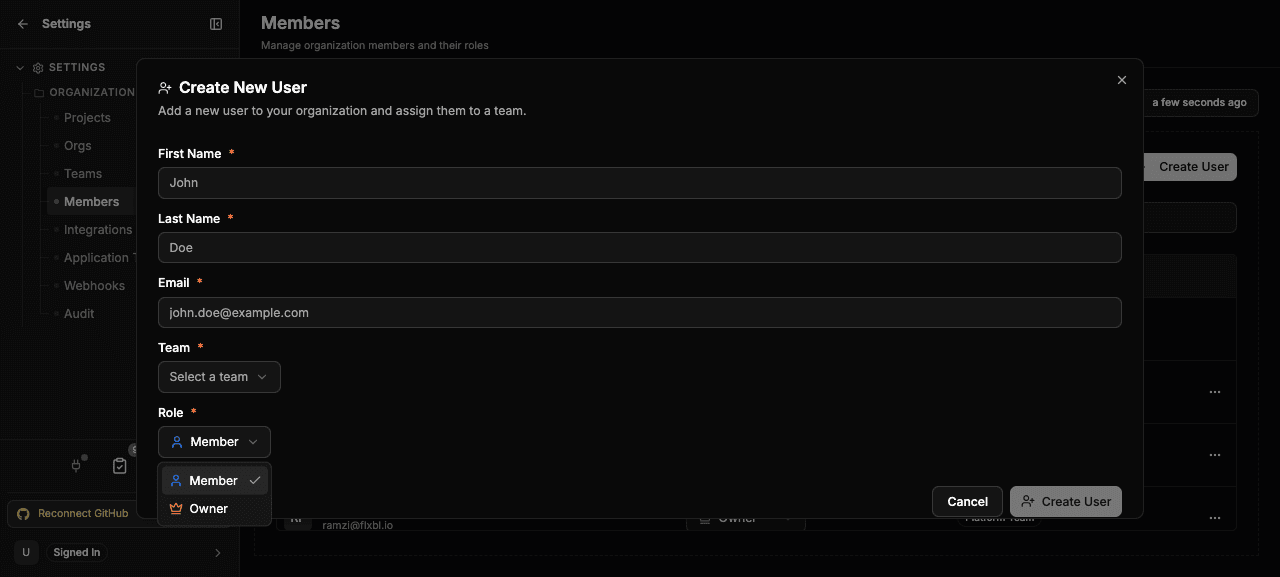
1. Add the person to the organization. Go to Settings > Organization > Members and add them with the Member role (not Owner). You will enter their first name, last name, email, and team. This gives them a codev sign-in and lets them see the requests they can act on; it does not give them owner permissions.
2. Name them as an approver. Use the email they were added with:
- For releases, add the email to the environment's
humanApprovers.users— see Add a person as an approver for an environment below. - For operational requests (elevated access, sandboxes, package install, sync), add the email to
approvalSettings.operationalApprovers.users— see Approvers for operational requests.
Once named, they can approve from the Pending Approvals list after signing in, or by commenting /codev approve in the source thread (their source-control identity's email must match the one you named). The email you name in humanApprovers.users must be the same email the person is registered with, or codev will not recognize them as an approver.
Add a person as an approver for an environment
To let a specific person approve releases to an environment — without making them an owner — list their email under that environment's humanApprovers:
{
  "releaseApprovalGates": {
    "environments": {
      "production": {
        "gates": ["human"],
        "humanApprovers": { "users": ["release.manager@example.com"] }
      }
    }
  }
}- Open your project's settings and edit the configuration.
- Under
releaseApprovalGates.environments, find the environment (add it if it isn't there) and make suregatesincludes"human". - Add the person's email to
humanApprovers.users. Add more emails to the list to allow more people. - Save.
From then on, the people in users are the only ones who can approve a release to that environment — in codev or from the source thread. Add a second environment block to give production and staging different approvers. Omit humanApprovers for an environment to fall back to the project's owners.
humanApprovers also accepts a requiredApprovals count. It is reserved for a future multi-approver policy and is not yet enforced — today a single authorized approval resolves the gate.
Approvers for operational requests
Releases are approved per environment, as above. The other approval-gated actions — requesting elevated access, creating, deleting, or refreshing a sandbox, installing packages, and syncing — are approved by the project's owners by default. To name explicit approvers for these, set approvalSettings.operationalApprovers.users:
{
  "approvalSettings": {
    "operationalApprovers": {
      "users": ["ops.approver@example.com", "owner@example.com"]
    }
  }
}
When set, this list is authoritative for every operational request: only the listed people can approve, they do not have to be owners, and an owner who isn't listed no longer can. Include any owner emails that should still be able to approve. Omit operationalApprovers to fall back to the project's owners. Separation of duties still applies — a listed approver cannot approve a request they submitted.
This is a single list for the project's operational gates, unlike releases, which set approvers per environment.
How long a request waits
An approval that nobody resolves expires and the action does not run. The default window is 60 hours. Set your own default with approvalSettings.defaultTimeoutHours (between 1 and 168 hours):
{
  "approvalSettings": {
    "defaultTimeoutHours": 24
  }
}
ServiceNow gates use a separate, longer window configured with the integration — see ServiceNow change requests.
Separation of duties
By default, the person who requested a release can also approve it. To require that the requester and the approver are different people, enable segregation of duties:
{
  "approvalSettings": {
    "requireSegregationOfDuties": true
  }
}
With this enabled, an attempt to approve a request you submitted is rejected — a different authorized approver must resolve it. This satisfies the SOX Section 404 control that the person who requests a change cannot also approve it.
Releases triggered by automation (a CI token, for example) are exempt, because there is no person to compare against. The check is enforced on the server, so it applies whether the approval is resolved in codev or from a source control comment.
Segregation of duties fails closed. If codev cannot read the project configuration when someone tries to approve, the approval is denied until the configuration is available again, rather than allowed through unchecked.
Related
- Approvals — where approvals appear and how to resolve them
- ServiceNow release gating — gate a release on a ServiceNow change request
- Gating releases on pre-deployment steps — hold a release until its manual steps are completed in the environment
- Audit trail — the record of every approval decision